

See how your team handles WhatsApp calls (Voice Call Analytics)
Voice Call Analytics, WhatsApp calling analytics, call analytics, missed calls, answer rate, call wait timeVoice Call Analytics shows how your support team handles WhatsApp calls with customers. To open it, go to Settings → Voice Call Analytics, then pick a date range.
Top numbers
Section titled “Top numbers”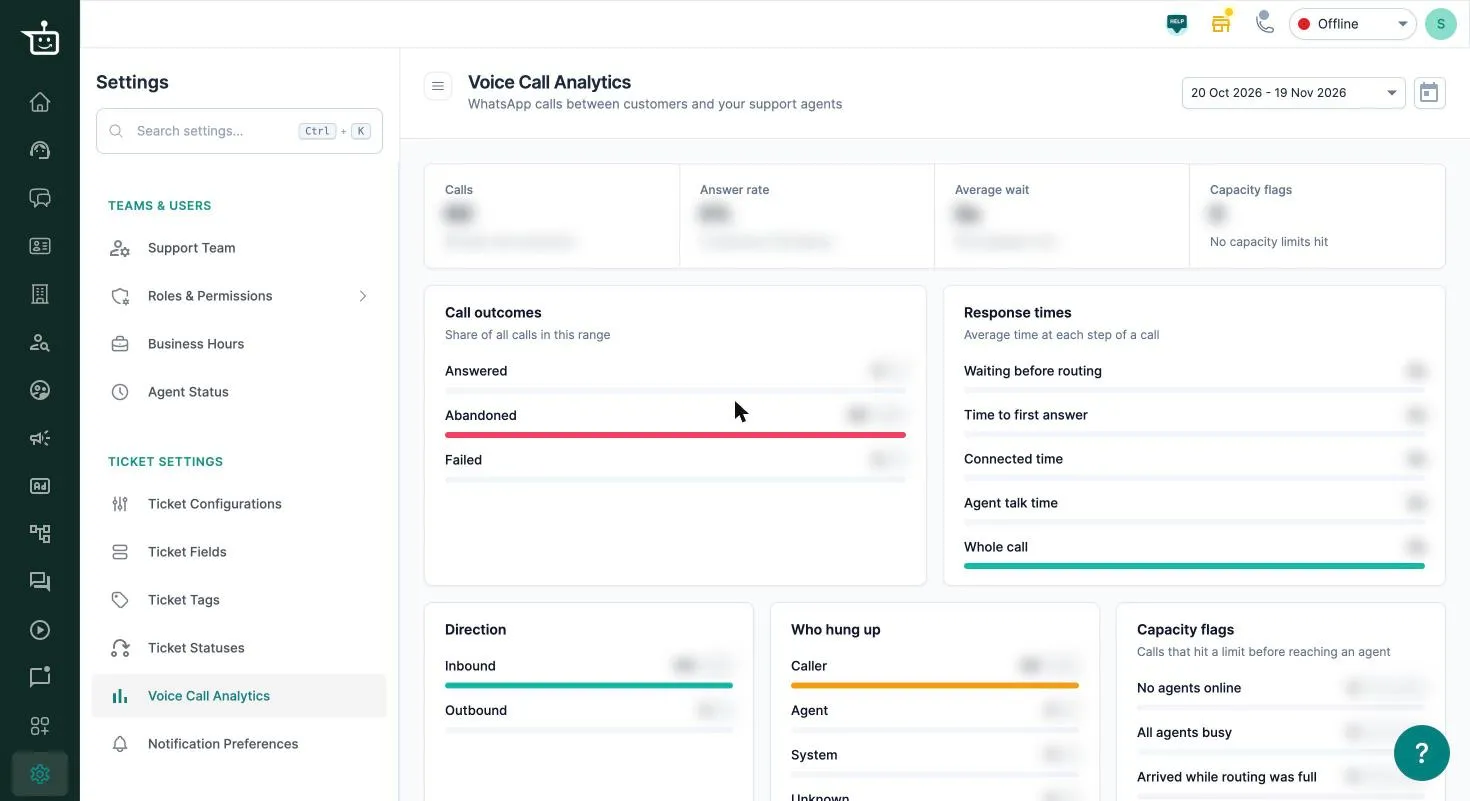
| Metric | What it shows |
|---|---|
| Calls | Total calls, and how many have a call summary |
| Answer rate | Answered calls ÷ all calls, with answered and missed counts |
| Average wait | How long customers waited before an agent first answered |
| Capacity flags | Calls that came in when your team couldn’t take them |
Charts
Section titled “Charts”- Call outcomes: answered, abandoned (the customer hung up first) and failed.
- Response times: waiting before routing, time to first answer, connected time, agent talk time and the whole call.
- Direction: inbound and outbound calls.
- Who hung up: the caller, the agent, the system, or unknown.
- Capacity flags: calls that arrived when no agents were online, when all agents were busy, or while routing was full.
If capacity flags keep showing up, add agents at busy times or adjust your business hours.
This page covers WhatsApp calls with your support team. For AI Voice campaigns, see Track your campaign results.
Related
Section titled “Related”Was this page helpful?
Thanks, this helps us improve this page.
Still stuck? Email support@businessonbot.com