

Set up an AI Voice campaign
Beta: ask your CSM to enable it
AI voice, voice campaign, AI calling, Kavya, voice agent, outbound callsAn AI Voice campaign calls a list of your customers with an AI caller (by default named Kavya). Kavya explains why you are calling, answers questions from the facts you give her, and sends interested customers a WhatsApp message with your offer right after the call.
Create the campaign
Section titled “Create the campaign”-
Go to Campaigns → New Campaign and choose AI Voice as the channel.
-
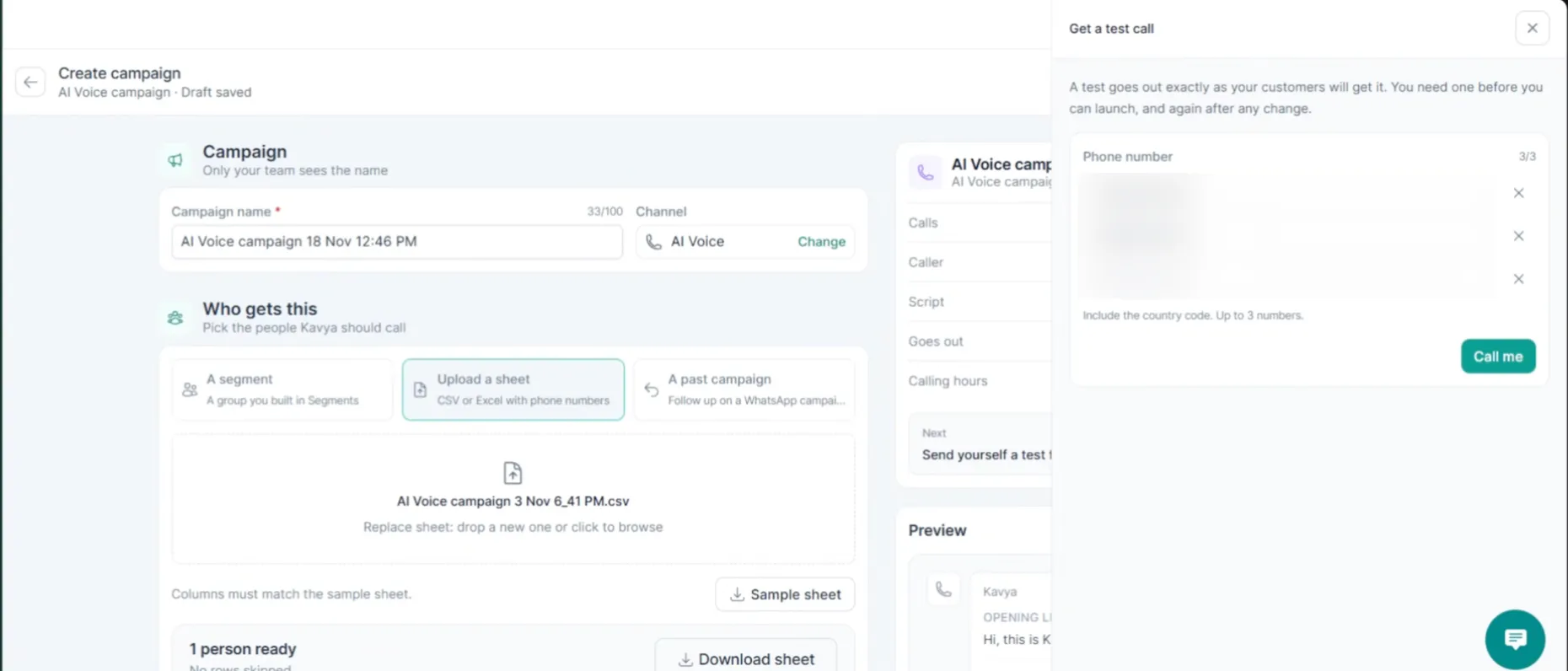
Under Who gets this, pick A segment, Upload a sheet or A past campaign. If you upload a sheet, its columns must match the Sample sheet.
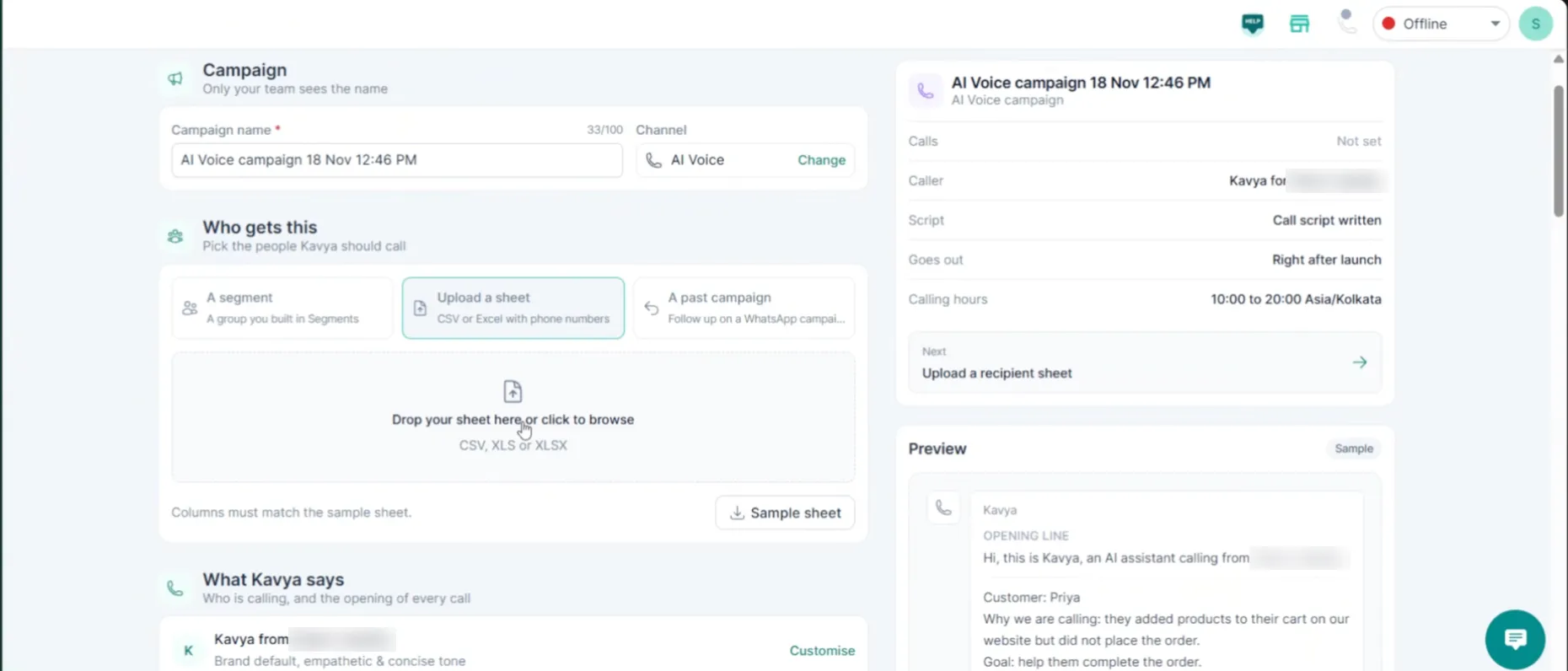
The summary on the right shows the caller, script status, when calls go out (right after launch) and the calling hours. Calls go out between 10:00 and 20:00 (India time) by default, and you can change these hours for your campaign.
Set up what Kavya says
Section titled “Set up what Kavya says”-
Under What Kavya says, check the opening line. It uses
{{agent_name}}and{{brand_name}}, filled in automatically.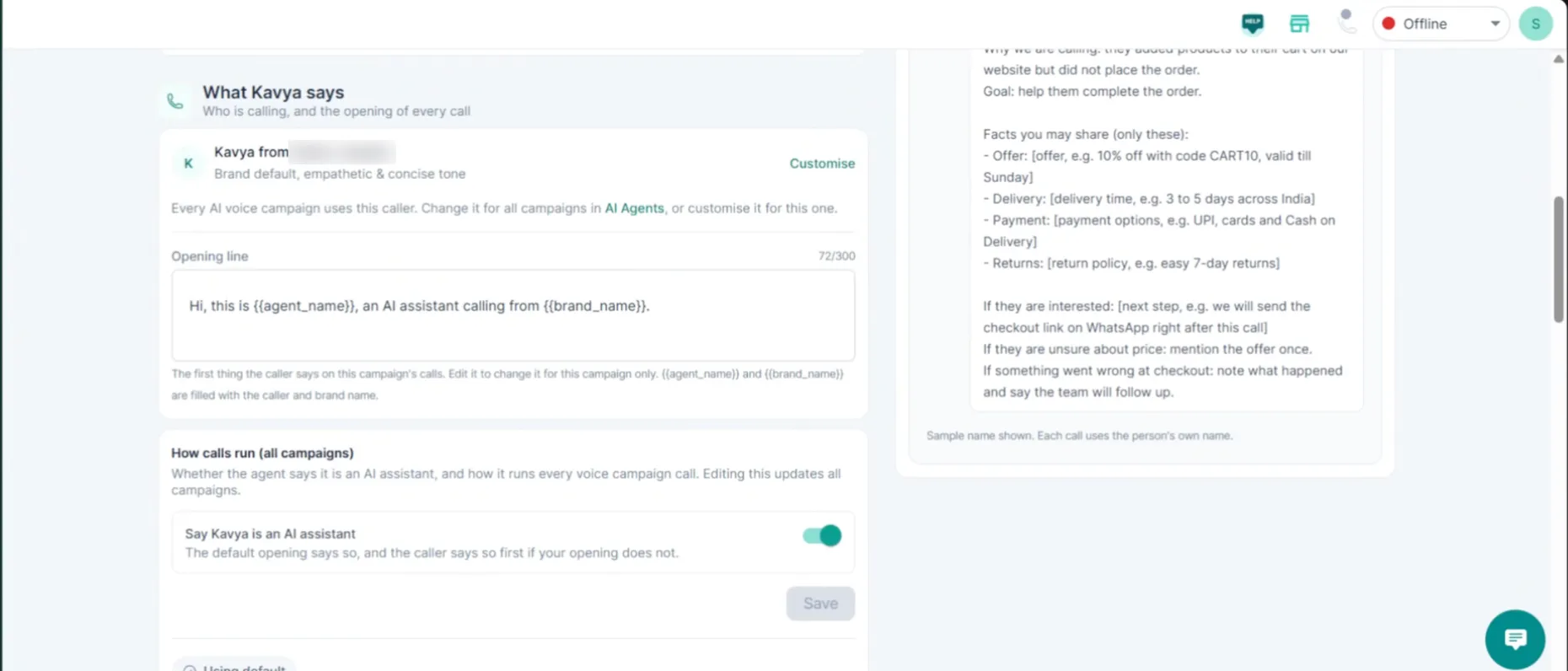
-
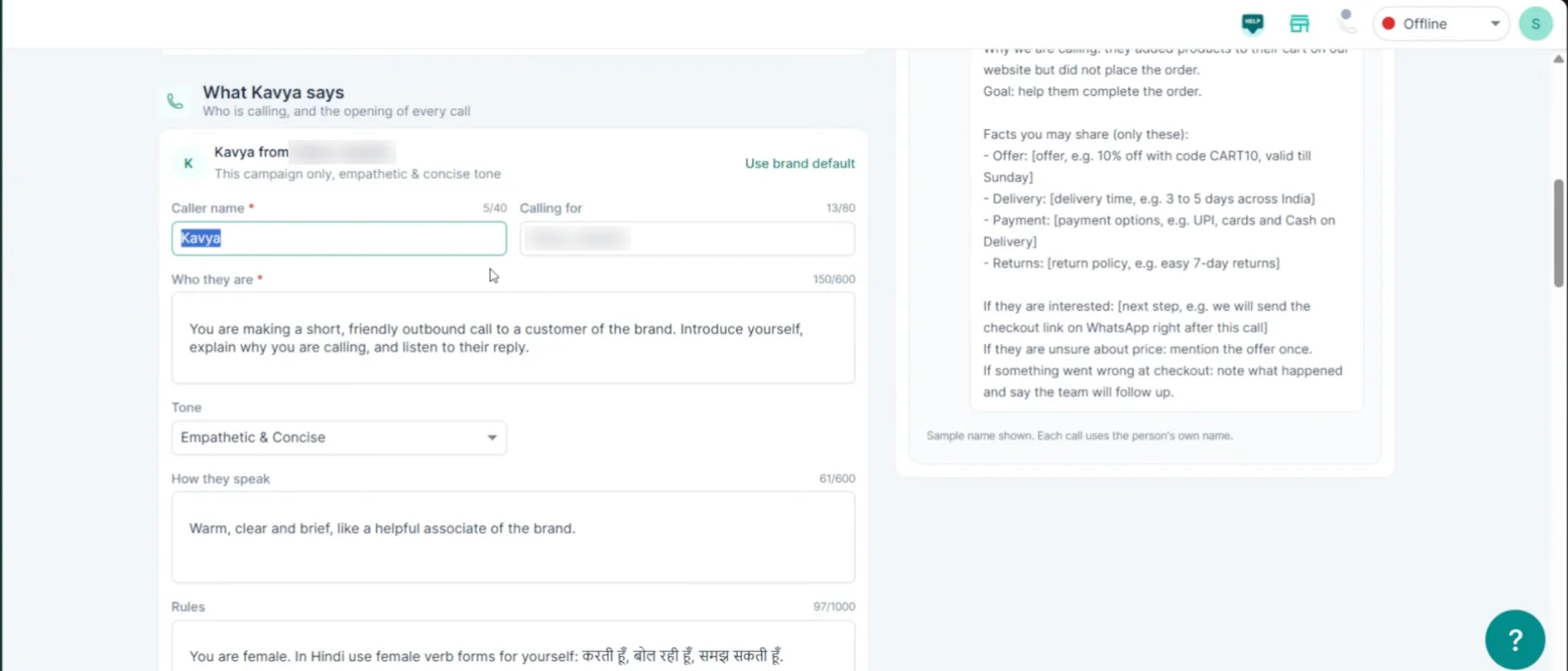
Click Customise to change the caller’s name, tone and speaking style.
-
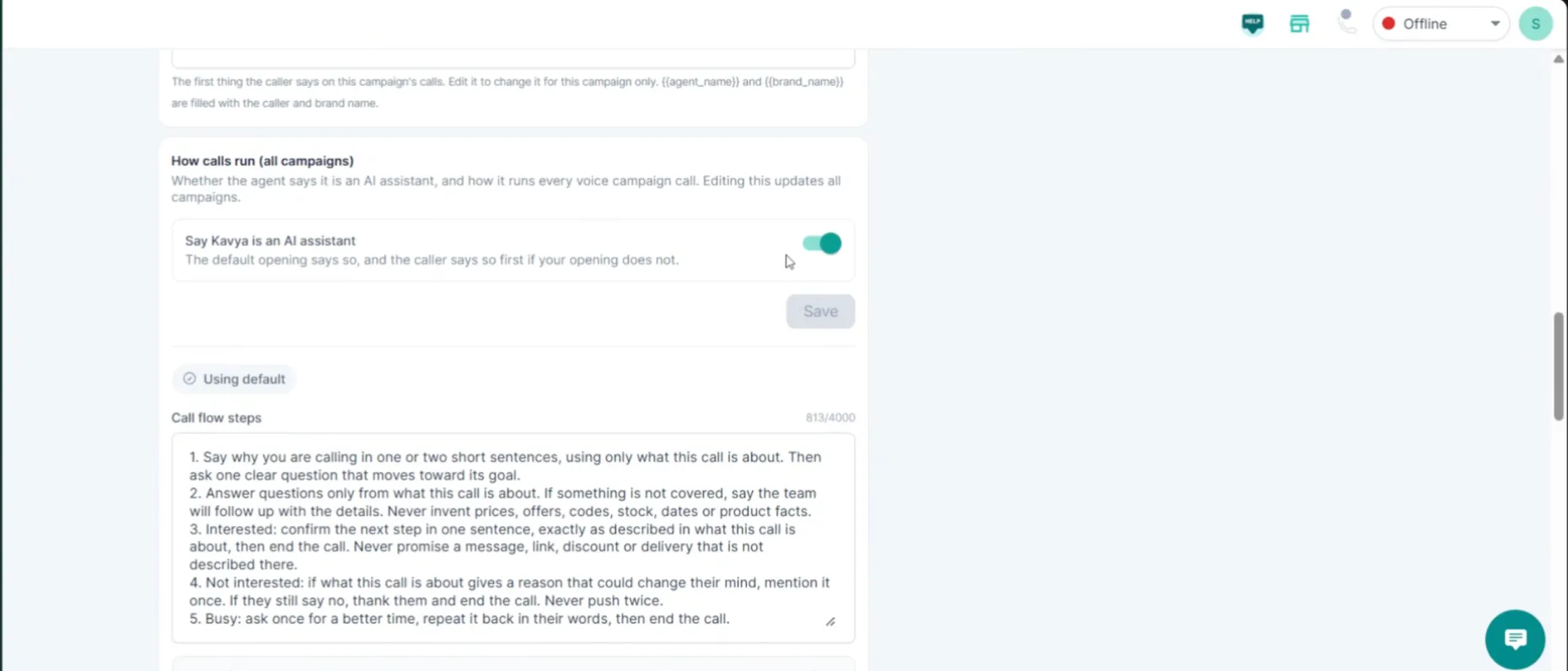
Keep Say Kavya is an AI assistant turned on. Kavya then confirms she is an AI if a customer asks directly. She does not announce it unprompted.
-
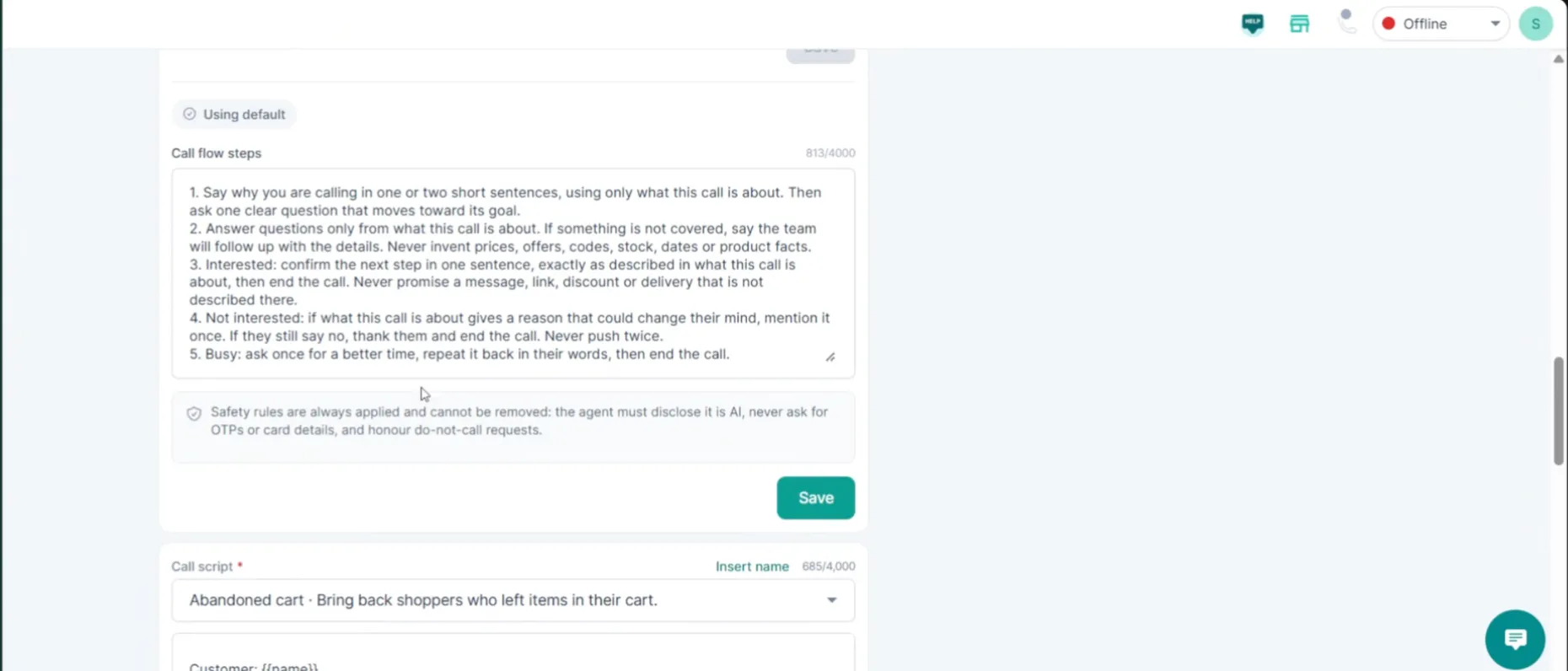
Keep the default call flow. Kavya briefly explains the purpose of the call, answers only from your campaign information, confirms next steps with interested customers, mentions a reason once to uninterested ones, and offers one callback time to busy ones. Built-in safety rules: she always says she is an AI, never asks for OTPs or card details, and honours do-not-call requests.
Choose and fill the script
Section titled “Choose and fill the script”-
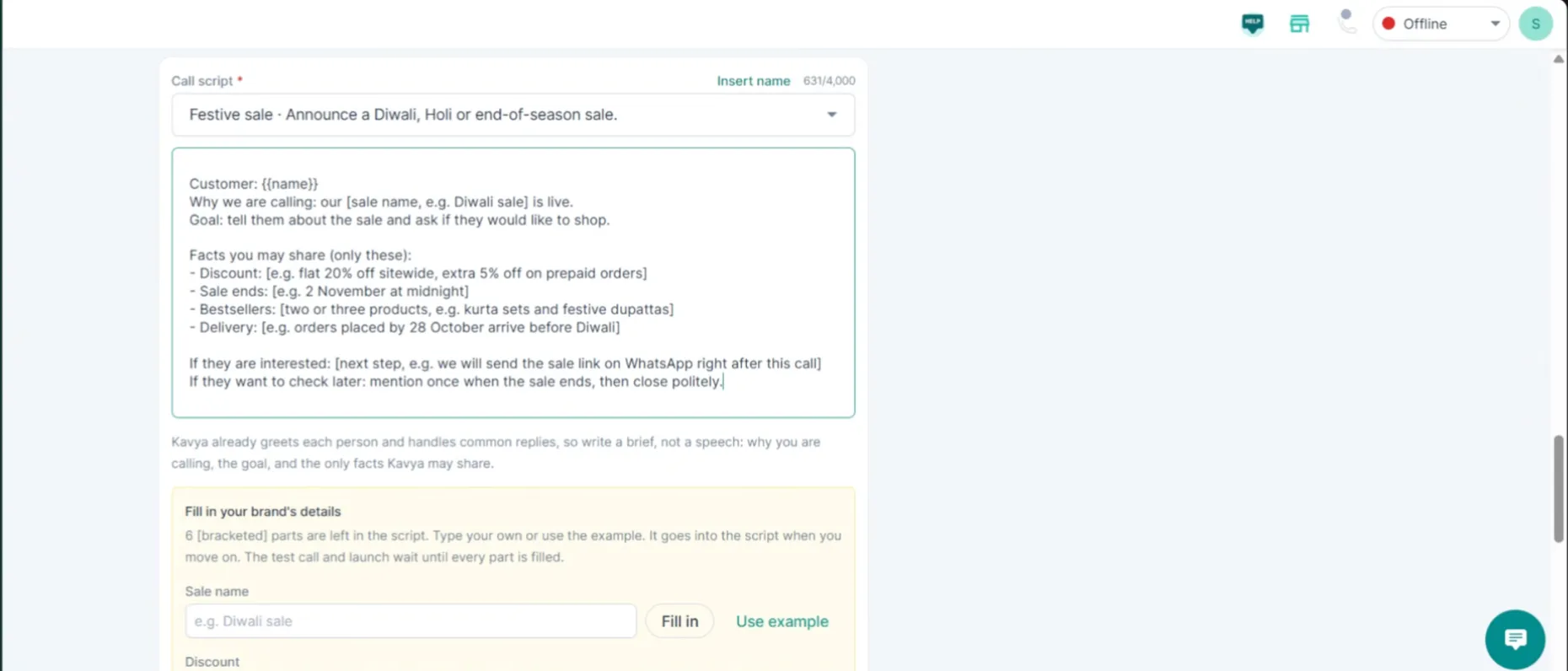
Pick a ready-made script, for example Abandoned cart or Festive sale, or write your own.
-
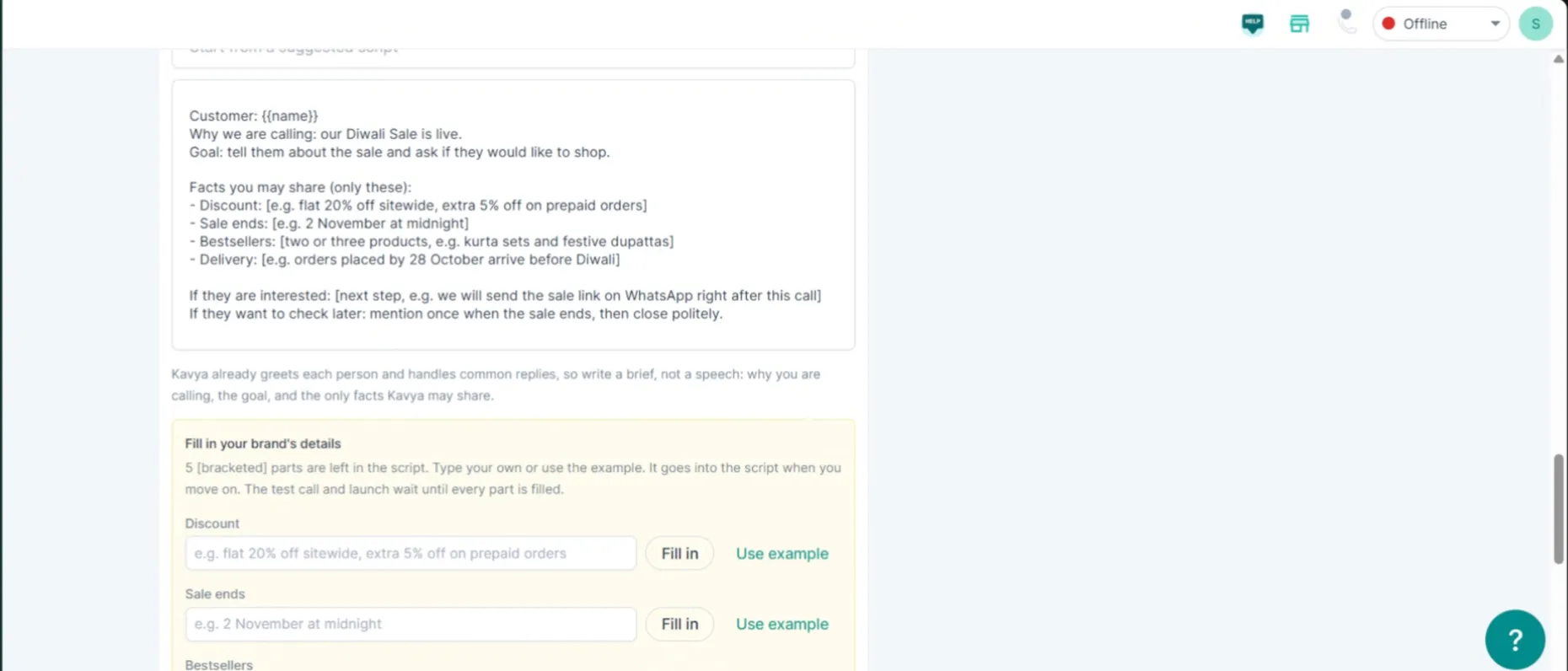
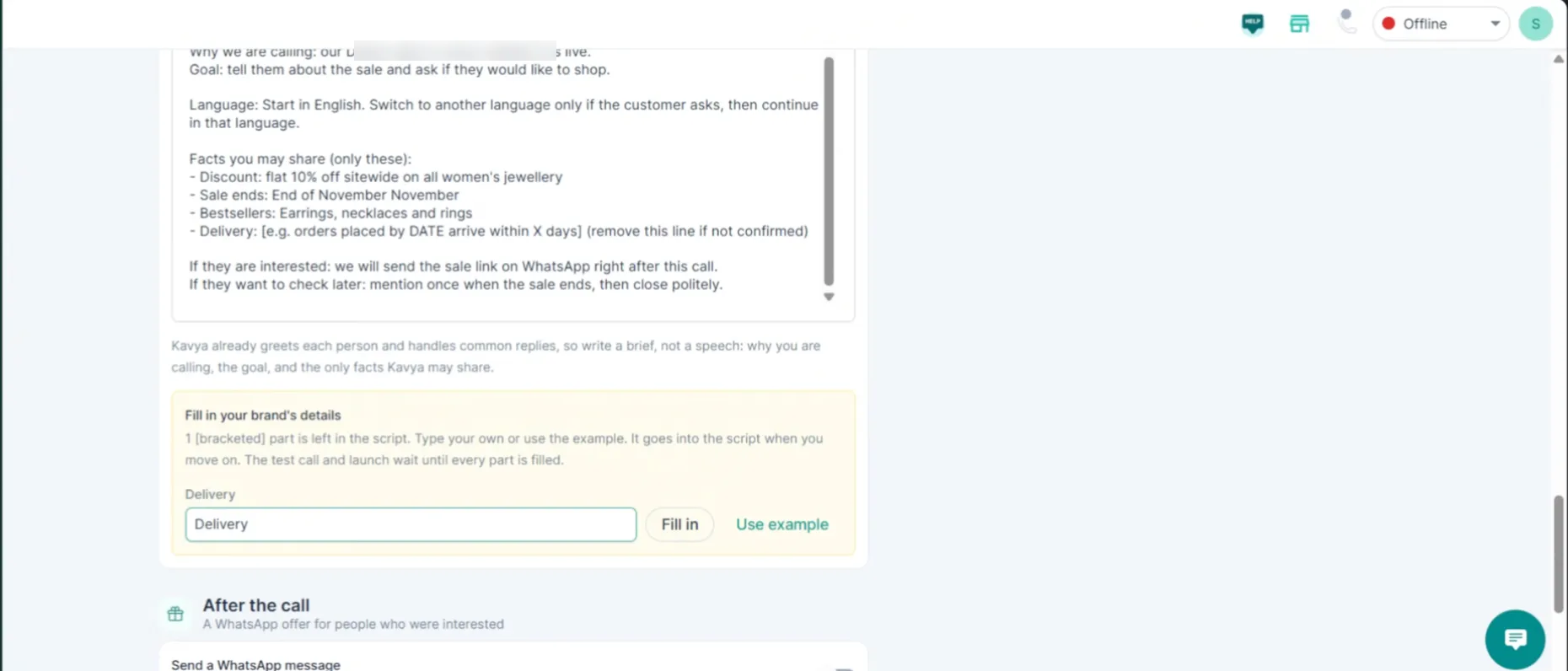
Fill every bracketed part of the script, such as the discount, the sale end date, your bestsellers and delivery times. Type the value and press Enter; the brackets disappear. You cannot test or launch while any bracketed part is empty.
Follow up on WhatsApp after the call
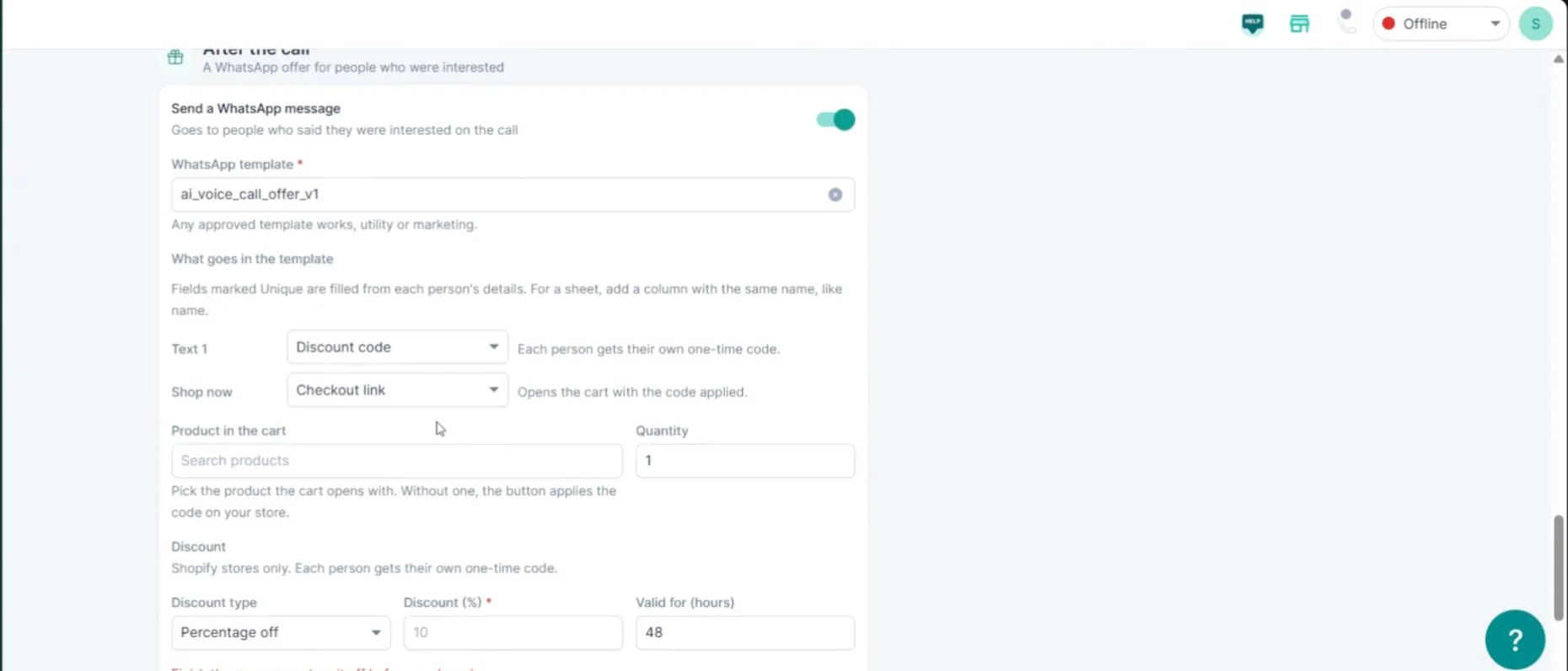
Section titled “Follow up on WhatsApp after the call”Turn on the post-call message to send a WhatsApp template to customers who say they are interested. Map the template’s fields: for example, the discount code and the Shop now checkout link. For example, a 10% discount code valid for 48 hours.
Test before you launch
Section titled “Test before you launch”Under Get a test call, add up to 3 phone numbers with the country code and click Call me. A test goes out exactly as your customers will get it. You need one before you can launch, and again after any change.
Was this page helpful?
Thanks, this helps us improve this page.
Still stuck? Email support@businessonbot.com