

Set up COD confirmation messages
COD Confirmation, COD, cash on delivery, COD to prepaid, RTO, COD verification, Agent ChatWhen you finish, every cash on delivery (COD) order gets a WhatsApp message asking the customer to confirm it, with the option to pay now and get a discount instead.
Set up the first message (ping 1)
Section titled “Set up the first message (ping 1)”-
Go to Notification → COD Confirmation and open the Settings tab.
-
Turn on the toggle to enable the notification. Ping 1 and Ping 2 appear. Each ping is a reminder sent at a different time.
-
Under Ping 1, select your approved template.
-
Map each body variable from its dropdown. For the default template:
- Variable 1: First Name, Last Name or Full Name
- Variable 2: Order Id
- Variable 3: Amount
- Variable 4: Discount (the percentage or flat amount the customer saves by paying now)
- Variable 5: Valid For (how long the offer lasts)
-
Set the time after the order is placed when the message goes out.
If you set it to 0 hours and 0 minutes, customers get the COD confirmation message instead of the order confirmation message for COD orders.
-
Set the flow expiry time in minutes. This is the time shown in the Valid For variable. Keep it shorter than the time you take to dispatch an order, so nobody converts an order that has already shipped.
-
If you have a payment gateway connected, turn on Send payment link.
-
Set the discount as a percentage or an amount, and enter the value. If you don’t offer a discount, enter
0. -
Click Save.
-
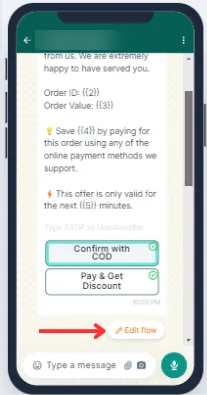
In the mobile preview, click Edit flow (or Assign flow) and choose a flow for each quick reply button (see button flows below). Click Save.
Add a second message and a payment reminder
Section titled “Add a second message and a payment reminder”-
Set up Ping 2 the same way as ping 1, then click Save.
-
To remind customers who asked for a payment link but have not paid, turn on the payment reminder toggle.
-
Set when the reminder goes out and edit the reminder text if you like.
-
Click Save.
In both pings, the send time must be shorter than the flow expiry time.
Choose what each button does
Section titled “Choose what each button does”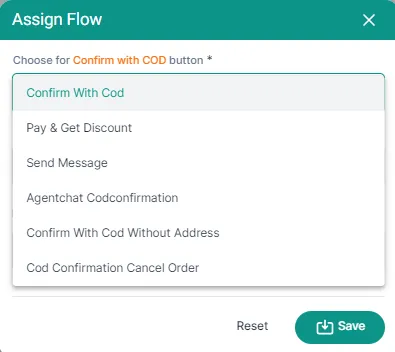
| Flow | What happens when the customer taps the button |
|---|---|
| Confirm With Cod | The customer re-confirms their shipping address and gets a thank-you message. A tag is added to the Shopify order when they confirm the order, confirm the address or change the address. |
| Pay & Get Discount | The customer gets a payment link to switch the order to prepaid and receive the discount. Needs a connected payment gateway. |
| Send Message | Sends a message you set up in advance. |
| Agentchat Codconfirmation | Hands the chat to an agent in the Support Inbox, who confirms the order with the customer. |
| Confirm With Cod Without Address | Skips the address check and sends the thank-you message straight away. |
| Cod Confirmation Cancel Order | Cancels the order. |
Template variables
Section titled “Template variables”| Variable | What it sends |
|---|---|
| First Name / Last Name / Full Name | The customer’s name |
| Constant | Fixed text you type in, the same for every customer |
| Address | The delivery address |
| Order Id | The order number |
| Amount | The order total |
| Line Items | The products in the order |
| Order Type | COD or prepaid |
| Pin code | The delivery PIN code |
| The customer’s email address | |
| Phone Number | The customer’s phone number |
| Created At | When the order was placed |
| Currency Code | The order currency |
| Valid For | How long the prepaid offer lasts |
| Discount | The discount for switching to prepaid (percentage or amount) |
| Order Status URL | A link where the customer can check the order status |
| Available Balance Points | Loyalty points the customer can redeem (e.g. 100) |
| Loyalty Points as % of order value | Points earned on this order (e.g. 10%) |
| Max Redeemable on Website purchase | Most points the customer can redeem on the website (e.g. 100) |
| Max Redeemable on WhatsApp purchase | Most points the customer can redeem on WhatsApp (e.g. 100) |
| Referral Points as % of order value | Points earned for a successful referral (e.g. 10%) |
Track results
Section titled “Track results”- Analytics tab: messages sent, orders converted from COD to prepaid, Pay now clicks, converted order value (₹), Confirm with COD clicks, address change requests, cancel clicks, orders cancelled by the bot, and orders cancelled outside the bot (by an agent or on your website). Filter by date range and by ping.
- Message Logs tab: each message with the order, customer, payment link status, whether the order was converted, confirmed, changed or cancelled, and the message status. Click the eye icon to see the message. Search by name, order ID or phone number, or download the logs as an Excel sheet.
Good to know
Section titled “Good to know”- When a customer switches to prepaid, the order is updated only in Shopify or WooCommerce, not with your logistics partner.
- There is another flow where a COD order switched to prepaid is cancelled and a new paid order is created. To turn it on, contact your BusinessOnBot point of contact.
Watch the walkthrough
Section titled “Watch the walkthrough”Related
Section titled “Related”Was this page helpful?
Thanks, this helps us improve this page.
Still stuck? Email support@businessonbot.com