

Set business hours and an away message
Business Hours, working hours, outside business hours, away message, agent unavailable message, non-working hoursWhen you finish, the Support Inbox knows when your team is working. Customers who ask for an agent outside those hours get an automatic message, and tickets aren’t routed to agents while your team is offline.
Set your working hours
Section titled “Set your working hours”-
Go to Settings → Business Hours.
-
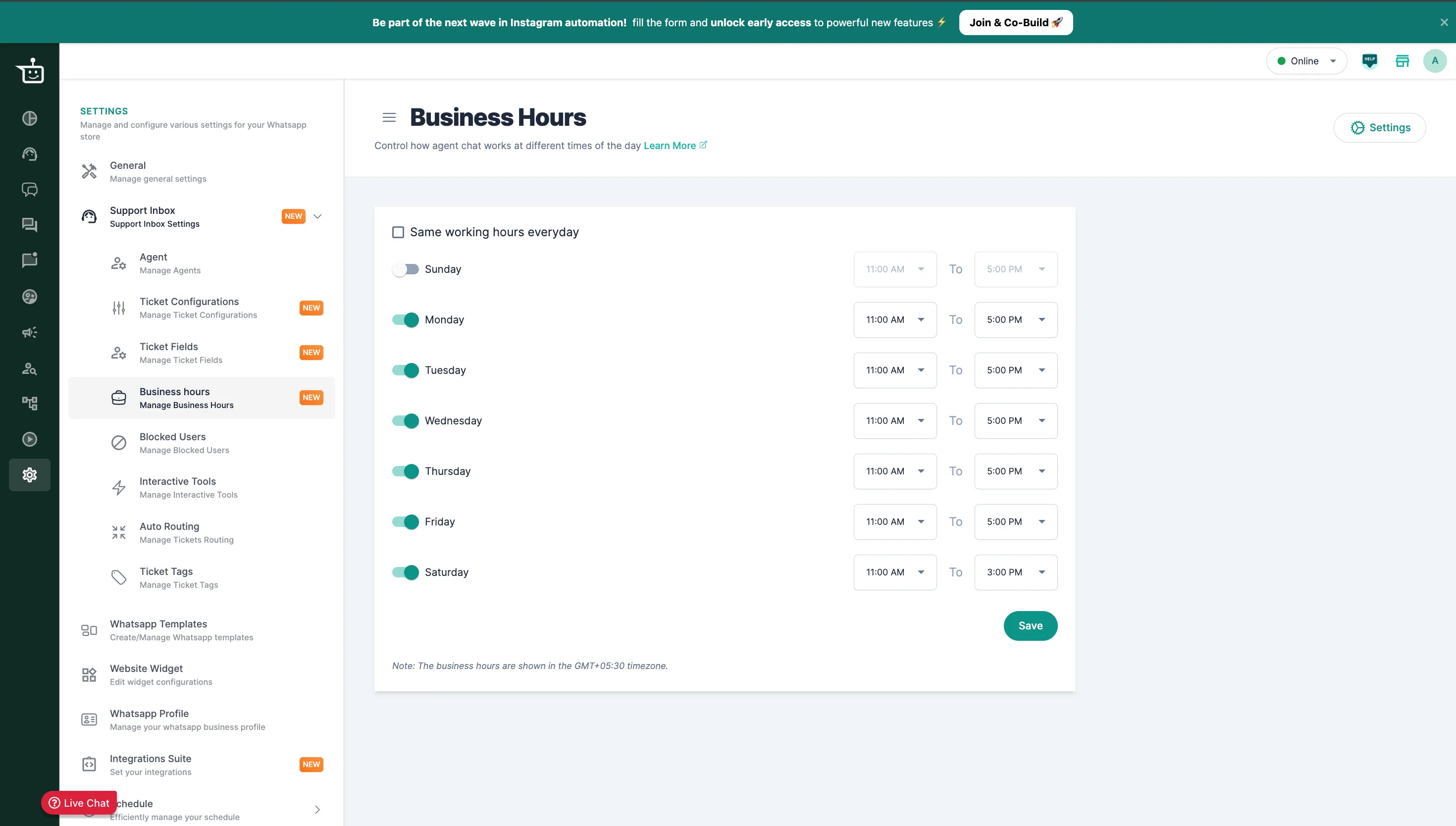
Turn on each day your support team works.
-
Choose the start and end time for each day. If every day is the same, use Same working hours everyday.
-
Click Save.
Business hour profiles
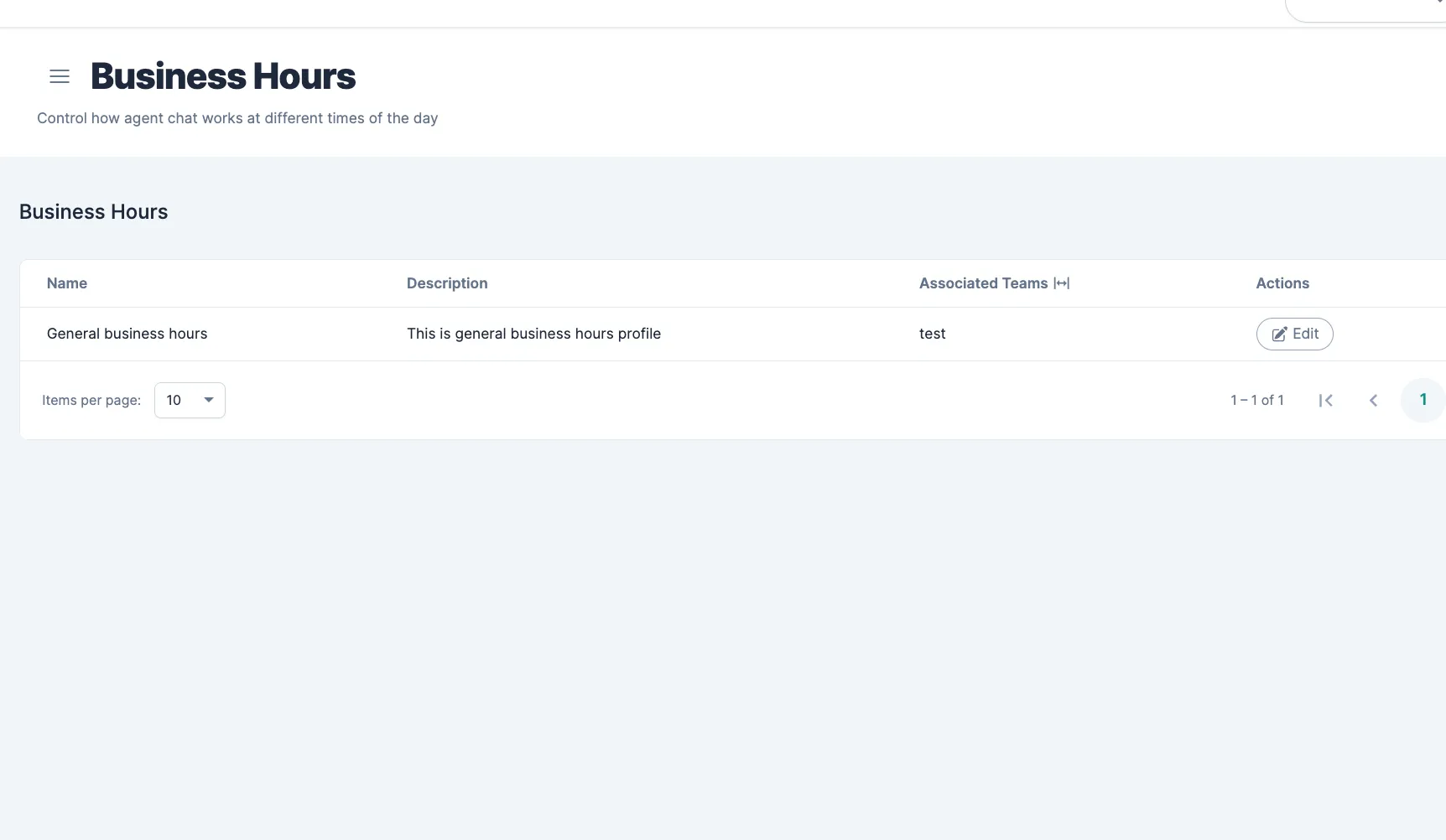
Section titled “Business hour profiles”You can create more than one set of business hours, for example General business hours for most of the team and separate hours for weekends. Each profile has a name, a description, a time zone and the teams it applies to.
-
The list shows each profile’s Name, Description and Associated Teams. Click Edit to change a profile.
-
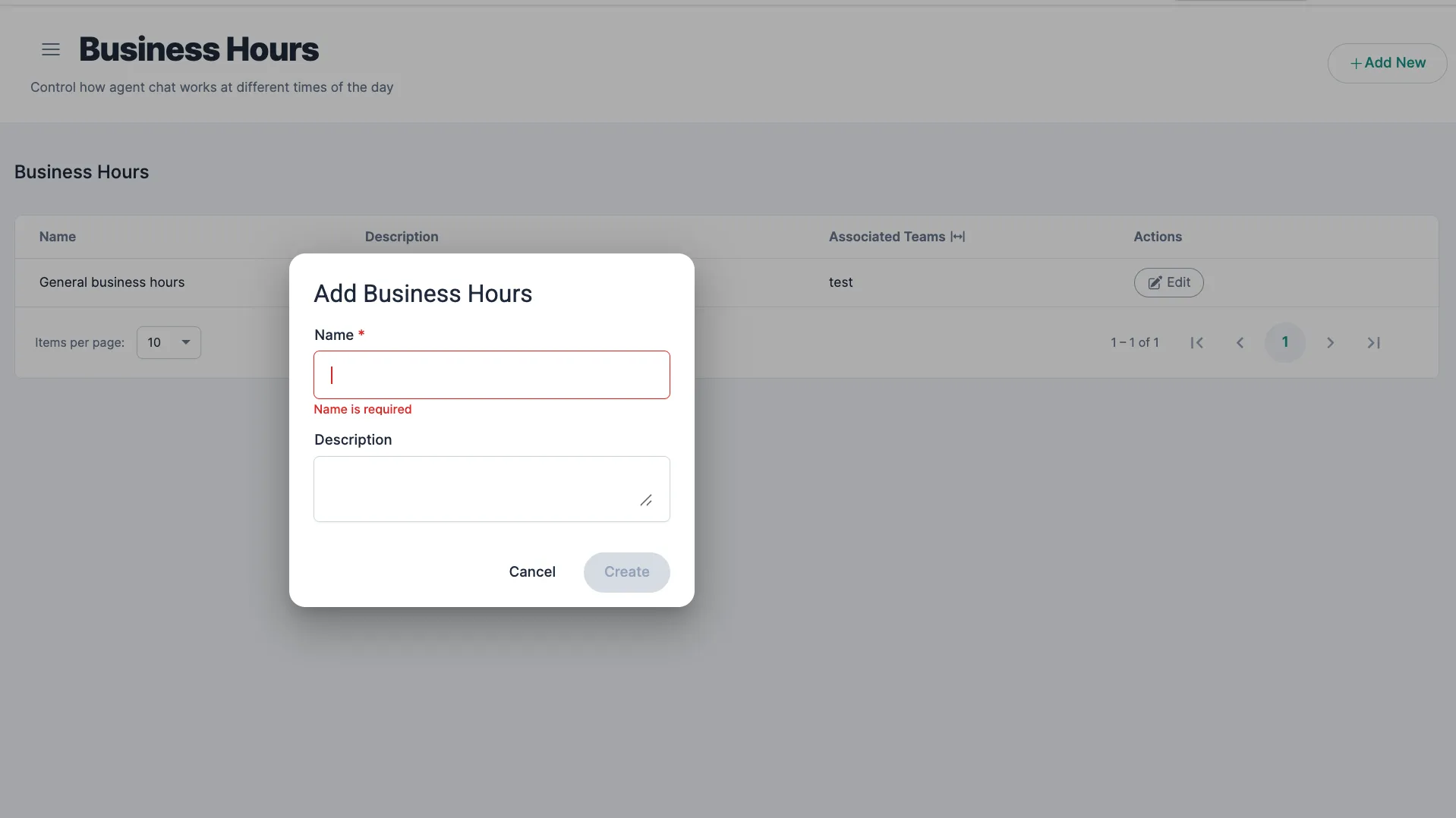
To add a profile, click + Add New, enter a Name and Description, and click Create.
Set the outside business hours message
Section titled “Set the outside business hours message”-
On the Business Hours page, click the settings icon at the top.
-
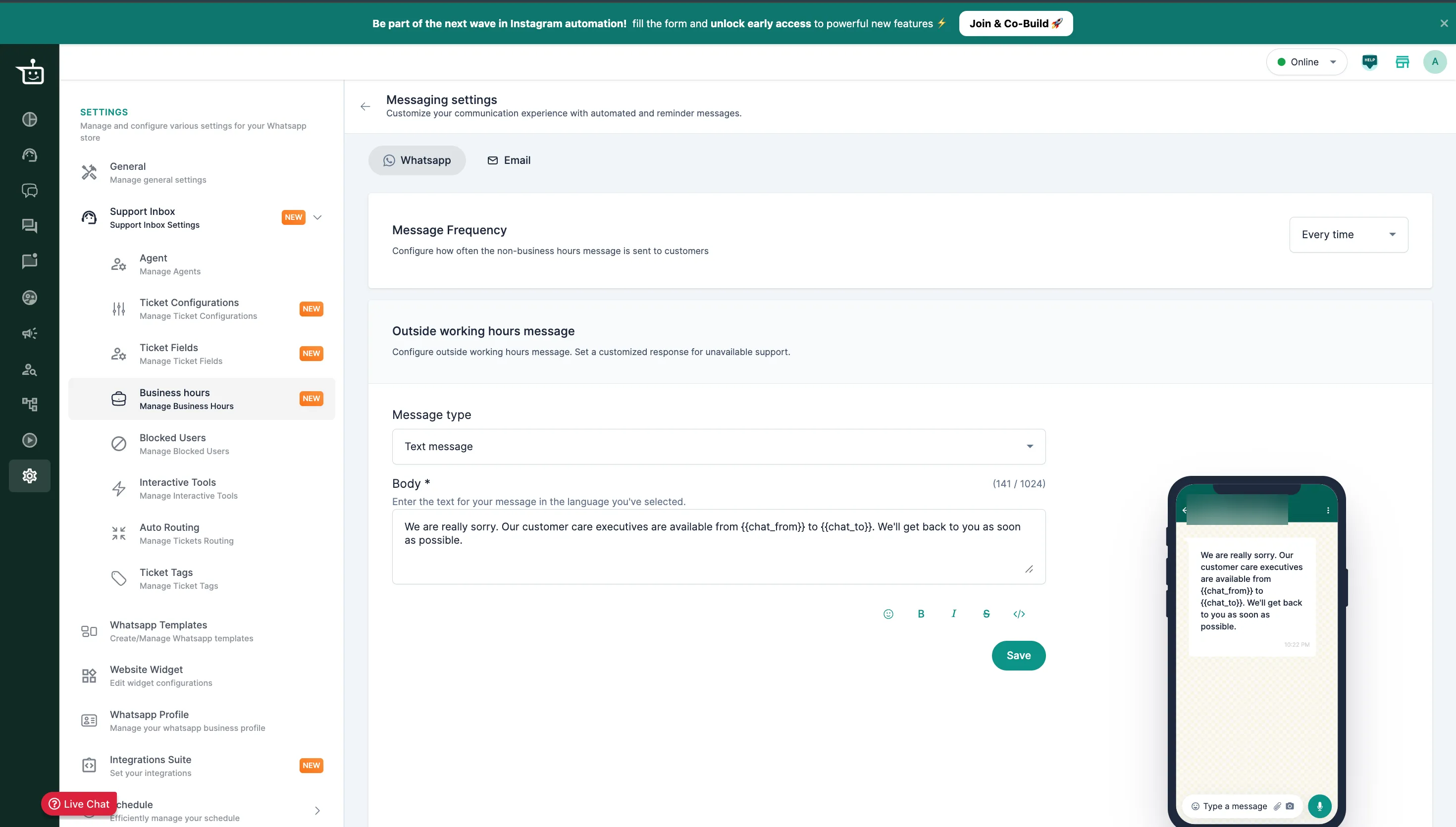
For each channel (WhatsApp, Instagram and email), write the message customers get outside your working hours. You can edit the subject and the body, and use variables to show your working hours.
-
Choose the message frequency:
- Once per ticket: the message goes out only the first time the customer asks for an agent outside business hours.
- Every time: the message goes out every time the customer asks for an agent outside business hours.
If you don’t write a message, customers get this default one:
Our support team is currently unavailable as we are outside business hours. Please reach out during our working hours for assistance. Thank you for your patience!
What happens outside business hours
Section titled “What happens outside business hours”WhatsApp and Instagram with the bot turned on
Section titled “WhatsApp and Instagram with the bot turned on”- No agent ticket is created. The chat stays a bot ticket.
- The customer gets your outside business hours message.
- The ticket gets the tags Outside_Business_Hours and Agent_Talk_Requested (the second one once per ticket, when the customer asks for an agent).
- These routes to an agent are blocked: the customer typing a request such as “talk to an agent”, the bot fallback, flows that hand over to an agent, and template messages that offer agent chat.
Email, and WhatsApp or Instagram with the bot turned off
Section titled “Email, and WhatsApp or Instagram with the bot turned off”- A ticket is created with the Outside_Business_Hours tag.
- No automatic reply is sent unless you have set one up in your email settings.
Examples
Section titled “Examples”| What happens | Result |
|---|---|
| A customer types “I need help” on WhatsApp at 9 PM, outside your hours | The bot sends your outside business hours message. No agent ticket is created. The tags Agent_Talk_Requested and Outside_Business_Hours are added. |
| An Instagram flow would hand the customer to an agent after hours | The handover is blocked and the fallback message is sent. |
| An email arrives at 10 PM | A ticket is created with the Outside_Business_Hours tag. |
| You haven’t set any business hours | The Support Inbox treats your team as available 24/7, and agent tickets are created at any time. |
Inactivity timers outside business hours
Section titled “Inactivity timers outside business hours”Admins choose how auto-close timers behave outside business hours:
- Pause Outside Hours: the timer stops while you’re closed. Best if your response targets count business hours only.
- Run Continuously: the timer runs 24/7. Best for always-on support.
Related
Section titled “Related”Was this page helpful?
Thanks, this helps us improve this page.
Still stuck? Email support@businessonbot.com