

Collect phone numbers and emails with a website pop-up
Customer Detail’s POP-UP, customer details pop-up, popup widget, pop-up, lead capture, collect phone numbers, website widget, download contactsWhen you finish, a pop-up on your website asks visitors for their phone number, email or both, and gives them a coupon code in return. You can track how the pop-up performs and download the contacts it collects.
The pop-up has two steps: step 1 asks for the visitor’s details, and step 2 shows the coupon code.
Open the pop-up editor
Section titled “Open the pop-up editor”-
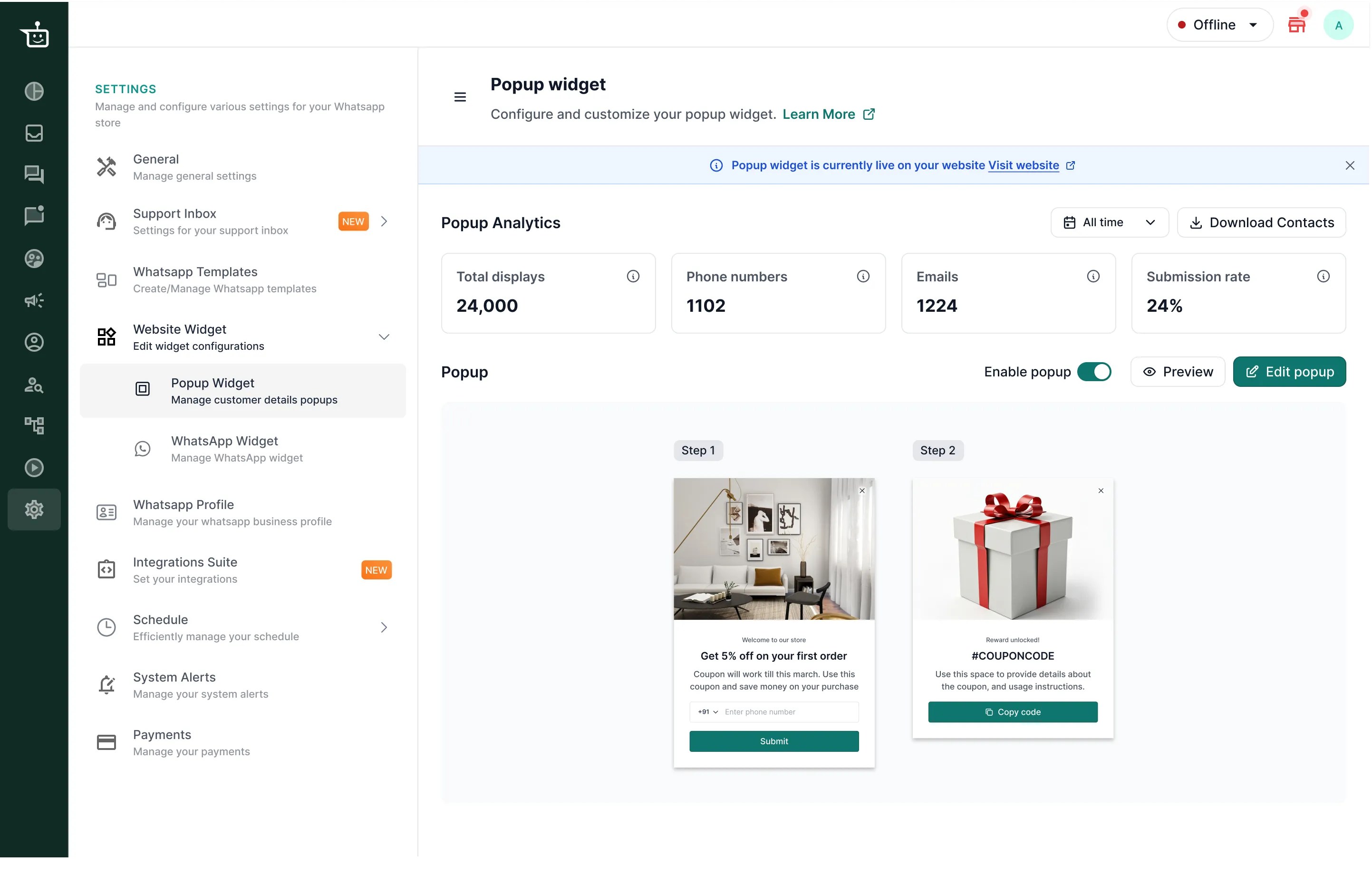
Go to Settings → Website Widget → Popup Widget.
-
Click Edit popup to start editing the preset template.
Set up step 1: ask for details
Section titled “Set up step 1: ask for details”-
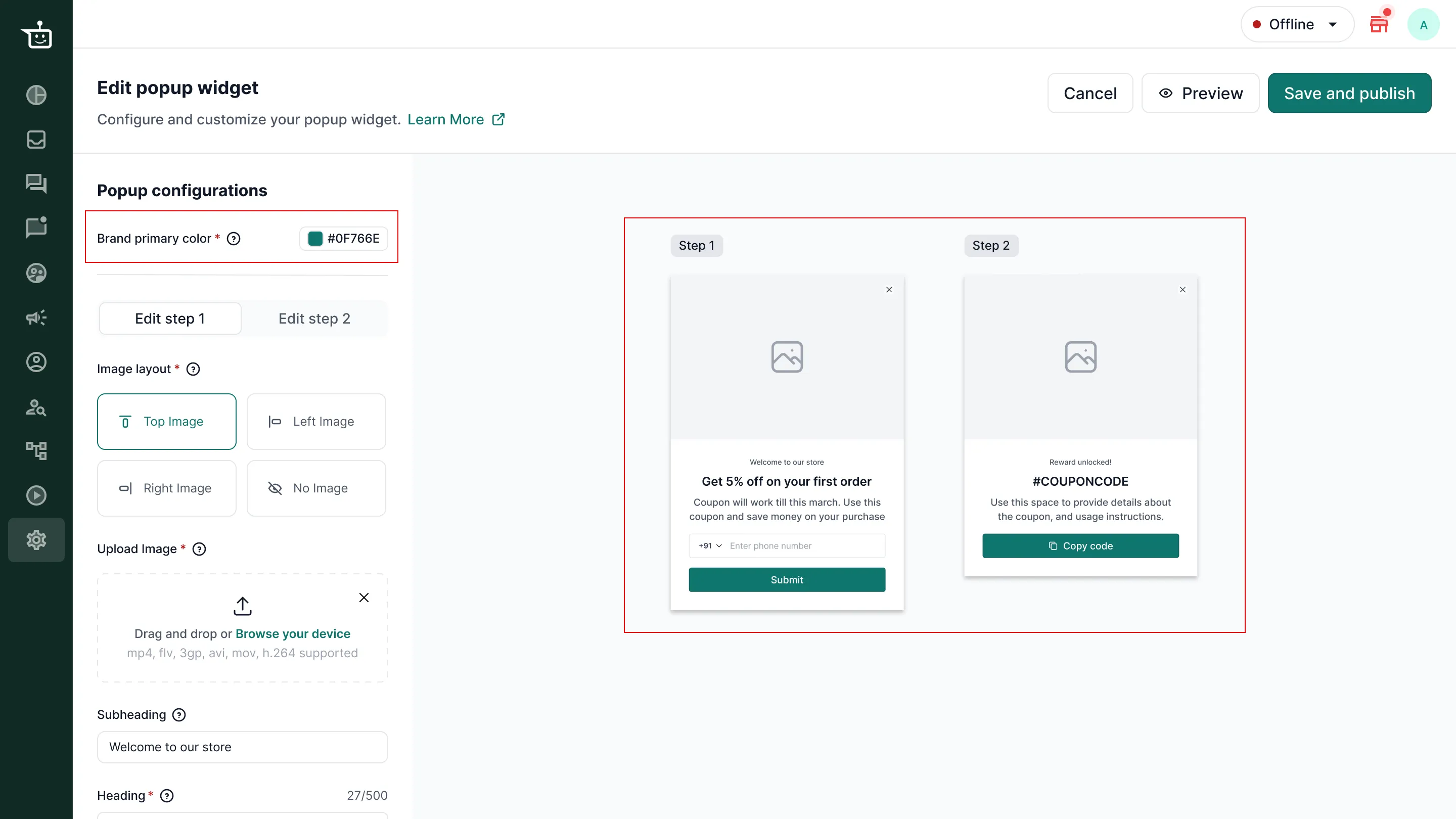
Enter your Brand primary color. It is applied across the pop-up so it matches your website.
-
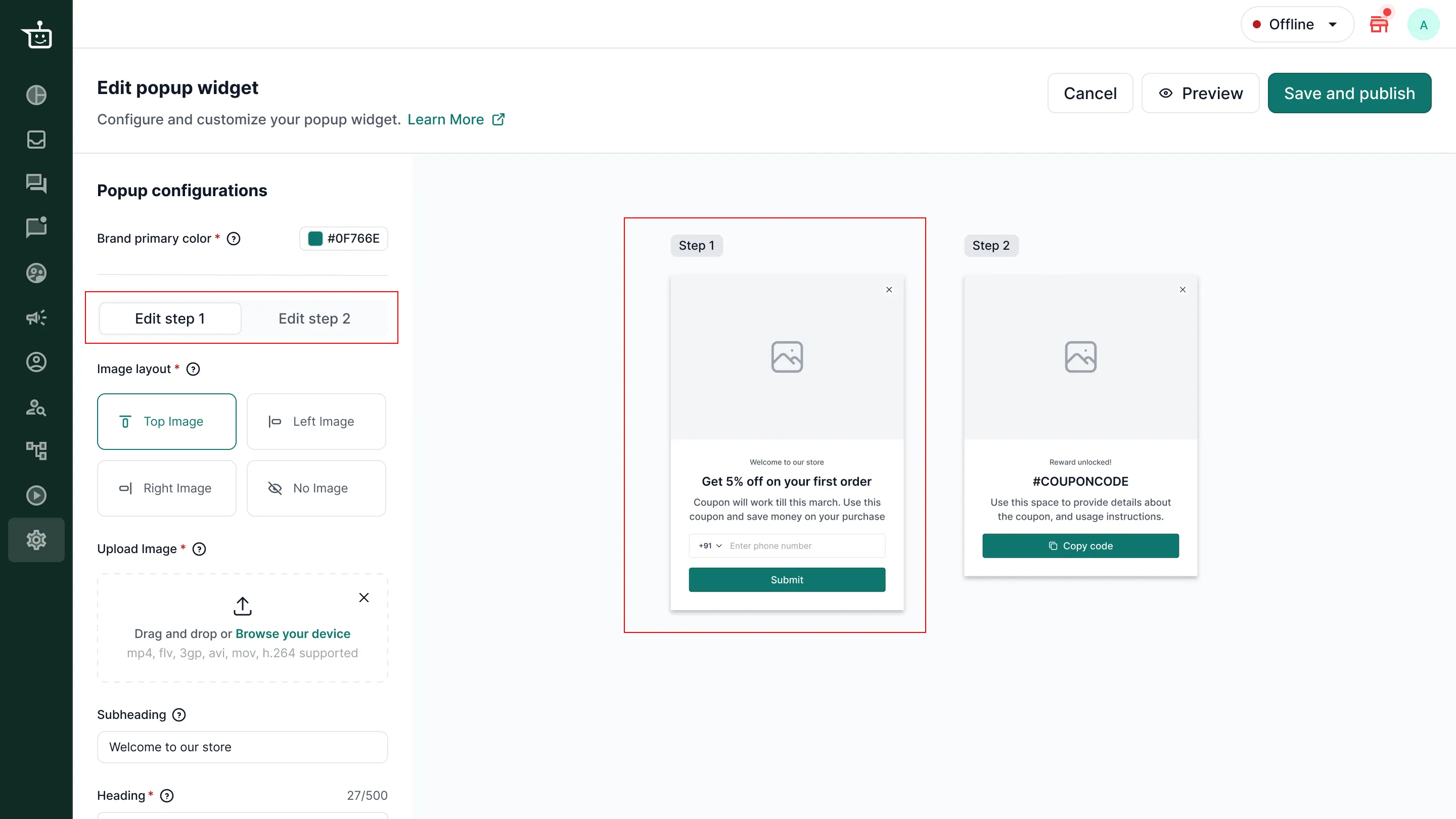
Make sure Edit step 1 is selected.
-
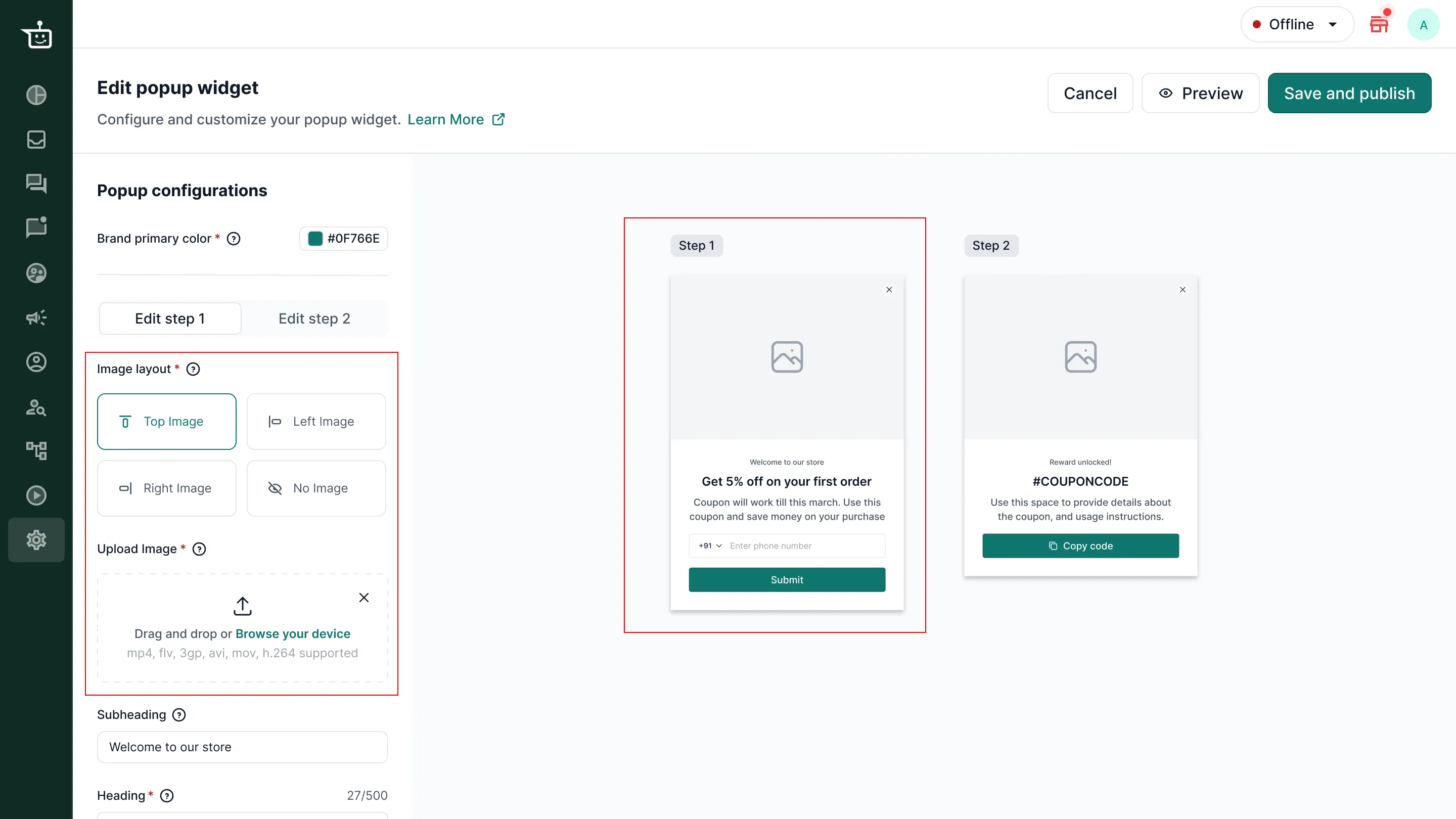
Choose an Image layout (Top Image, Left Image, Right Image or No Image) and upload your image under Upload Image.
-
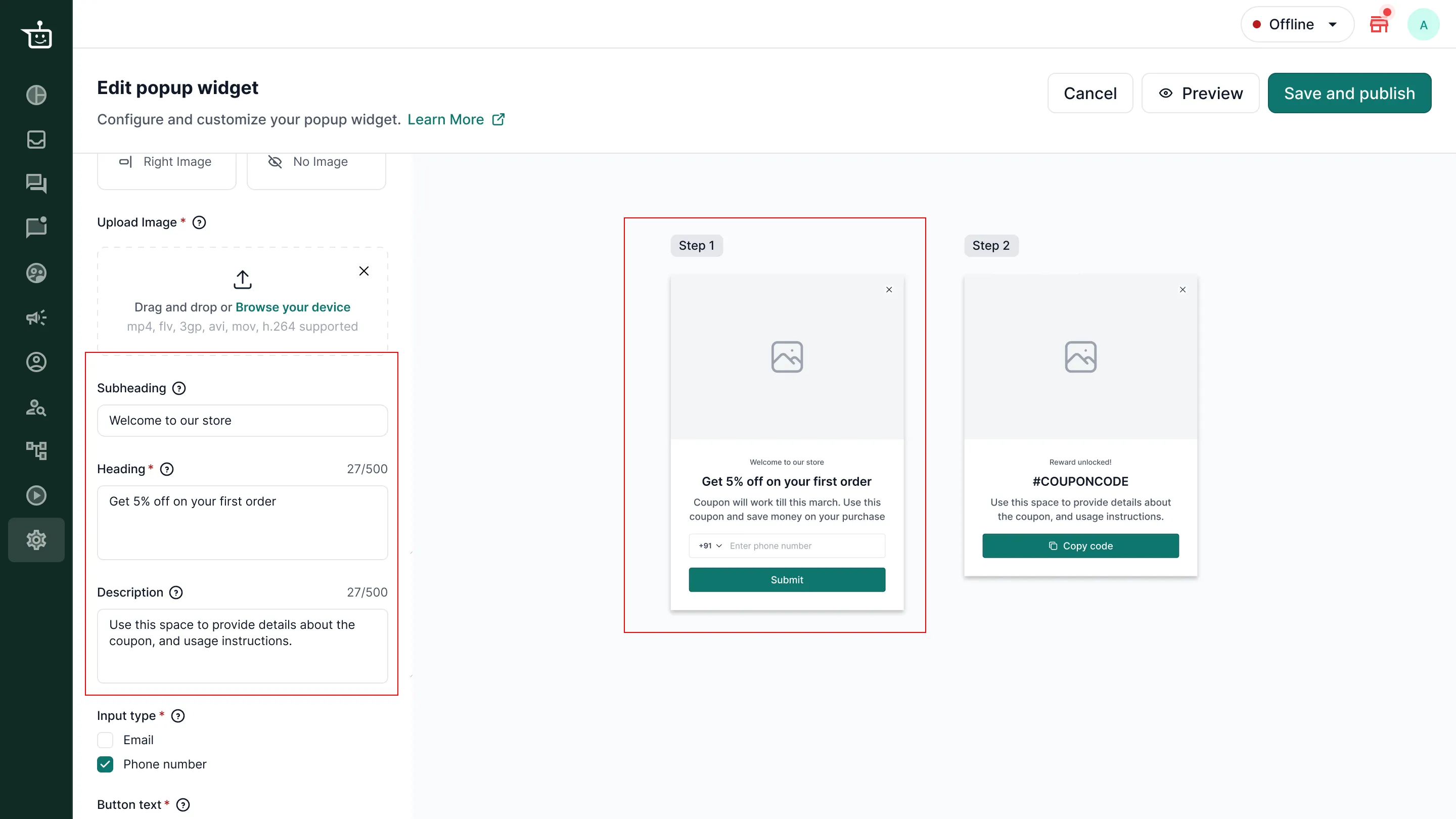
Enter the Subheading, Heading and Description.
-
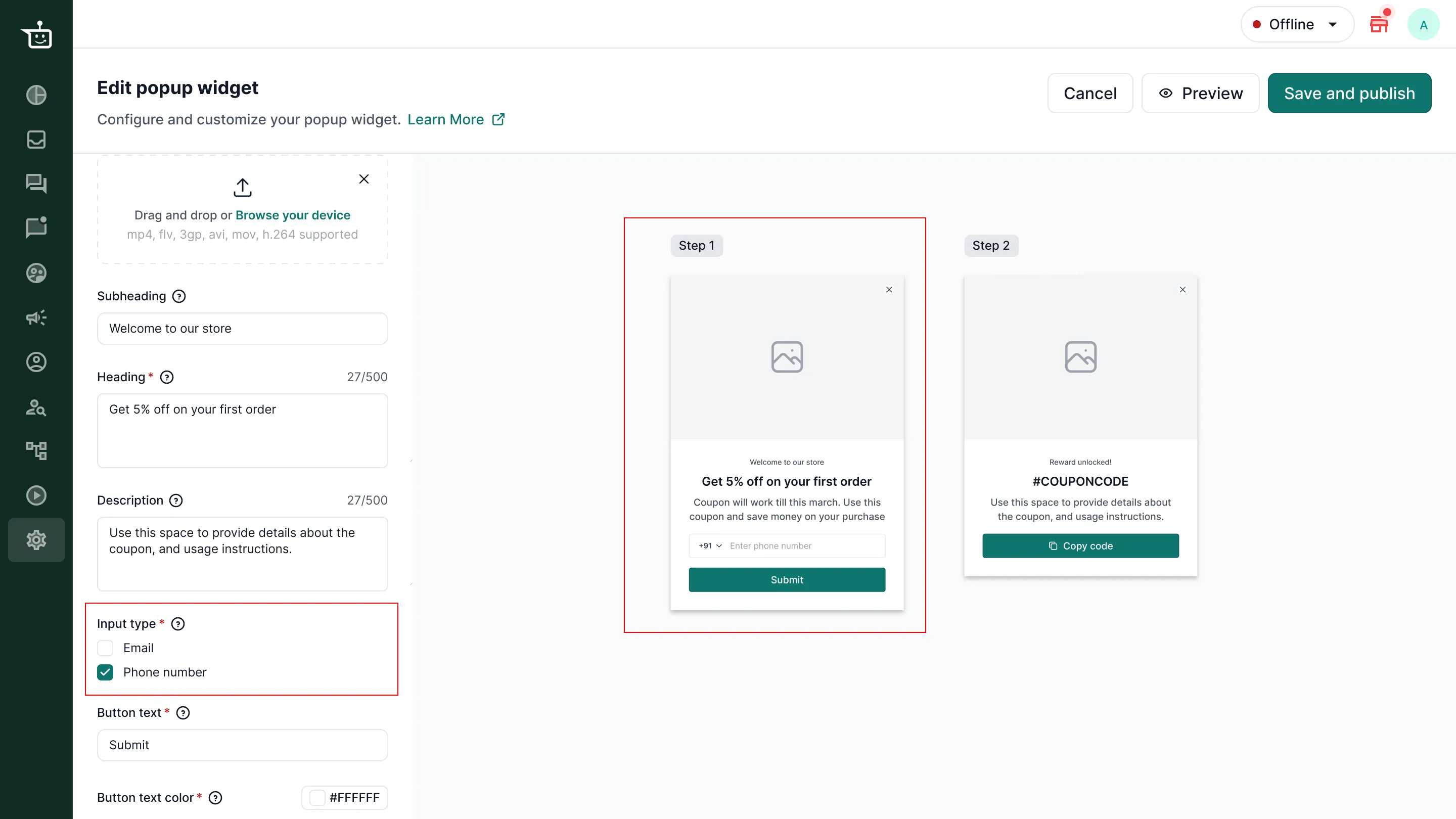
Under Input type, choose what to collect: Email, Phone number or both.
-
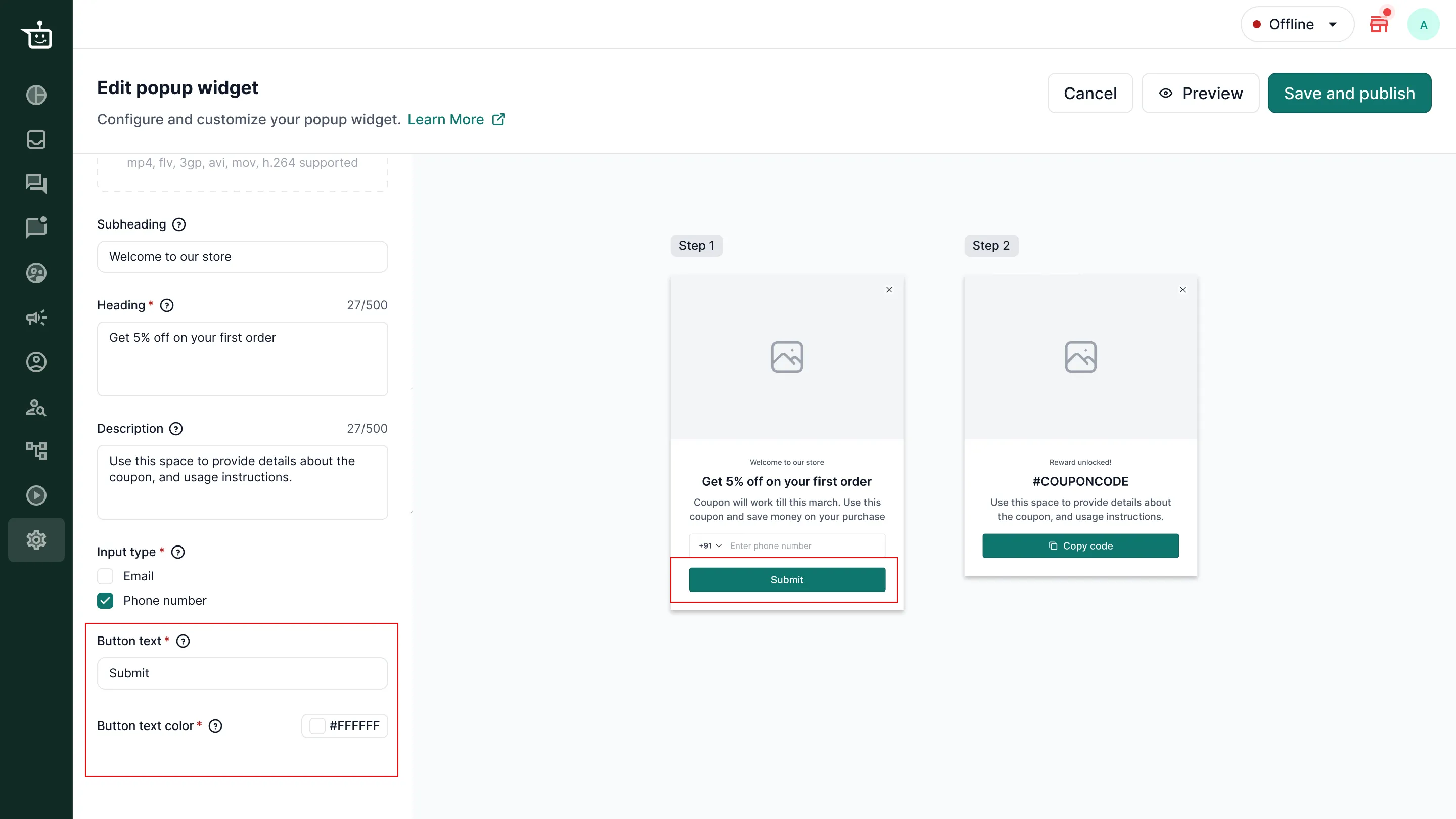
Enter the Button text and choose the Button text color. Use light text on a dark brand color, and dark text on a light brand color.
Set up step 2: show the coupon code
Section titled “Set up step 2: show the coupon code”Visitors see step 2 after they submit their details.
-
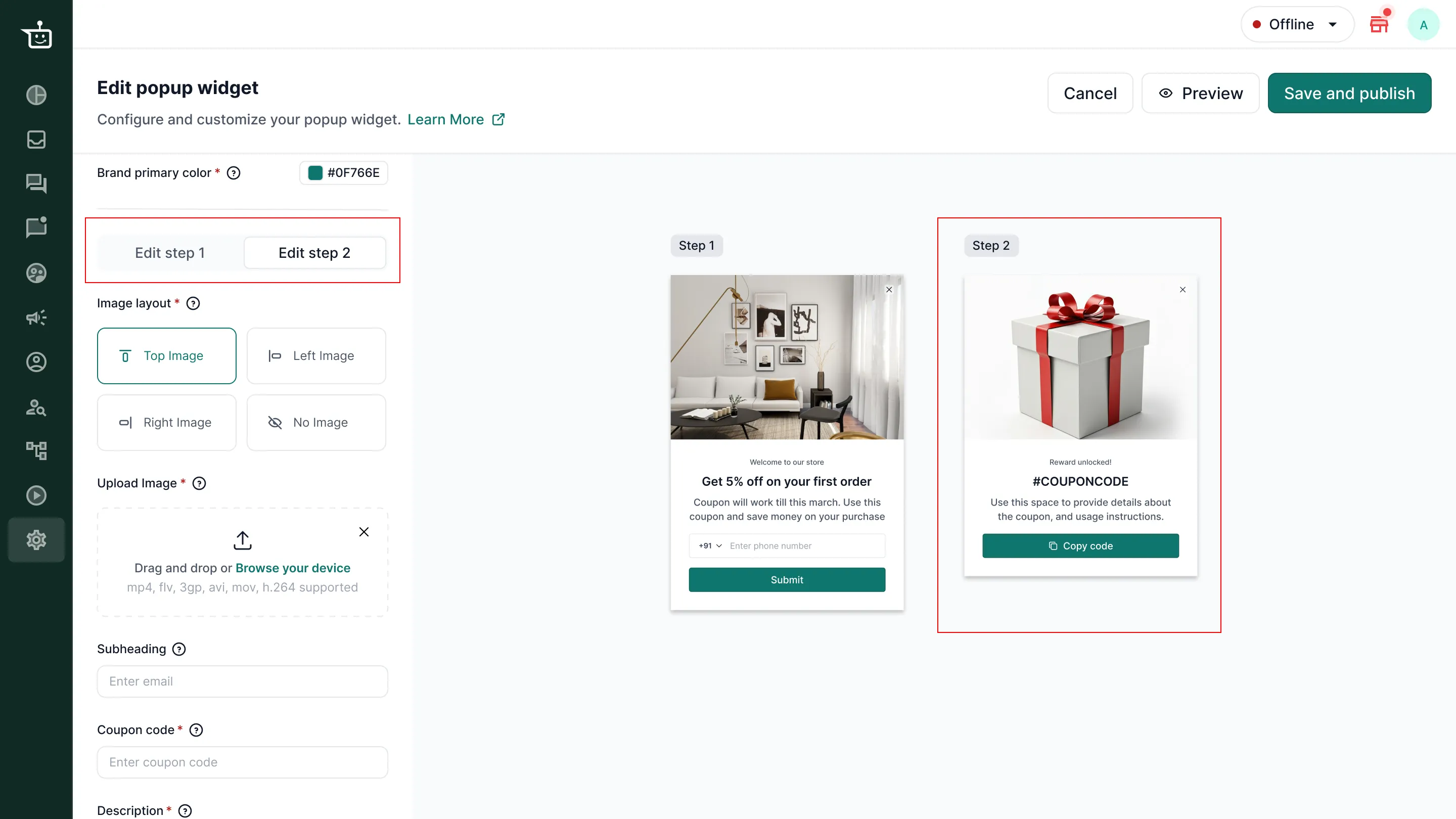
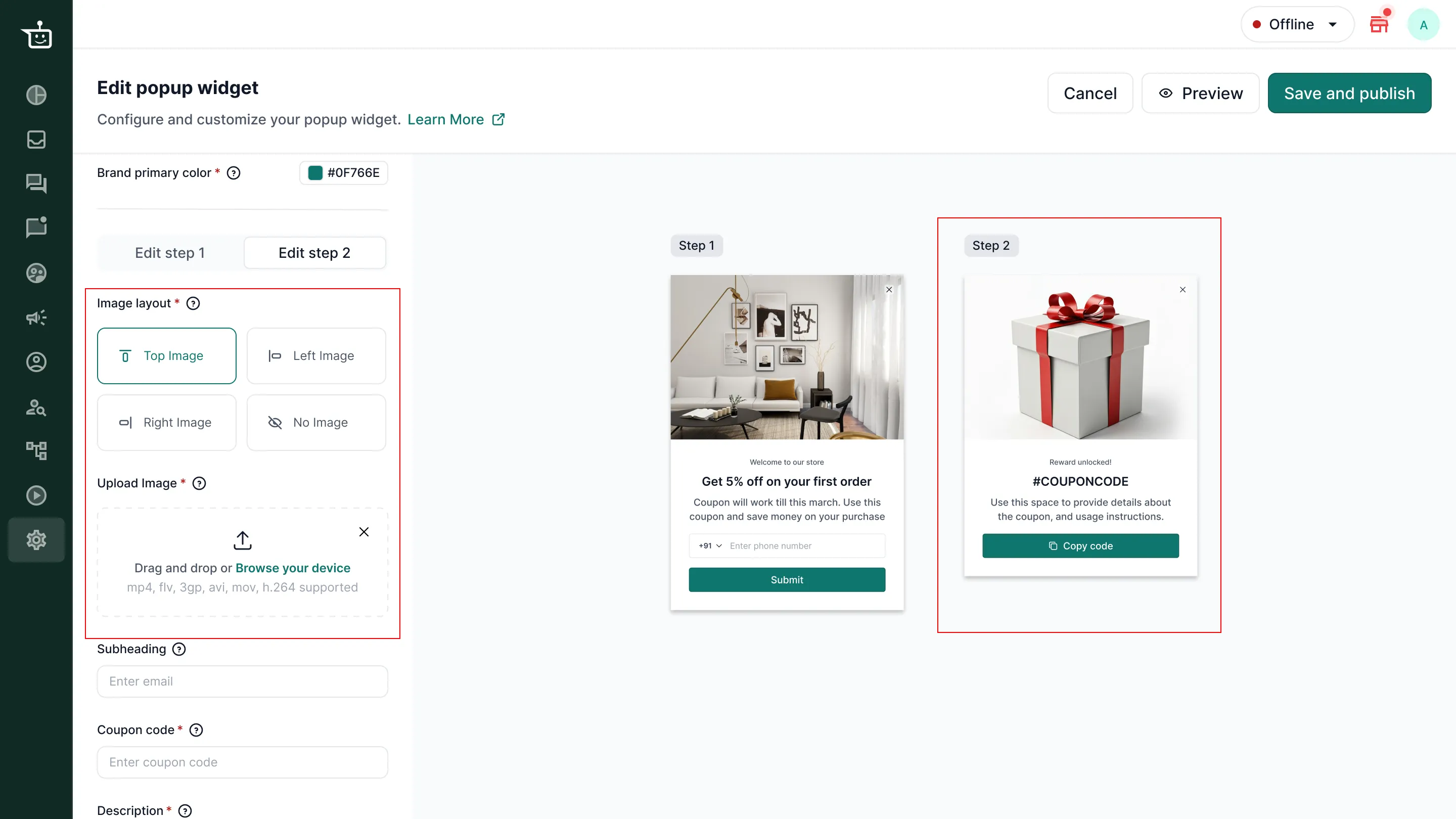
Click Edit step 2.
-
Choose the image layout and upload an image.
-
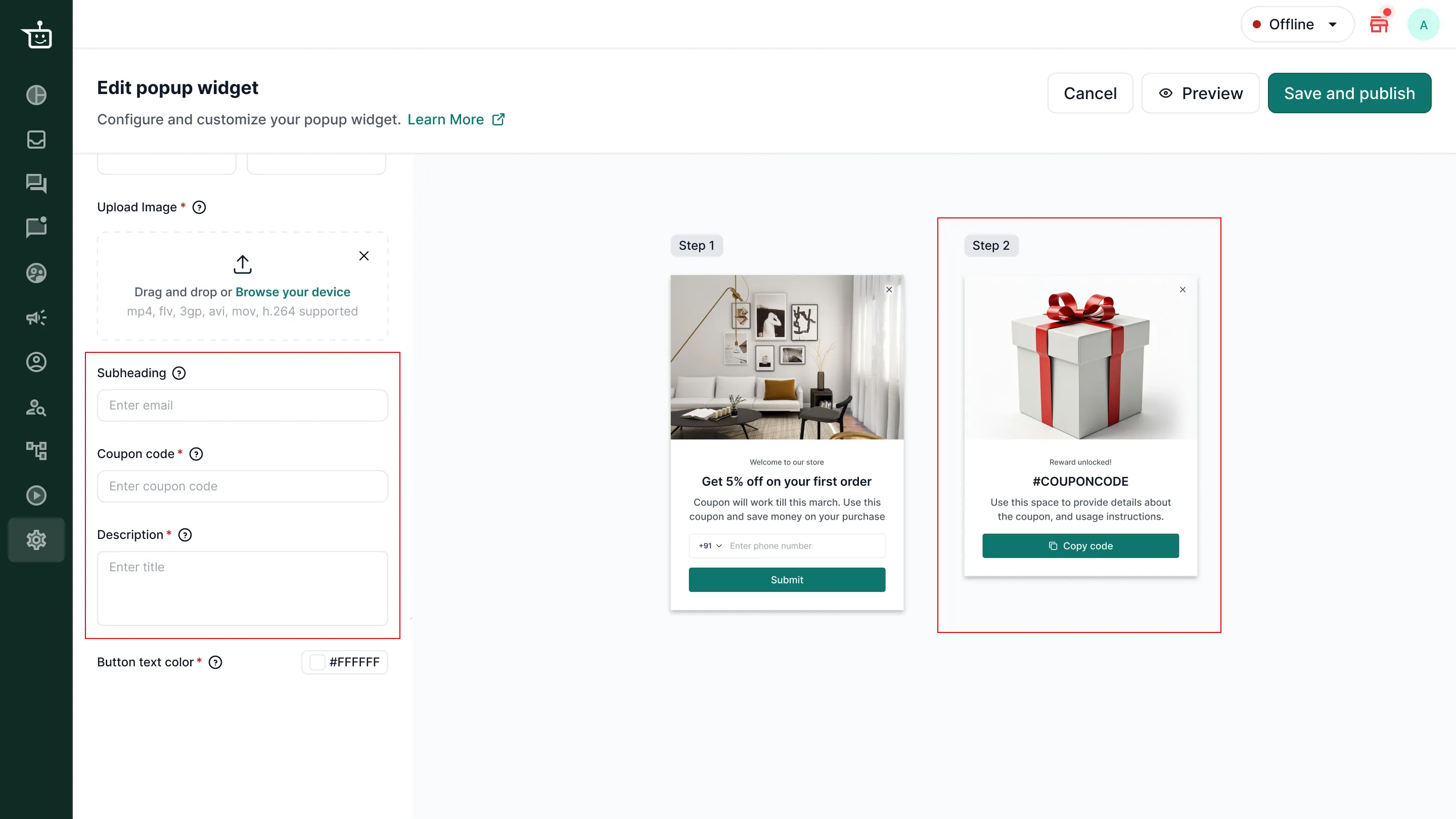
Enter the Subheading, Coupon code and Description.
-
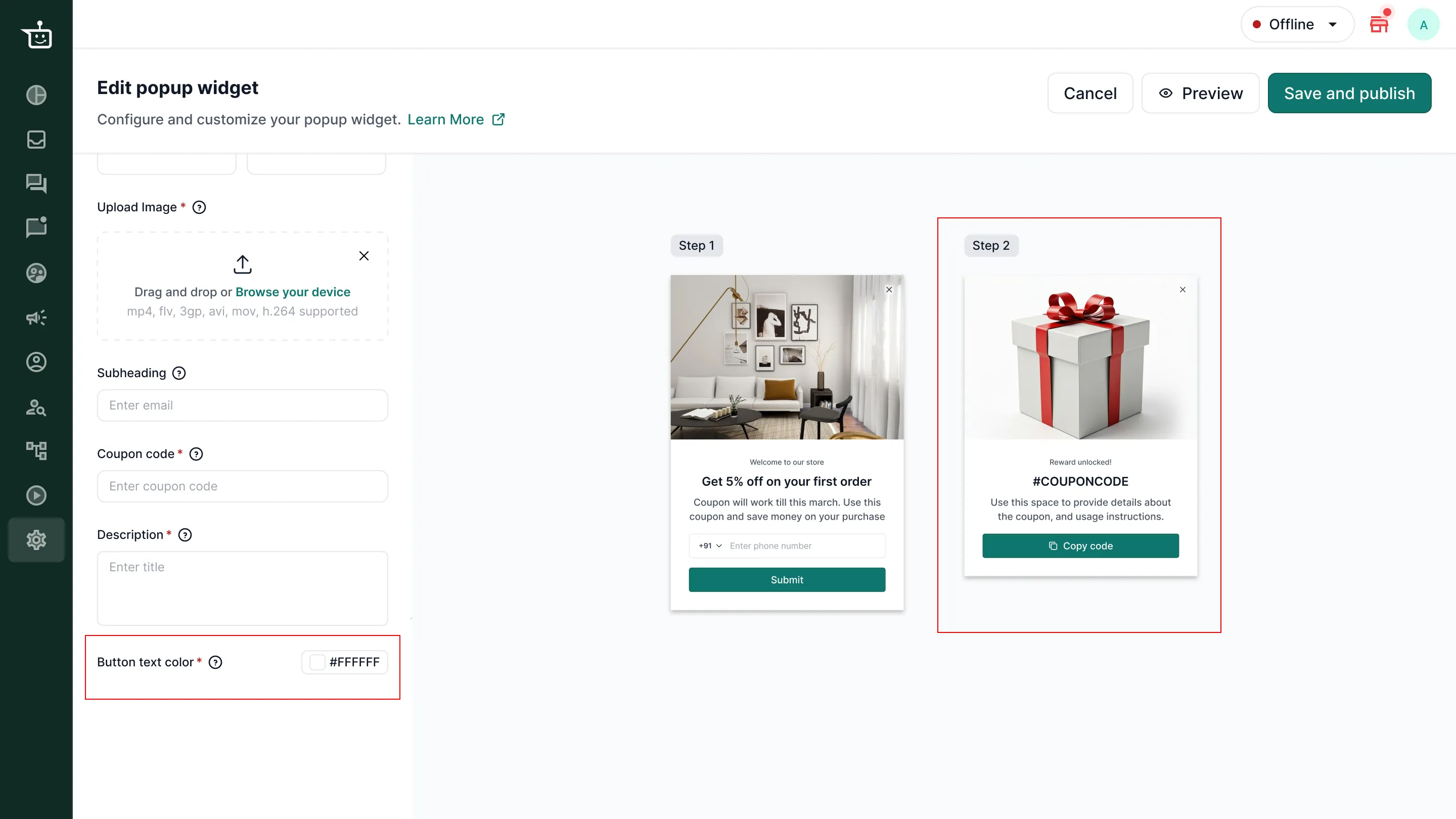
Choose the Button text color. You can’t change the button text: the button always copies the code.
Preview and publish
Section titled “Preview and publish”-
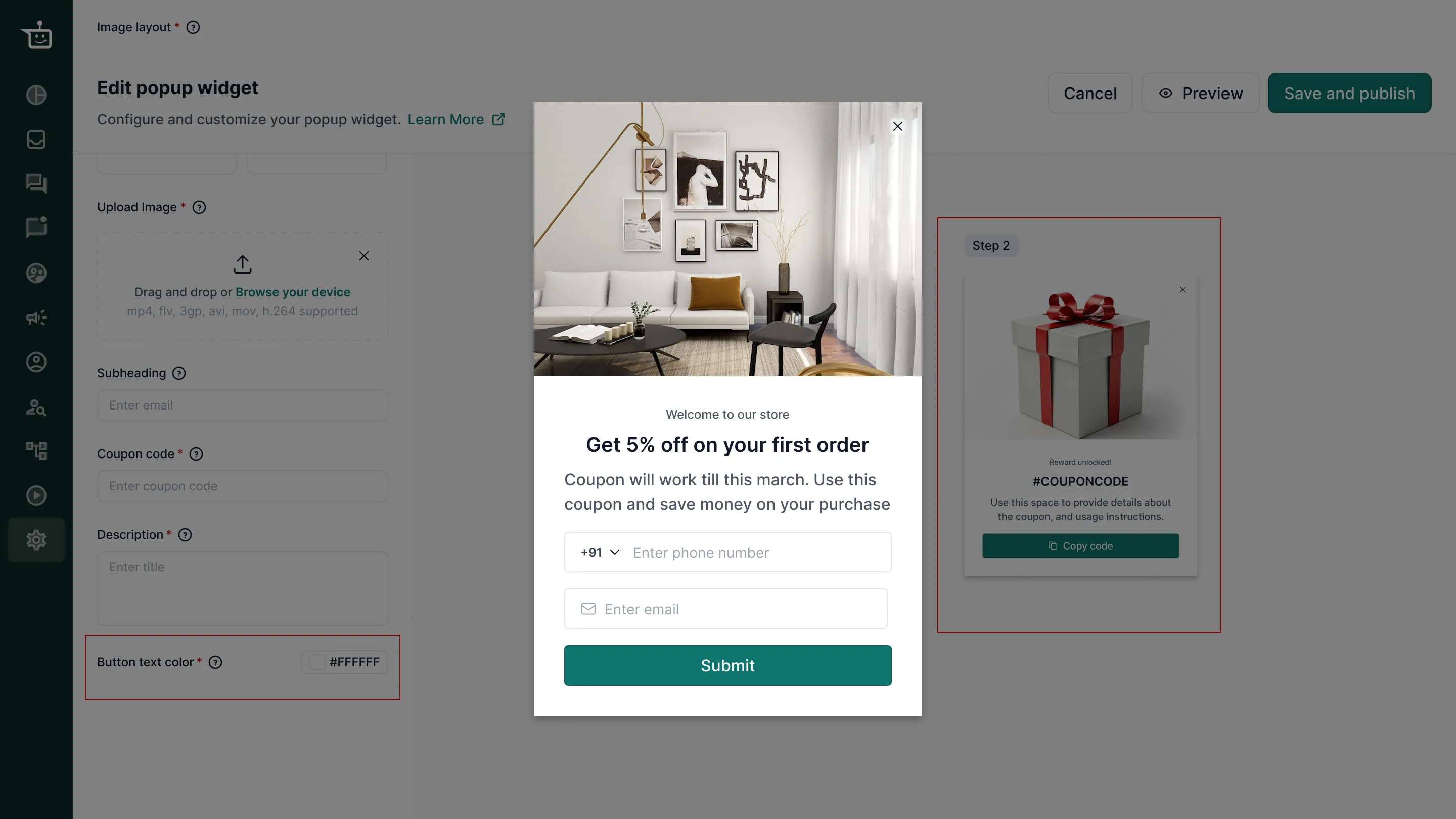
Click Preview to try the pop-up exactly as your customers will see it. It adapts its layout to desktop and mobile.
-
Click Save and publish. The pop-up is now live on your website.
If the pop-up doesn’t show on your website
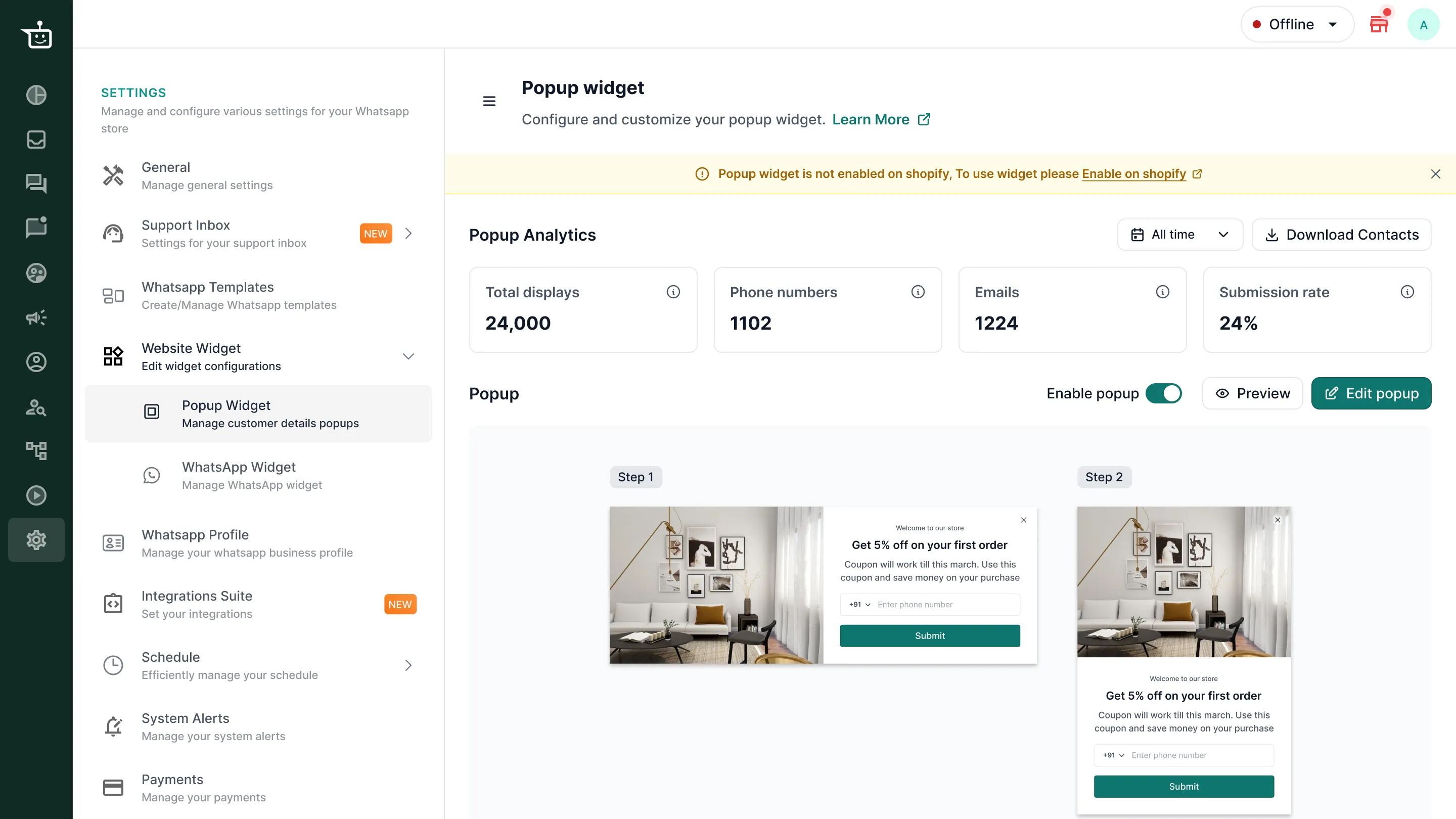
Section titled “If the pop-up doesn’t show on your website”If you see a yellow banner saying Popup widget is not enabled on shopify, enable it in Shopify:
-
Click Enable on shopify in the banner.
-
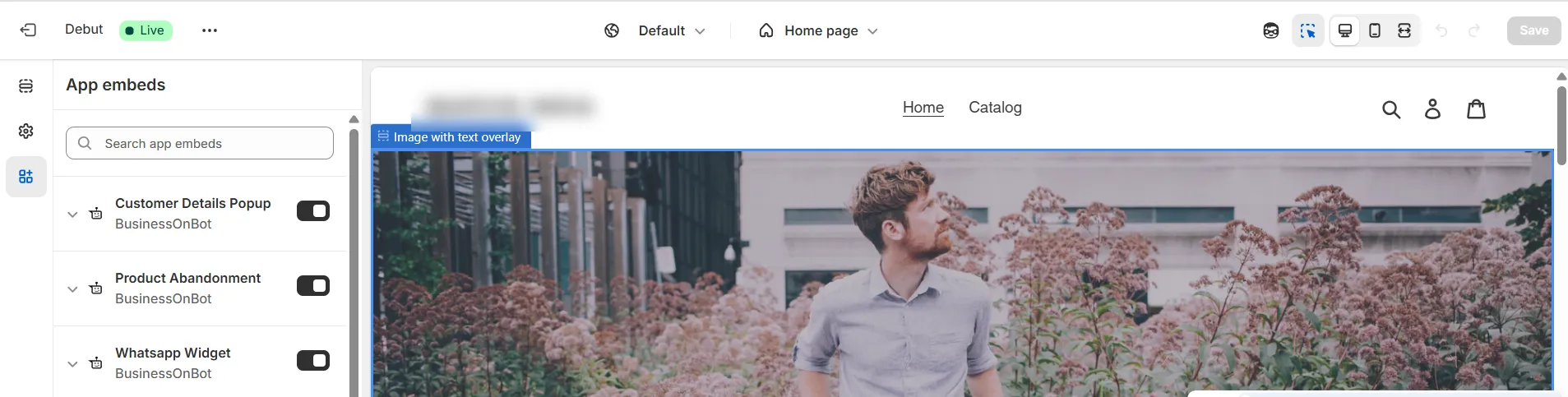
In Shopify App embeds, turn on Customer Details Popup (by BusinessOnBot).
-
Click Save.
Track how the pop-up performs
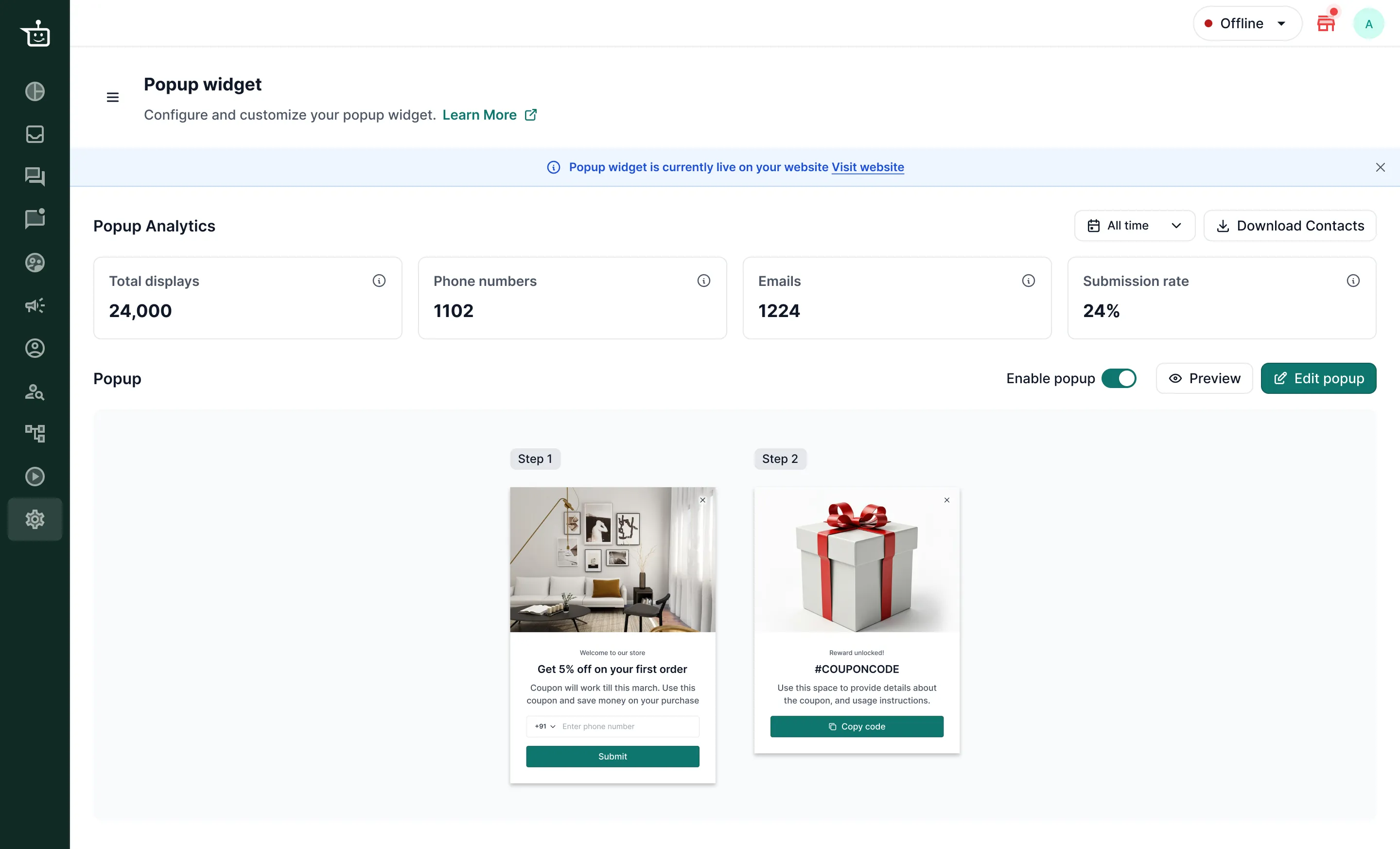
Section titled “Track how the pop-up performs”The Popup Analytics section on the Popup widget page shows:
| Metric | What it shows |
|---|---|
| Total displays | How many times the pop-up was shown |
| Phone numbers | Phone numbers collected |
| Emails | Emails collected |
| Submission rate | Form submissions ÷ views × 100. Each submission counts once, even with several fields. Submissions from before the feature launched for your brand are not included. |
Use the date filter (All time by default) to see any period.
Download the contacts
Section titled “Download the contacts”Click Download Contacts to download the phone numbers and emails the pop-up collected. Choose a custom date range first to download only the contacts from that period.
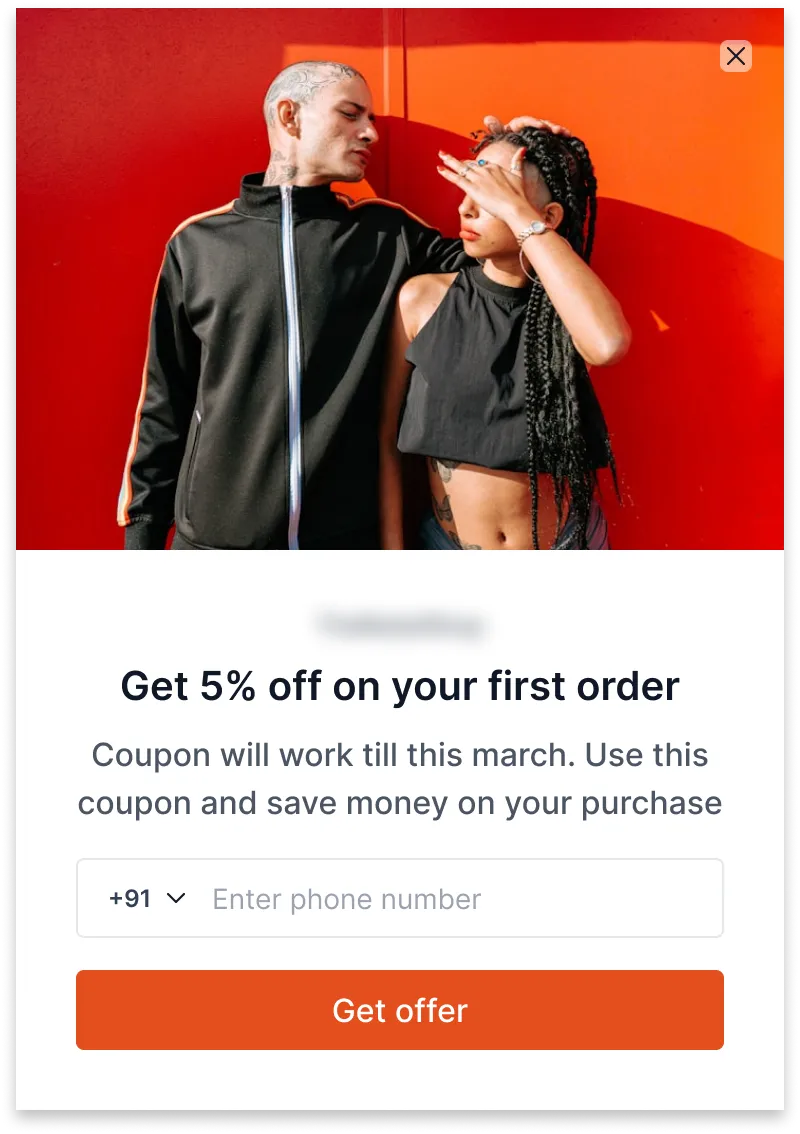
Ideas for your pop-up
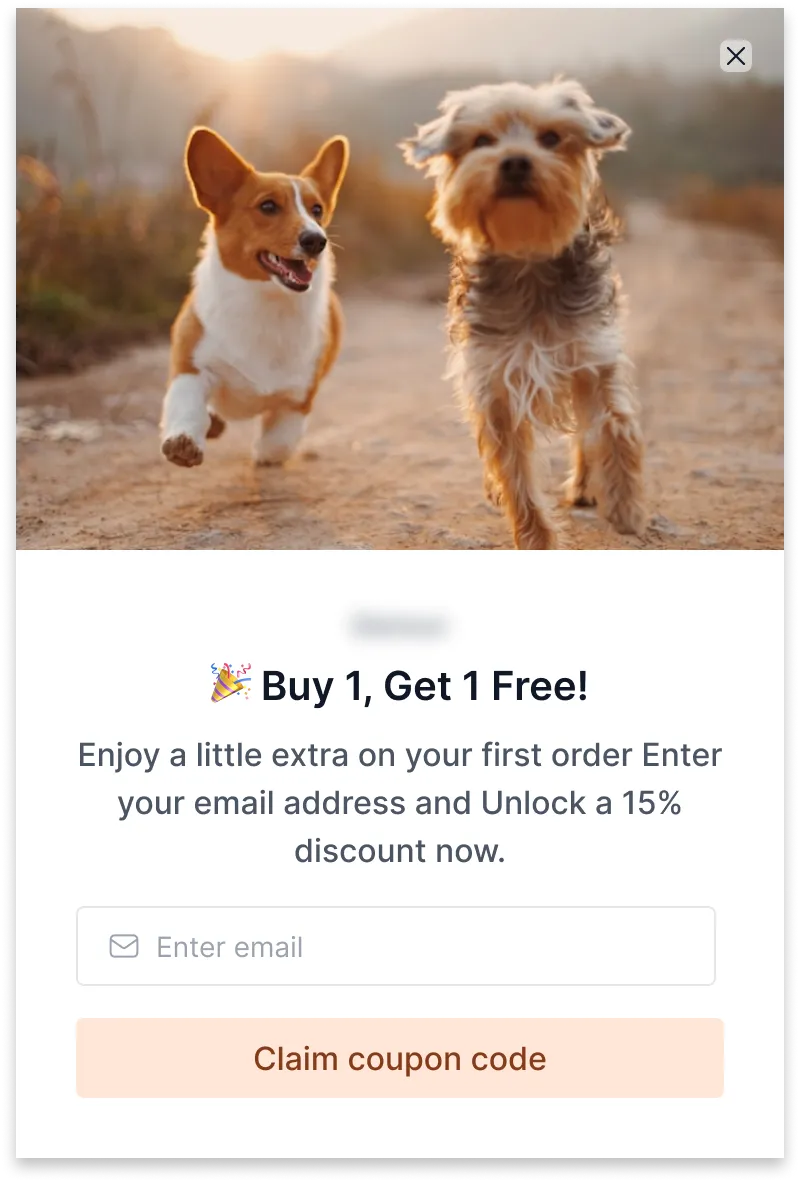
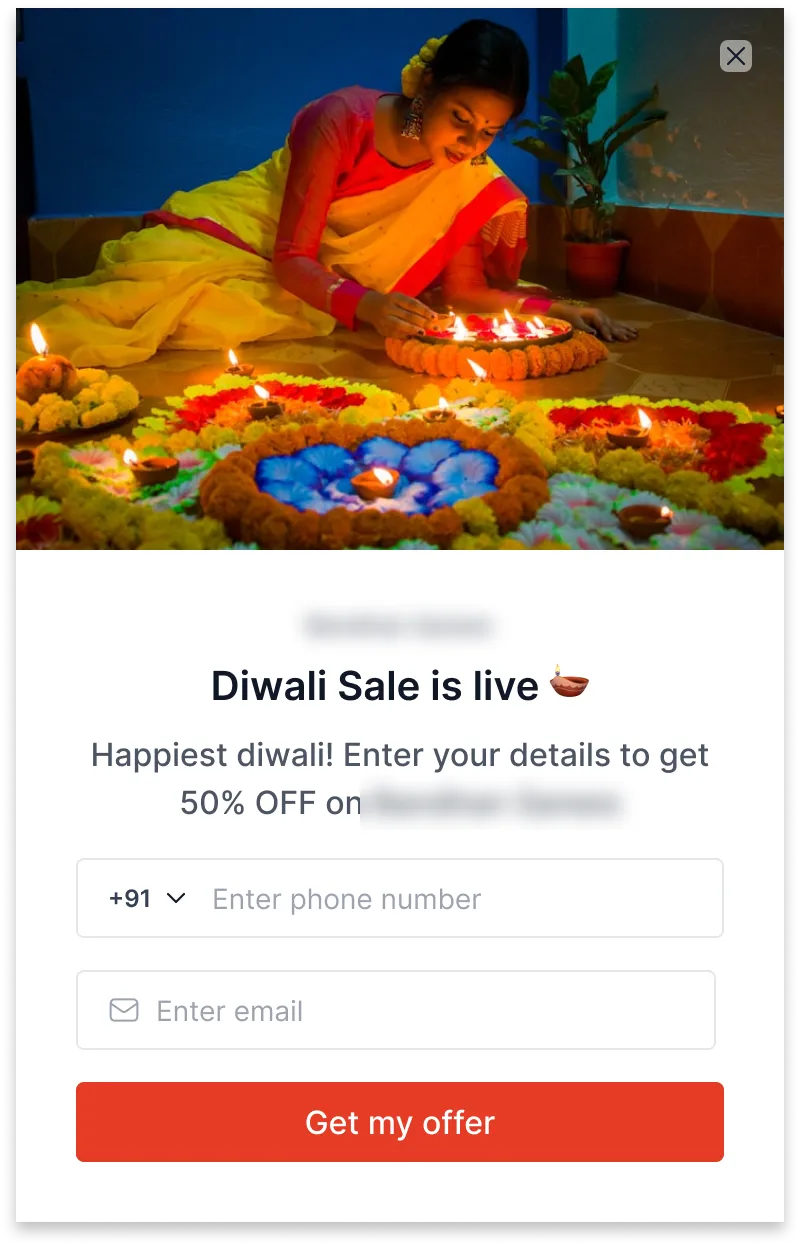
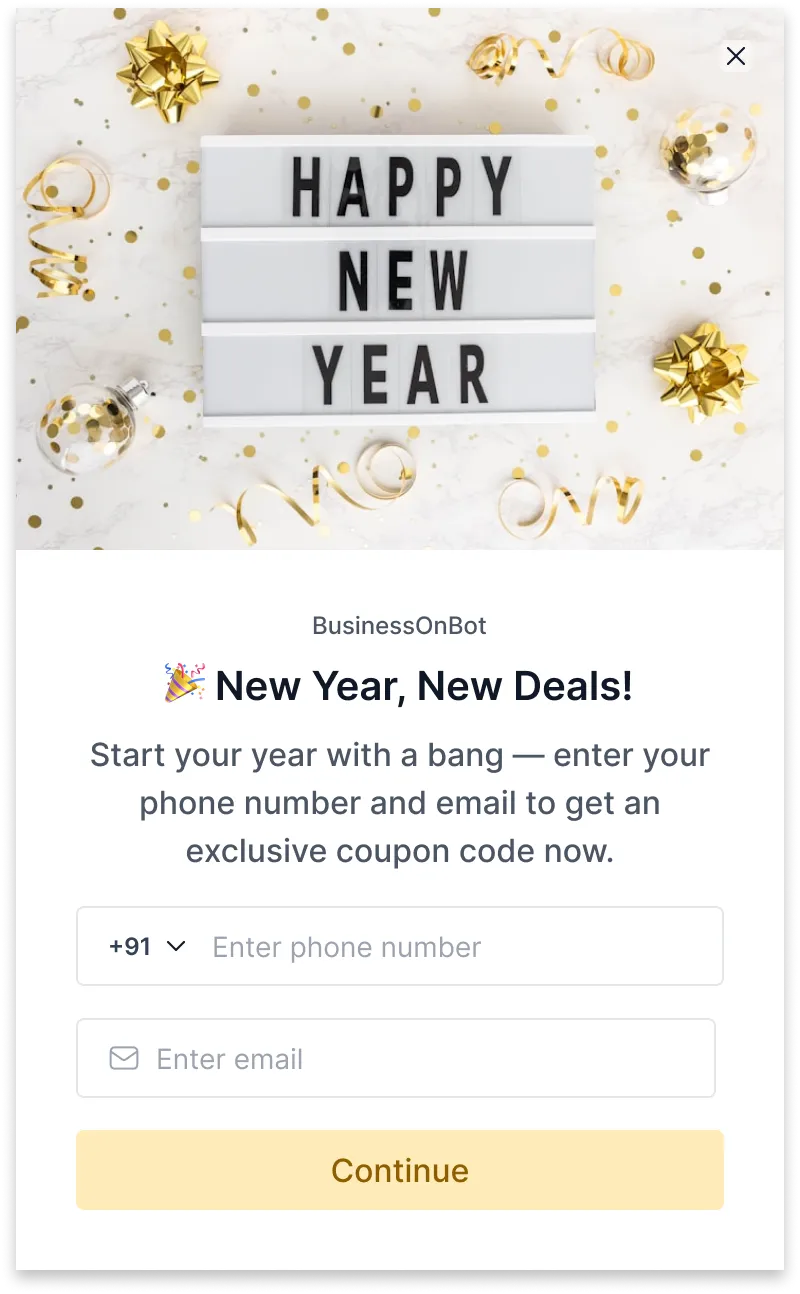
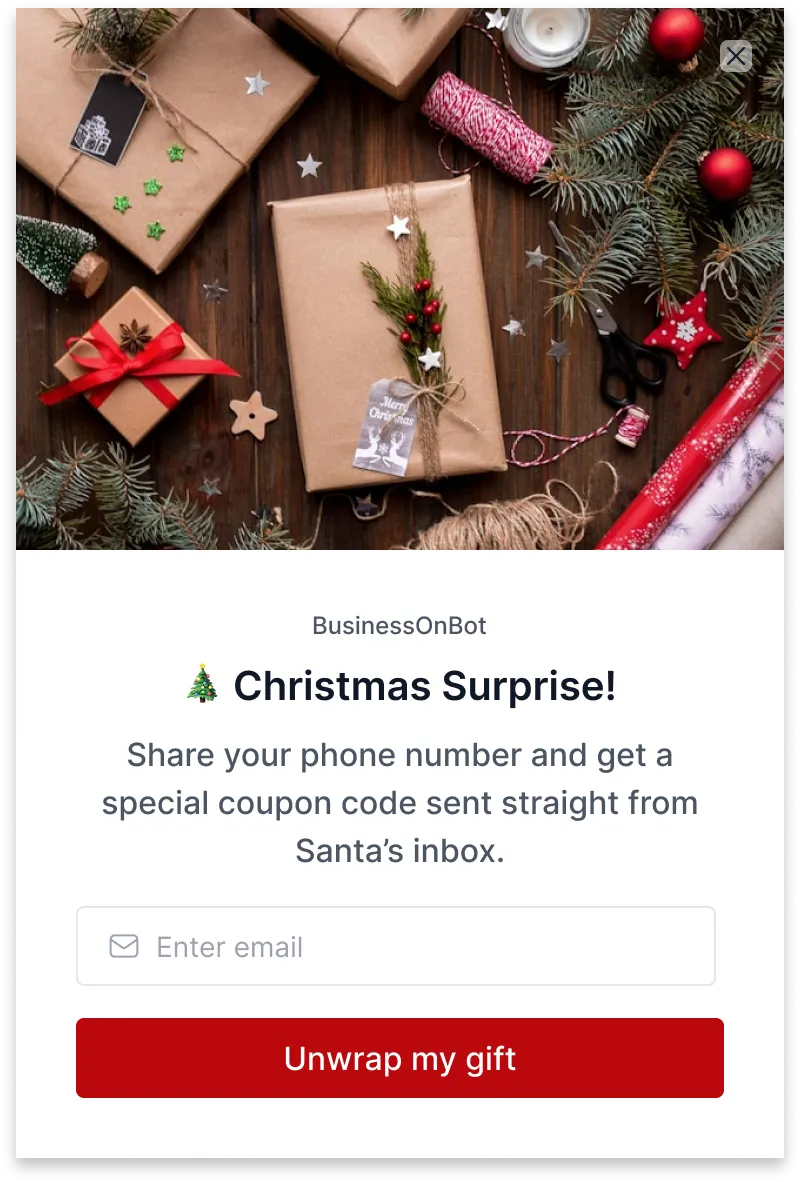
Section titled “Ideas for your pop-up”Pair a clear offer with a strong image. Some examples:
By store type
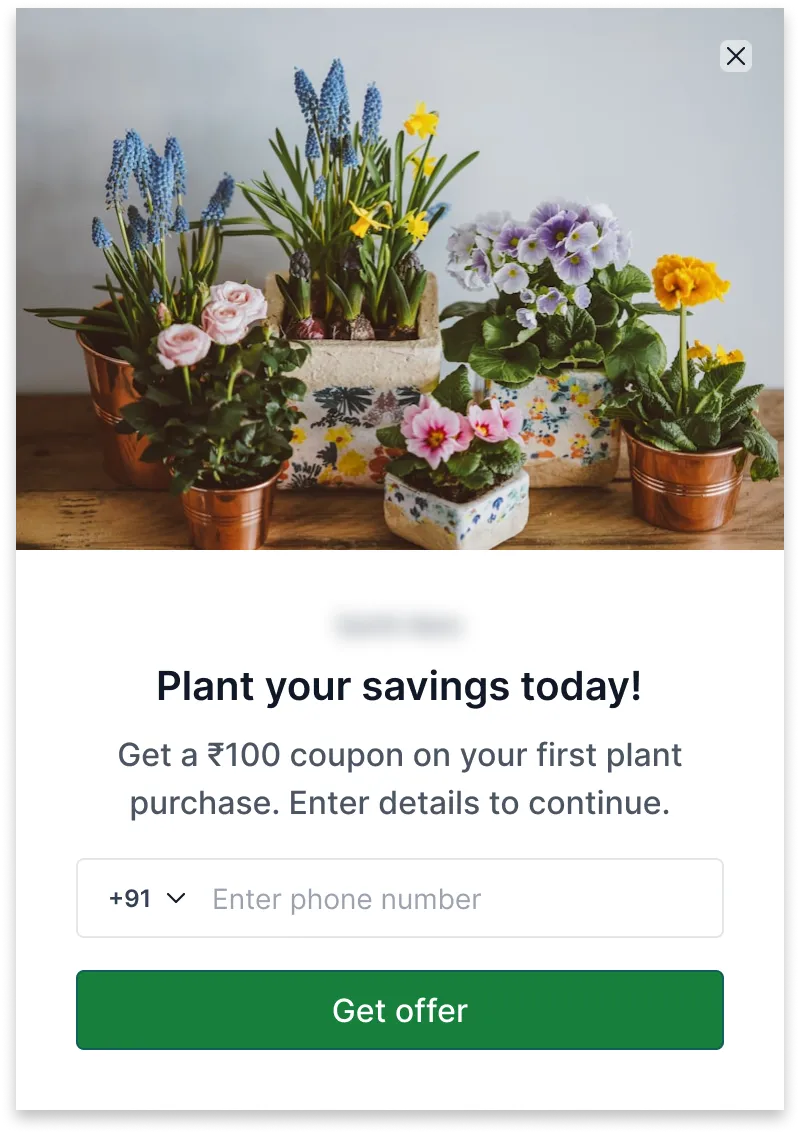
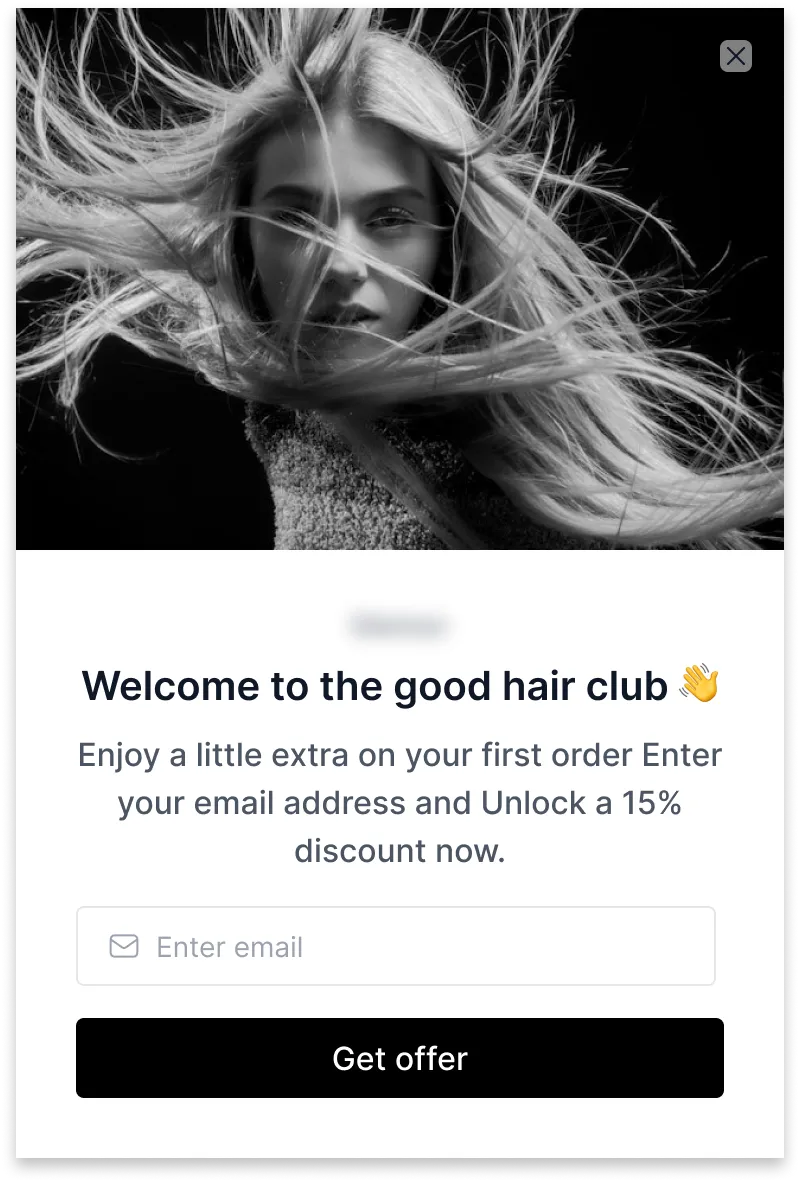
By offer
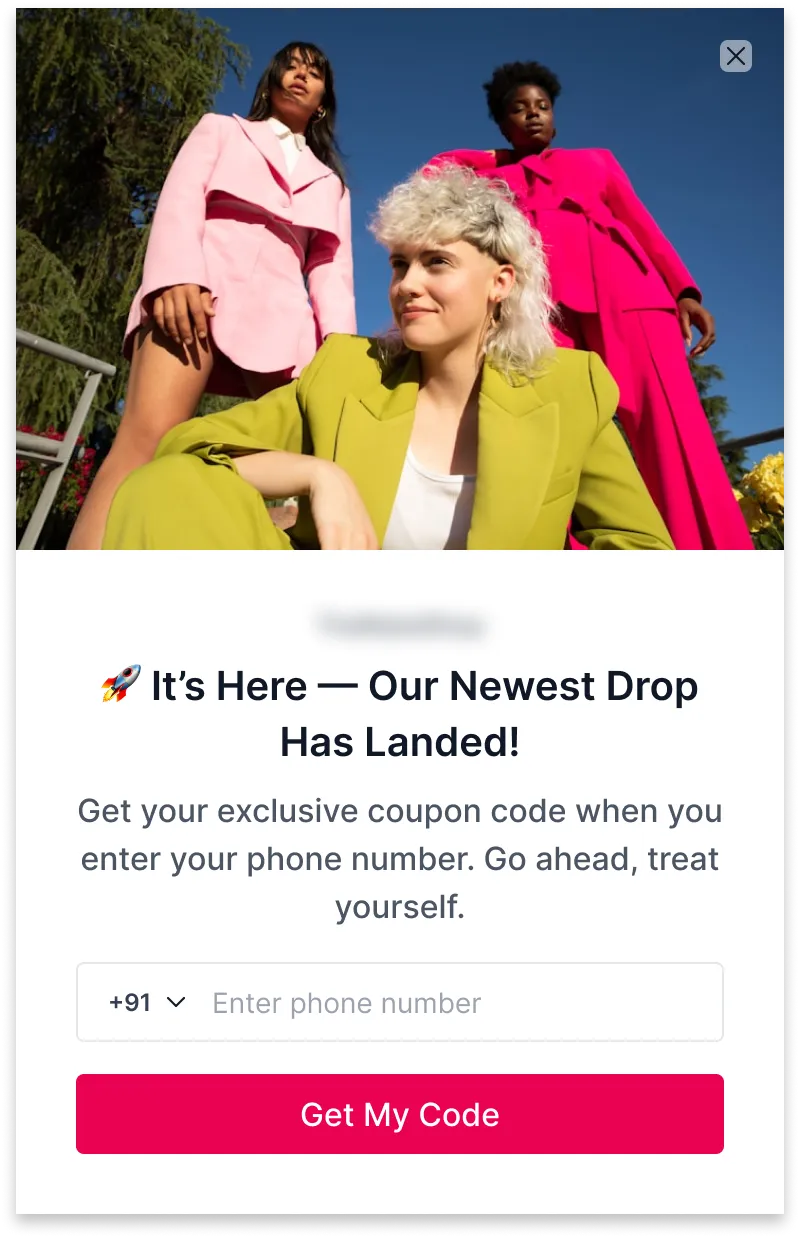
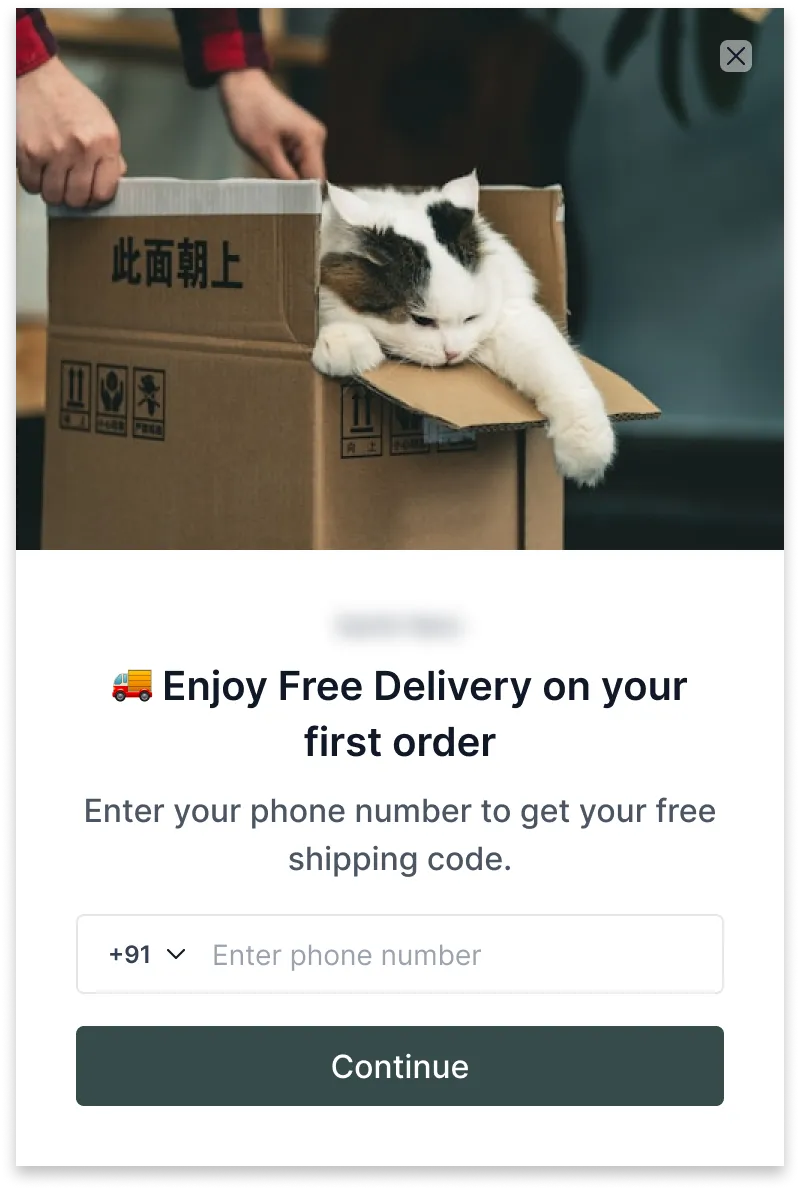
For festive seasons
Related
Section titled “Related”Was this page helpful?
Thanks, this helps us improve this page.
Still stuck? Email support@businessonbot.com