

Choose how you're alerted about new tickets
Notification Preferences, notifications, browser notifications, sound alerts, audio notificationsWhen you finish, you get a pop-up or a sound whenever a ticket needs you, so you don’t miss a customer even when the inbox is busy.
To open these settings, go to Settings → Notification Preferences (under Ticket Settings). Then turn each toggle on or off.
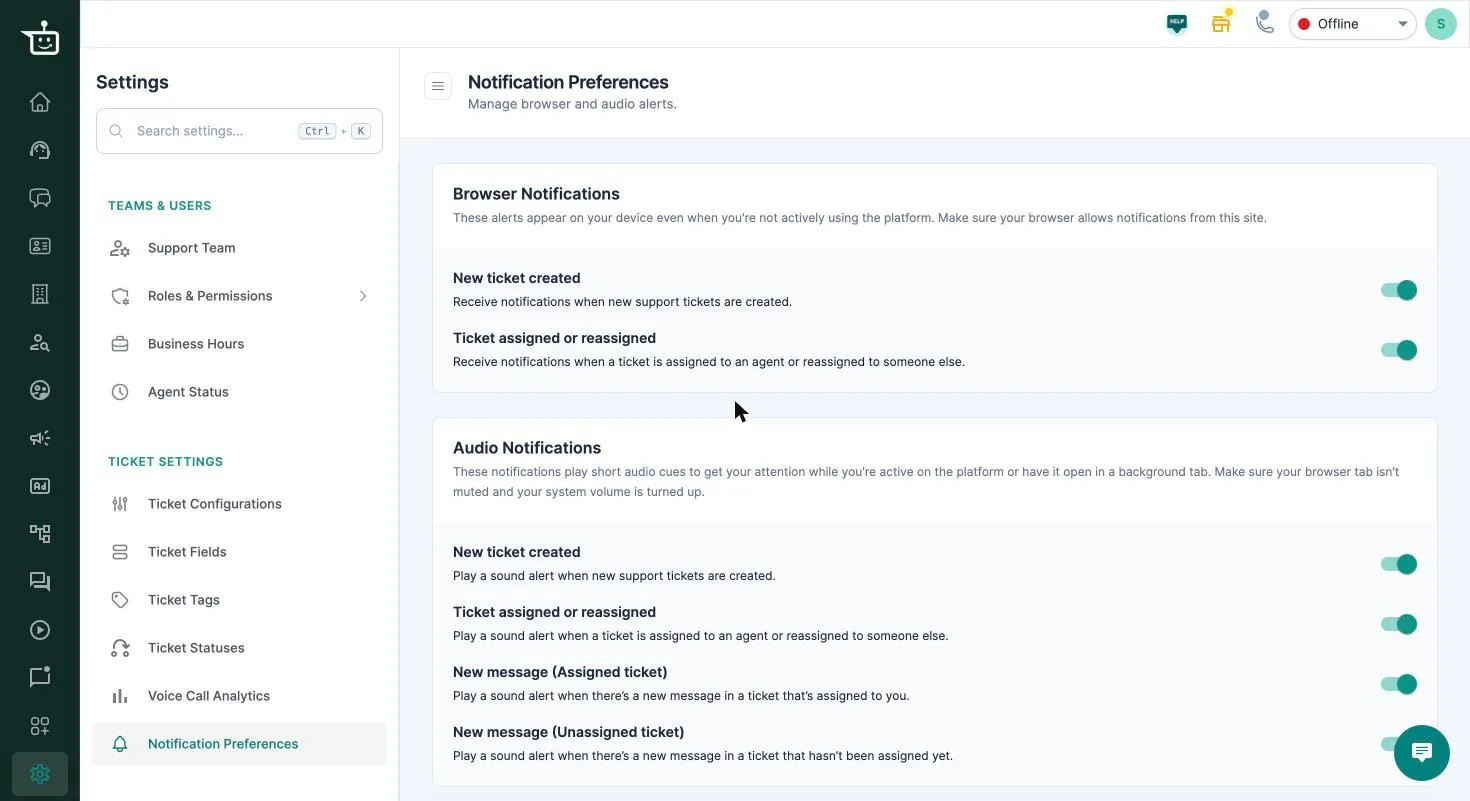
Browser notifications
Section titled “Browser notifications”A small pop-up appears at the bottom of your screen, like a push notification, even when you’re not looking at the dashboard.
Turn on the alerts you want:
| Option | You’re notified when |
|---|---|
| New ticket created | A new support ticket is created. |
| Ticket assigned or reassigned | A ticket is assigned to you or moved to another agent. |
Your browser must allow notifications from the dashboard. If you don’t see pop-ups, check your browser’s notification settings for the site.
Audio notifications
Section titled “Audio notifications”A short sound plays while the dashboard is open, even in a background tab.
Turn on the alerts you want:
| Option | A sound plays when |
|---|---|
| New ticket created | A new ticket is created. |
| Ticket assigned or reassigned | A ticket is given to an agent or moved to someone else. |
| New message (Assigned ticket) | A new message arrives on a ticket assigned to you. |
| New message (Unassigned ticket) | A new message arrives on a ticket nobody is assigned to yet. |
Make sure the browser tab isn’t muted and your computer’s volume is up.
Related
Section titled “Related”Was this page helpful?
Thanks, this helps us improve this page.
Still stuck? Email support@businessonbot.com