

Create a carousel WhatsApp template
Carousel Templates, carousel, carousel cards, product carouselWhen you finish, you will have a carousel template submitted to Meta: one text message followed by up to 10 cards that customers scroll sideways. Each card has an image or video, some text and buttons.
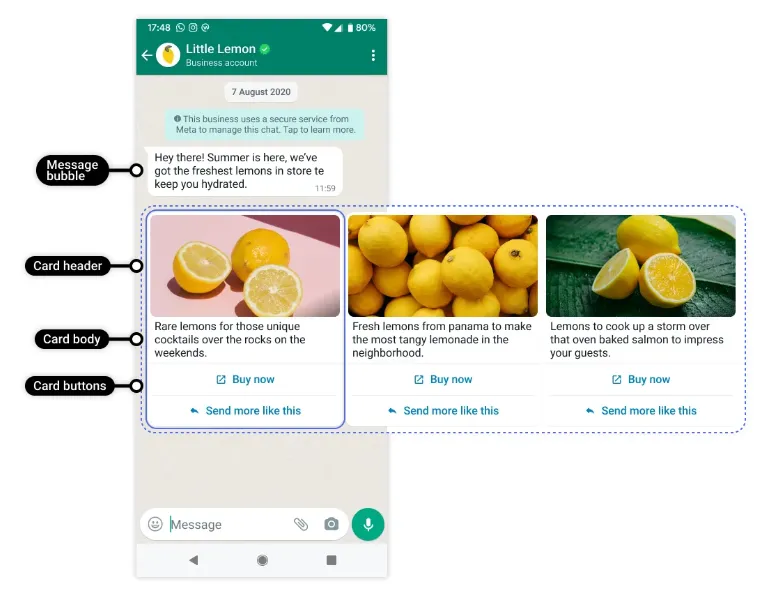
A carousel template has four parts, and all four are required:
| Part | What it is |
|---|---|
| Message bubble | The text above the cards. It is the same for every card and works as a summary of the campaign. |
| Card header | An image or a video. The type you pick for card 1 is used for every card. |
| Card body | The text on each card, up to 160 characters including variables. Use no more than one line break. |
| Buttons | At least one button on each card. You can add up to two: two quick replies, two call-to-action buttons, or one of each. |
Create the template
Section titled “Create the template”-
Go to Settings → WhatsApp Templates.
-
Click Create Template, select Carousel as the template type, and click Create.
-
Select the category, Marketing or Utility, based on what the message says.
-
Enter a template name and click Continue. A name can be used only once, even after the template is deleted.
-
Write the message bubble text. To personalise it, click Add variable. You fill each variable when you set up the campaign.
-
Click Add card to add card 1, and choose Image or Video as the card header.
-
Write the card body. Following Meta’s guidelines, don’t put more than one line break after a sentence.
-
Click Add button and set up the button (see buttons below). Button text can be up to 25 characters. Add a second button the same way if you like.
-
Click Add card to add the next card. Read the note about how card 1’s settings apply to the rest, and click OK.
-
Write the body for the new card and fill in its button text (and URL type, for website buttons). Repeat for every card you want, up to 10.
-
Click Add sample. Add sample text for each variable in the message bubble, then upload sample media and add sample variable text for every card. Each sample file must be 4 MB or less.
-
Click Done, then Submit.
Approval usually takes 5–10 minutes, but Meta says it can take up to 24 hours.
Buttons
Section titled “Buttons”| Button type | What it does |
|---|---|
| Quick reply | The customer taps it to send a reply without typing. |
| Call to action: call phone number | Starts a call to the number you enter. |
| Call to action: visit website | Opens the URL you enter. |
For a website button, choose the URL type:
- Static URL: you enter the URL now. It cannot be changed after you submit the template.
- Dynamic URL: you enter the URL when you set up the WhatsApp campaign. Keep BOB URL selected.
Unlike standard templates, a carousel card can mix quick reply and call-to-action buttons. The button types you choose on card 1 apply to every card.
Watch the walkthrough
Section titled “Watch the walkthrough”Related
Section titled “Related”Was this page helpful?
Thanks, this helps us improve this page.
Still stuck? Email support@businessonbot.com