

Get more done in the Support Inbox
How to Maximize Agent Productivity in the Support Inbox, agent productivity, best practices, inbox hygieneUse these settings and habits so your agents and admins resolve tickets faster, keep the inbox tidy and keep customers happy.
1. Let new tickets find the right agent
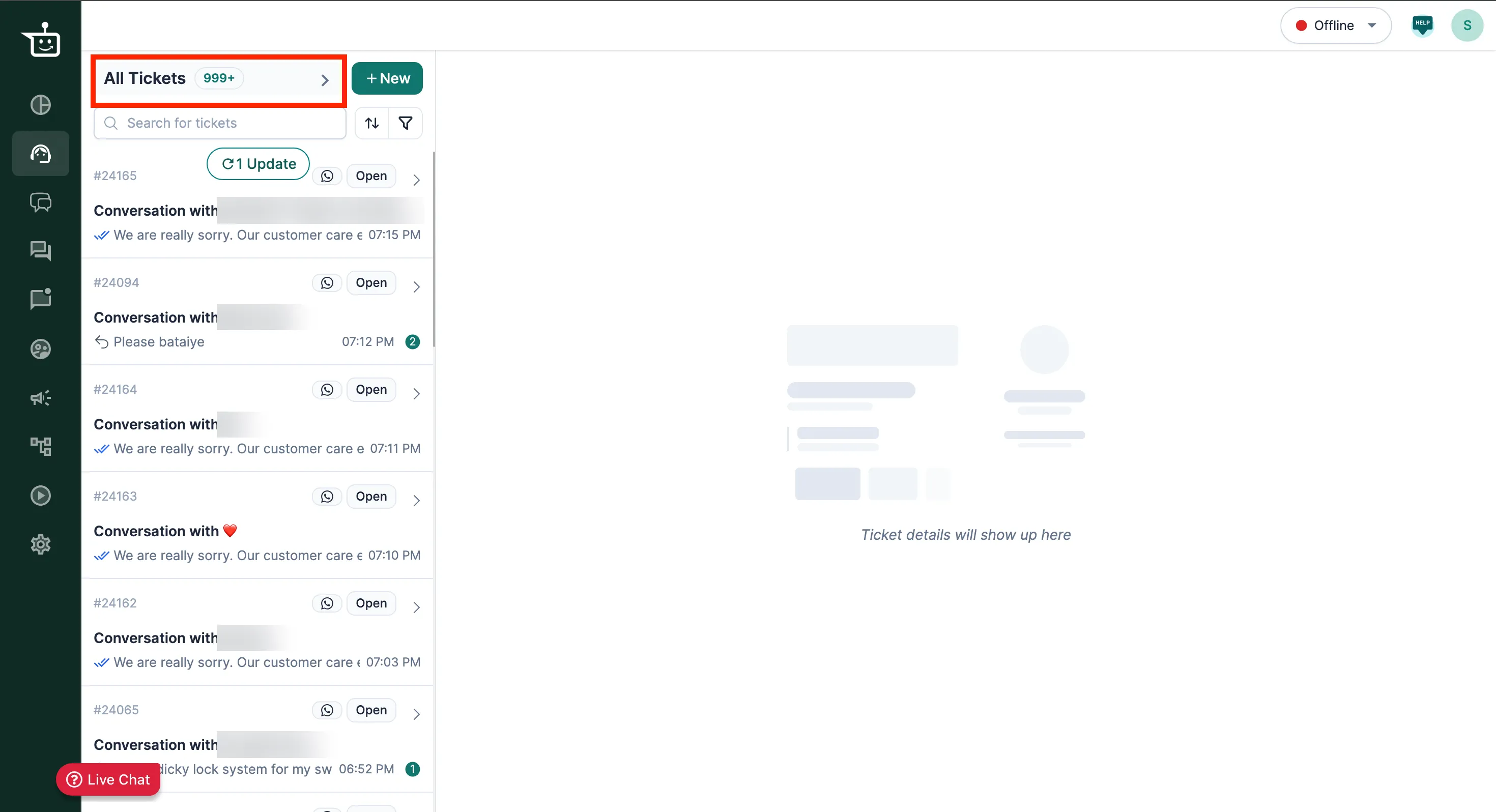
Section titled “1. Let new tickets find the right agent”Every new customer message creates a ticket. It shows in the All Tickets view until it is resolved, so no question gets lost.
-
Turn on auto assignment in Settings, so new tickets go to agents who are online. See Assign tickets automatically with Auto Routing.
-
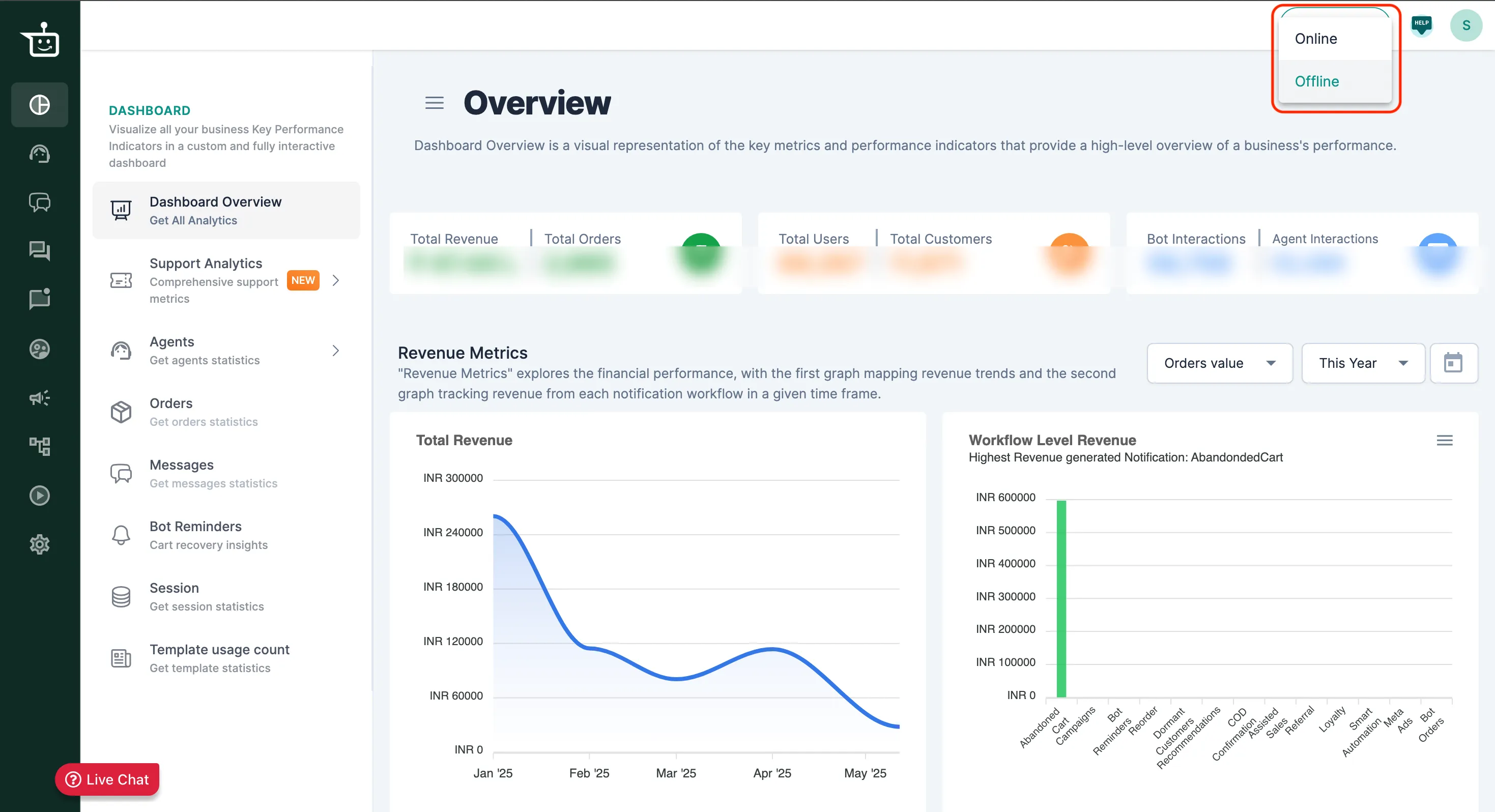
Ask agents to set their status from the top right of the inbox. Tickets are shared out in turn (round robin), only between agents who are Online.
Each agent can hold up to 100 tickets by default. To raise the limit, email support@businessonbot.com.
2. Keep ticket statuses up to date
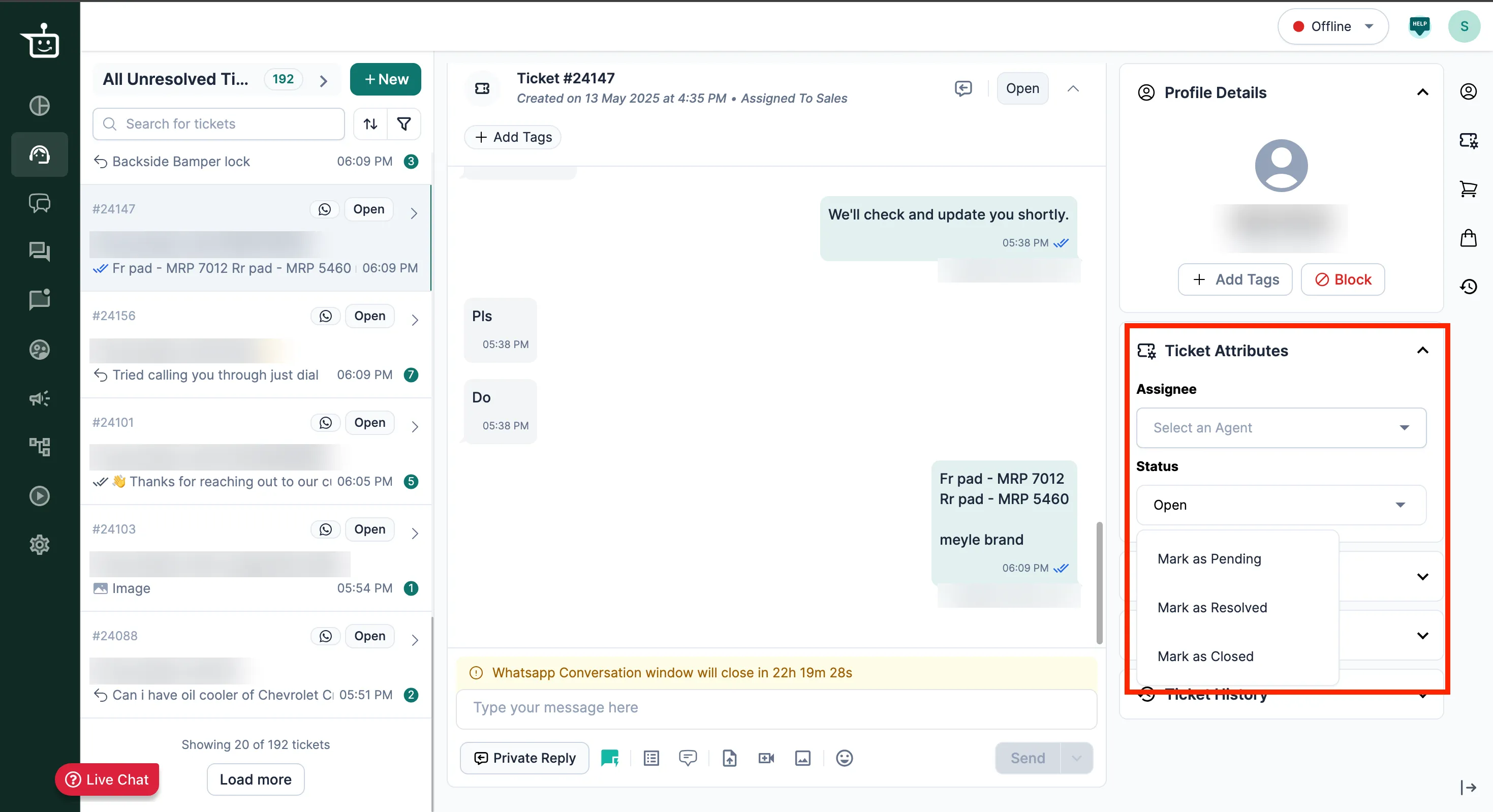
Section titled “2. Keep ticket statuses up to date”After replying, set the ticket to Pending so everyone can see it’s waiting on the customer. Either click Send & Set as Pending, or change the status in the panel on the right.
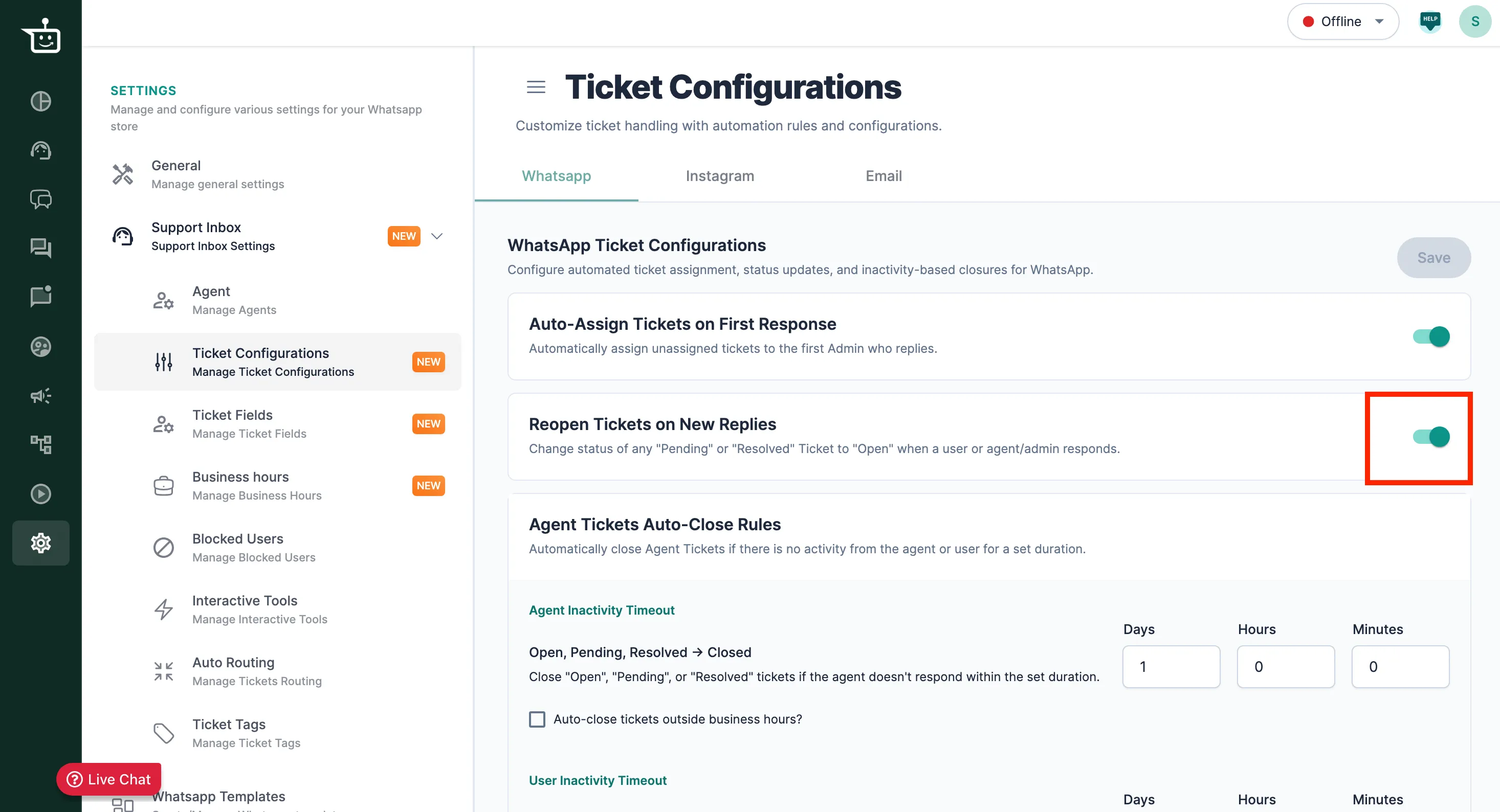
Then in Settings, turn on Move ticket to Open on customer reply. When the customer replies, the ticket goes back to Open and the agent sees it again. See Reopen tickets when a new reply comes in.
3. Tag customers and tickets
Section titled “3. Tag customers and tickets”Tags add context, and make filtering, reporting and automation easier.
- Contact tags describe the customer, for example
High_Value_Customer,Repeat_BuyerorRefund_Risk. - Ticket tags describe the issue, for example
Order_Delay,WhatsApp_Campaign_QueryorProduct_Quality_Complaint.
4. Work from the right view
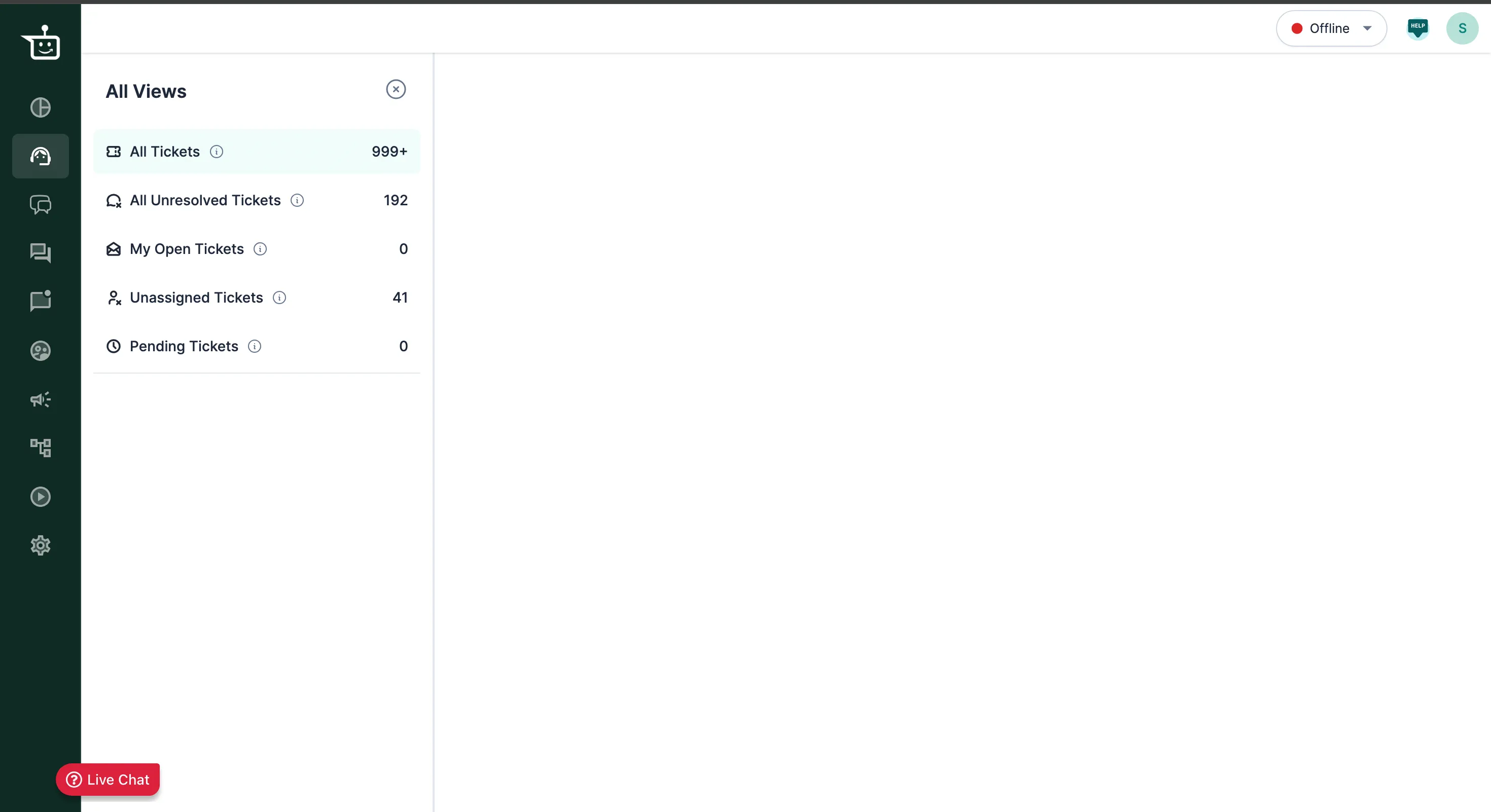
Section titled “4. Work from the right view”Use views so each person sees the tickets that matter to their role.
| View | Who uses it | Goal |
|---|---|---|
| All Tickets | Everyone | Track every ticket. |
| Agent’s open view | Agents | Tickets assigned to you with status Open. Reply, then set them to Pending or Resolved. Target: zero open tickets. |
| Unassigned | Admins | Tickets that still need an agent. Target: zero. |
| Unresolved | Admins | Tickets still in progress. Target: zero. |
5. Add custom fields to tickets
Section titled “5. Add custom fields to tickets”Custom fields add more detail to every ticket, for tracking, filtering and automation. They appear under Ticket Attributes in the context panel. Useful fields for D2C brands:
| Field | Why | Example values |
|---|---|---|
| Priority | Sort tickets by urgency | High, Medium, Low |
| Type of Query | Understand the ticket faster | Order, Return, Product Info |
| Customer Segment | Spot patterns by customer type | VIP, New Customer, Influencer |
Daily checklist
Section titled “Daily checklist”Check at the end of each day:
| Role | Goal |
|---|---|
| Agent | Every Open ticket is resolved or set to Pending. |
| Admin | Every ticket is assigned and the Unresolved view is clear. |
Related
Section titled “Related”Was this page helpful?
Thanks, this helps us improve this page.
Still stuck? Email support@businessonbot.com