

Grow your audience: common questions
FAQ, FAQs, Read all User Acquisition FAQs, User Acquisition FAQsHow do I send people from my Meta ad to WhatsApp?
Section titled “How do I send people from my Meta ad to WhatsApp?”Set the ad to send people to WhatsApp when you create it in Meta Ads Manager (step-by-step walkthrough). Then link it in User Acquisition → Meta Ads → Create Ad Campaign with its Ad ID, and attach a flow and follow-ups. See Link a Meta ad to BusinessOnBot.
Where do I find the Ad ID?
Section titled “Where do I find the Ad ID?”In Meta Ads Manager, open the Ads tab and hover over the ad’s name. See Find the Ad ID.
How do I get a link to test my ad?
Section titled “How do I get a link to test my ad?”Follow this step-by-step walkthrough to get the ad’s shareable link from Meta Ads Manager.
How many Meta ad campaigns can I run?
Section titled “How many Meta ad campaigns can I run?”As many as you like. There is no limit on the BusinessOnBot dashboard.
How many automations can I link to a Meta ad?
Section titled “How many automations can I link to a Meta ad?”When you link an ad in User Acquisition, you can set up a basic flow and two more pings. For more, create an automation in Smart Automation with the Meta ads trigger and pick the ad. See Follow up with customers from Meta ads.
Templates sent within the first 72 hours to customers who came from a click-to-WhatsApp ad are free.
What’s the difference between missed leads and captured leads?
Section titled “What’s the difference between missed leads and captured leads?”Missed leads came to WhatsApp from a click-to-WhatsApp ad that isn’t linked to BusinessOnBot, so they aren’t tracked. Captured leads came from a linked ad and triggered its flow. See Check your Meta ad results.
Where can I see the revenue from each Meta ad?
Section titled “Where can I see the revenue from each Meta ad?”In User Acquisition → Meta Ads, click the Analytics icon on the ad’s tile. See Check your Meta ad results.
How do I turn on the rewards widget?
Section titled “How do I turn on the rewards widget?”Go to Settings → General and click ON under Reward Widget. See Set up the rewards widget.
What does the rewards widget look like?
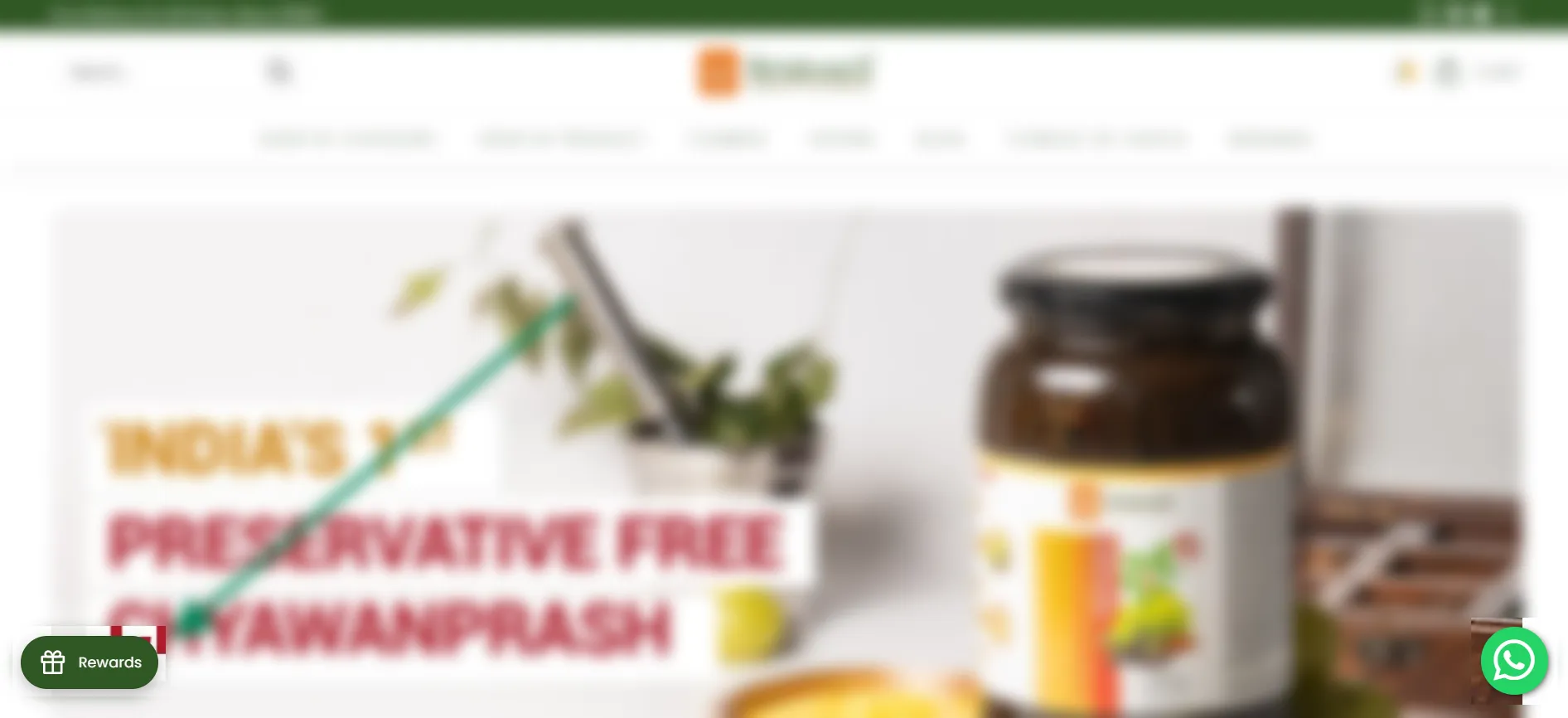
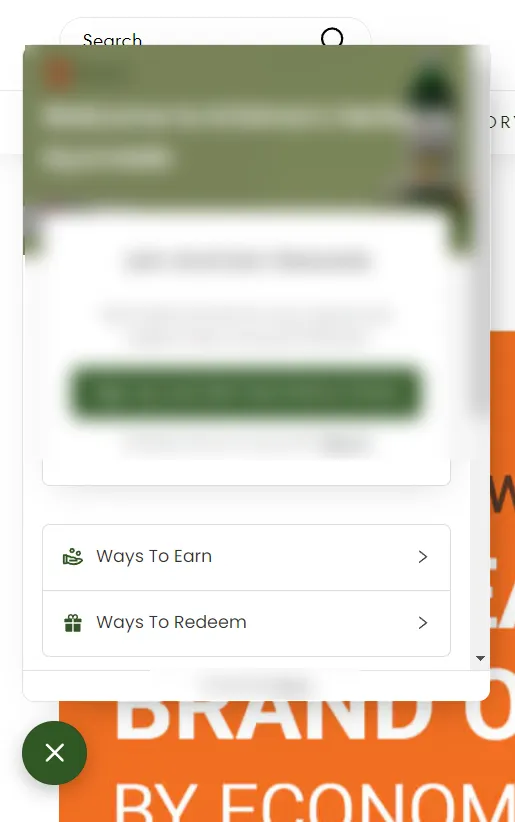
Section titled “What does the rewards widget look like?”It shows as a Rewards button on your website. Visitors open it to sign up, see ways to earn and redeem points, and check their balance.
Can I change the position of the rewards widget?
Section titled “Can I change the position of the rewards widget?”Yes. Go to User Acquisition → Widgets → Appearance and set Position to left or right.
Can I add questions inside the rewards widget?
Section titled “Can I add questions inside the rewards widget?”Yes, as many as you like. Go to User Acquisition → Widgets → Appearance and add questions and answers under the FAQ section.
Where can I see coupon code analytics?
Section titled “Where can I see coupon code analytics?”Go to User Acquisition → Widgets → Analytics and choose a date range.
What is a home page drop-off?
Section titled “What is a home page drop-off?”A visitor opens your home page and leaves without buying. Product abandonment can send them a WhatsApp message. See Message visitors who leave your website without buying.
Is product abandonment a smart automation?
Section titled “Is product abandonment a smart automation?”It sends automatic messages on fixed, built-in triggers from your website. A smart automation offers more triggers that you can customize.
How do you get a visitor’s details if they leave the home page or a product page without sharing them?
Section titled “How do you get a visitor’s details if they leave the home page or a product page without sharing them?”We match the phone number from browser data, or fetch the details if the customer has ordered from your brand or a partner brand before. You can also add a customer details pop-up to collect phone numbers: go to Settings → Website Widget → Popup Widget.
Can I give referral points for the first order only?
Section titled “Can I give referral points for the first order only?”Yes. Go to User Acquisition → Referral → Settings → Referrer, choose Award points for the first order only, enter the points and save.
Do I need to set up all the referral messages?
Section titled “Do I need to set up all the referral messages?”You don’t have to set up every message, but we recommend turning them all on to get more referrals. Referral doesn’t work until its messages are set up. See Set up a referral program.
How many referral messages have I sent?
Section titled “How many referral messages have I sent?”Go to User Acquisition → Referral → Analytics, select messages sent and choose a date range. You see the data for every message you have turned on.
How do I set up loyalty points?
Section titled “How do I set up loyalty points?”See Set up a loyalty points program.
How can I add loyalty points by hand?
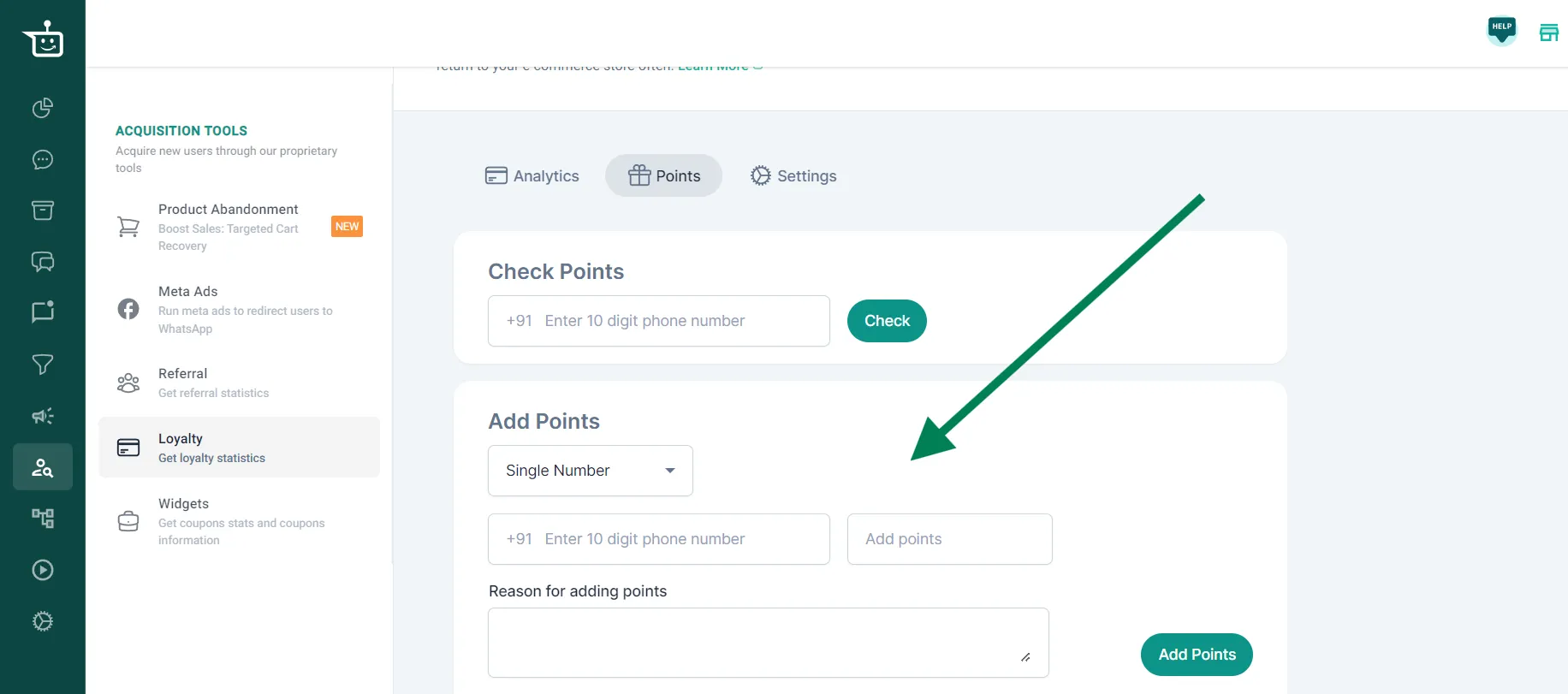
Section titled “How can I add loyalty points by hand?”Go to User Acquisition → Loyalty → Points. Under Add Points, enter the phone number, the points and a reason, then click Add Points. To add points for many numbers at once from an Excel sheet, change Single Number to the multiple-numbers option.
Can I delete a customer’s loyalty points?
Section titled “Can I delete a customer’s loyalty points?”Yes. Go to User Acquisition → Loyalty → Points → Delete Points, choose a single number or multiple numbers, and click Delete Points.
How are loyalty points different from referral points?
Section titled “How are loyalty points different from referral points?”Customers earn loyalty points when they buy from you, and referral points when someone they referred buys. Both can be redeemed on future purchases. See Referral and loyalty programs.
How do customers redeem loyalty points?
Section titled “How do customers redeem loyalty points?”On your website, they check their points in the rewards widget and generate a coupon code to use at checkout. On WhatsApp, they tap Apply Coupon or Redeem Balance at checkout; the option appears if they have points, based on your dashboard settings.
Was this page helpful?
Thanks, this helps us improve this page.
Still stuck? Email support@businessonbot.com