

Common questions
FAQ, FAQs, Flow Builder FAQs, Bot Configuration FAQs, Agent ChatWhat is a trigger phrase?
Section titled “What is a trigger phrase?”A word or sentence that starts a general flow when a customer types it, for example “Shop now”. Agents can also trigger a flow manually. See how trigger phrases work.
How many trigger phrases can I add?
Section titled “How many trigger phrases can I add?”As many as you like.
Will a spelling mistake in the trigger phrase still start the flow?
Section titled “Will a spelling mistake in the trigger phrase still start the flow?”No. Trigger phrases must match exactly, so add common variations and misspellings as extra phrases.
Why is my flow not being triggered?
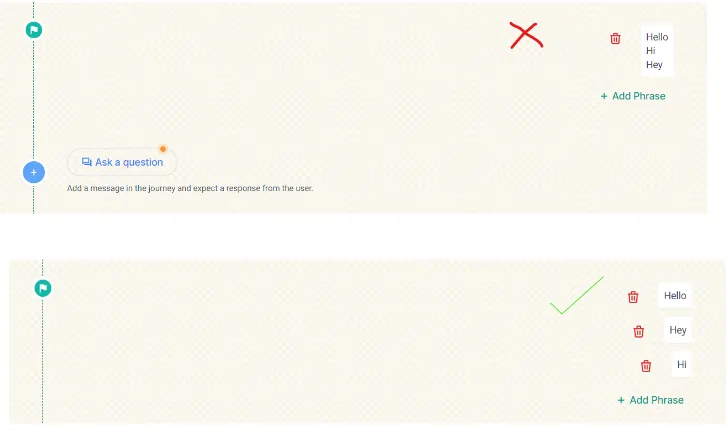
Section titled “Why is my flow not being triggered?”Check that the flow is turned on, that the trigger phrase has no typo, and that each phrase is in its own box, not several in one. Button text must match the trigger phrase exactly, including spaces. The customer’s number may also not meet the flow’s criteria.
How do I connect a flow to a campaign?
Section titled “How do I connect a flow to a campaign?”Create the flow with Campaigns as the type. In step 1 of the campaign, choose Handle by flows, and in step 2 choose your flow. See Types of flows.
How do I connect a flow to a notification, such as feedback?
Section titled “How do I connect a flow to a notification, such as feedback?”Create the flow with Notification as the type and choose the notification (for example Feedback Notification) from the dropdown. Then choose Handle By Flow in the notification settings. See Types of flows.
What is a fallback action, and why is it mandatory?
Section titled “What is a fallback action, and why is it mandatory?”It’s what the bot does when a customer replies to a button or list message with something the flow doesn’t expect: transfer to bot, send to the Support Inbox, assign to an agent, or do nothing. It’s required so the conversation doesn’t break. See Set a fallback action in a flow.
What are the end journey actions?
Section titled “What are the end journey actions?”The last step of a flow: Transfer to Bot, Send to Agent Chat (the Support Inbox), Assign to Agent or Do nothing, each with an optional message. See Choose what happens at the end of a flow.
How can I send products in a flow?
Section titled “How can I send products in a flow?”In the end journey, choose Transfer to Bot and add a Send product recommendations message. See Send product recommendations at the end.
Why can’t I find product recommendations in a normal journey step?
Section titled “Why can’t I find product recommendations in a normal journey step?”Product recommendations are only available with the Transfer to Bot action, because the bot must take over after products are sent to give customers a smooth shopping experience.
How do I test the products in a flow?
Section titled “How do I test the products in a flow?”Click Test under the catalog message. The number you test with must be in an active conversation with your WhatsApp number.
How do I attach a Google Sheet to my flow?
Section titled “How do I attach a Google Sheet to my flow?”When you create the flow, click + Add next to Google Sheet Integration and paste the sheet’s URL. See Send flow responses to a Google Sheet.
What data does the Google Sheet capture?
Section titled “What data does the Google Sheet capture?”The customer’s number, name and the date, plus the events you choose: End of journey reached, User timeout and Fallback message.
What’s the difference between the welcome message and the menu message?
Section titled “What’s the difference between the welcome message and the menu message?”The welcome message is sent when a customer greets your bot (“Hi”, “Hello”, “Hey”). The menu message is sent when a customer wants to start over or gets stuck in a journey. See Customize the welcome, menu and unsubscribe messages.
How do I change the welcome or menu message?
Section titled “How do I change the welcome or menu message?”Go to Bot Configuration → Bot Responses → Welcome Message (or Menu Message), click Edit, make your changes and click Save.
What does Unsubscribe do?
Section titled “What does Unsubscribe do?”If a customer sends a phrase like “Stop”, “Unsubscribe” or “Spam”, the bot unsubscribes them and sends your unsubscribe message. You can’t message them again until they message your bot. See Customize the unsubscribe message.
What is Bot CSAT, and how do I download the report?
Section titled “What is Bot CSAT, and how do I download the report?”Bot CSAT is a customer satisfaction score for your bot, based on customer ratings. Download it from Bot Configuration → Bot Responses → Bot CSAT: choose dates and click Download to get a CSV file.
Which bot reminder is sent if the customer added to cart and reached checkout?
Section titled “Which bot reminder is sent if the customer added to cart and reached checkout?”The Checkout Flow reminder, because the customer received the checkout bill but didn’t pay. See Set up bot reminders.
What’s the difference between the checkout flow and payment flow reminders?
Section titled “What’s the difference between the checkout flow and payment flow reminders?”Checkout Flow goes to customers who received the checkout bill but didn’t buy. Payment Flow goes to customers who received the payment mode message but didn’t buy.
How do I add shipping charges?
Section titled “How do I add shipping charges?”Go to Bot Configuration → Charges → Shipping Charges. Use a flat rate or price slabs, as an amount or a percentage. See Add shipping, COD and prepaid charges.
Can I have different shipping charges for different states?
Section titled “Can I have different shipping charges for different states?”Yes. Charges can apply across India, by state, or by PIN code. See Set up shipping charges.
I don’t want shipping charges above ₹1,000. How do I set that?
Section titled “I don’t want shipping charges above ₹1,000. How do I set that?”Set price slabs up to ₹1,000, then enter 0 under Configure charges for the remaining price range.
How do I set COD charges or prepaid price slabs?
Section titled “How do I set COD charges or prepaid price slabs?”Go to Bot Configuration → Charges → COD Charges or Prepaid Charges. They work like shipping charges. After saving, check the bot to make sure they’re right.
How do I create a coupon code?
Section titled “How do I create a coupon code?”See Create coupon codes for your WhatsApp store.
Will my Shopify coupons work on BusinessOnBot?
Section titled “Will my Shopify coupons work on BusinessOnBot?”Not on the bot itself. They can be applied once the customer is sent from the bot to your Shopify checkout page. To offer a coupon on the bot, create it in BusinessOnBot.
What’s the difference between Fast Checkout and Standard Checkout?
Section titled “What’s the difference between Fast Checkout and Standard Checkout?”Fast Checkout uses a database of over 20 million addresses: if the customer has ordered from any brand with Fast Checkout before, their address shows automatically. Standard Checkout shows only addresses the customer used for earlier orders with your brand; if there are none, they get a new address form.
Why do customers see three addresses at checkout?
Section titled “Why do customers see three addresses at checkout?”These are addresses the customer used for earlier orders.
Why should I upload my catalog to Facebook Business Manager (FBM)?
Section titled “Why should I upload my catalog to Facebook Business Manager (FBM)?”Meta reviews your products against its commerce policy. Only approved products can show on WhatsApp.
Why are there so many errors in my catalog?
Section titled “Why are there so many errors in my catalog?”The errors come from Meta’s commerce policy. Title case errors can be ignored; the others are about titles, descriptions, images or missing product links. See Common catalog errors.
When does Catalog Sync run?
Section titled “When does Catalog Sync run?”Automatically every 8 hours, when Auto Sync is on.
My new products or prices aren’t showing on the bot
Section titled “My new products or prices aren’t showing on the bot”Run a manual sync from Catalog Sync with Bulk Operations, then wait up to an hour. See Update products between syncs. If it still doesn’t work, contact support.
How do I edit my products?
Section titled “How do I edit my products?”Click Edit catalog on your catalog, click the product, make your changes and click Save Changes.
How do I export my catalog?
Section titled “How do I export my catalog?”Click Edit catalog → Export catalog.
What is the Google product category ID, and why is it needed?
Section titled “What is the Google product category ID, and why is it needed?”It’s an ID from Google’s product taxonomy that describes the kind of product. Catalog Sync asks for it when you add a catalog, and choosing the right one avoids problems when syncing. See Sync your catalog.
How do I edit the product categories?
Section titled “How do I edit the product categories?”Go to Product Arrangement, click Edit Sheet, make your changes, then click Update Changes. See Arrange categories and products.
Where do I find my collection ID?
Section titled “Where do I find my collection ID?”On Shopify, it’s the number at the end of the collection’s URL (Products → Collections). On WooCommerce, use the slug name from Products → Categories.
My product arrangement changes aren’t showing on WhatsApp
Section titled “My product arrangement changes aren’t showing on WhatsApp”Category names can have at most 24 characters and no symbols, the sheet tab must be named inventory, and you must click Update Changes. See Sheet rules.
Was this page helpful?
Thanks, this helps us improve this page.
Still stuck? Email support@businessonbot.com