

Import a customer list as a segment (CSV)
Imported Segments, Import Segments, CSV upload, upload contacts, custom segment, import customer listAn imported segment is a customer list you upload as a CSV file, for example customers from an event, a store or another tool. You can then send a campaign to it like any other segment.
Import a segment
Section titled “Import a segment”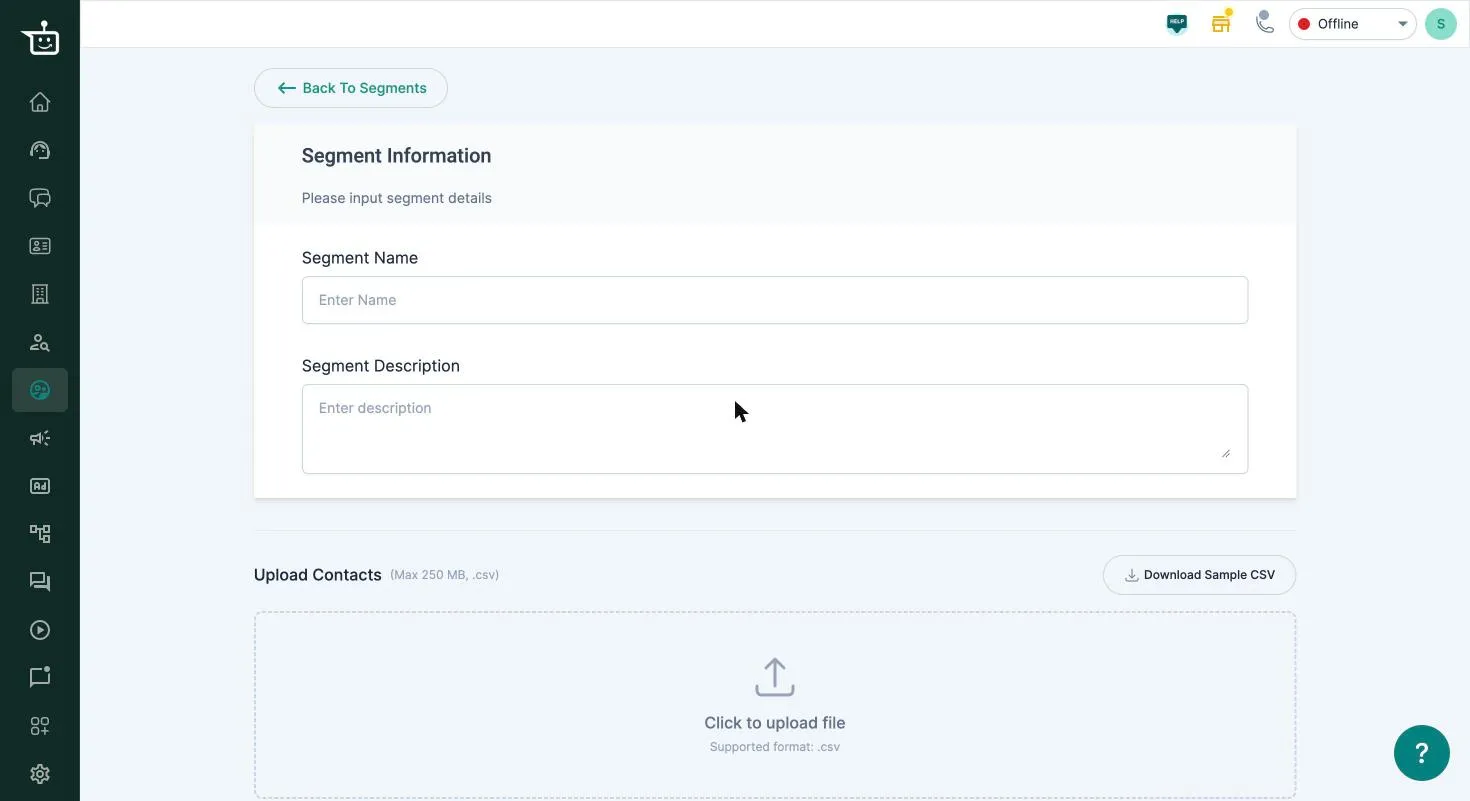
-
Go to User Segmentation and click Import Segments.
-
Enter a Segment Name (up to 50 characters) and, if you like, a Segment Description (up to 150).
-
Click Download Sample CSV to get the right format. The columns are
phone,email,firstName,lastNameandname. -
Fill in your customers and save the file as
.csv(up to 250 MB). -
Under Upload Contacts, click to upload the file. Wait for the green tick.
-
Optionally, use Apply Filter to the imported file:
- Combine: add the customers from one of your segments.
- Remove customers: leave out customers who are in one of your segments, for example people who already ordered.
Then pick the Segment.
-
Click Save Segment.
Your list appears under Imported Segments on the User Segmentation page.
Use the segment
Section titled “Use the segment”From the segment’s menu you can View, Refresh, Download or Delete it.
To send a campaign, click Run Campaign on the segment. If the segment hasn’t been refreshed in the last 10 days, you’ll be asked to Refresh it first, so the campaign goes to an up-to-date list.
Related
Section titled “Related”Was this page helpful?
Thanks, this helps us improve this page.
Still stuck? Email support@businessonbot.com