

Check your Meta ad results
Meta Ad Analytics, Meta ads, CTWA analytics, click to WhatsApp, missed leads, captured leads, 72-hour window, ad revenueMeta ad analytics shows how your click-to-WhatsApp (CTWA) ads perform: how many customers they bring to WhatsApp, which leads you are missing, and the orders and revenue each linked ad drives. You find it under User Acquisition → Meta Ads.
Overview for all ads
Section titled “Overview for all ads”Customers who land on your WhatsApp from a CTWA ad are in a free 72-hour session window: there are no session charges for 3 days. The top of the page shows all-time numbers:
| Metric | What it shows |
|---|---|
| Customers in the 72-hour window | How many customers are in the free session window right now |
| Total meta ads | All CTWA ads created in your Facebook Ads Manager |
| Active meta ads | CTWA ads that are currently active |
| Missed leads | Customers who could have been captured if their CTWA ad had been linked in BusinessOnBot |
| Retargeting analytics | The number and value of orders placed because of your linked CTWA ads |
To see missed leads in detail, click the icon next to Missed leads. A separate page shows each missed lead, including the customer’s phone number, and the potential revenue lost. Click the download icon to export it.
Results for each ad
Section titled “Results for each ad”-
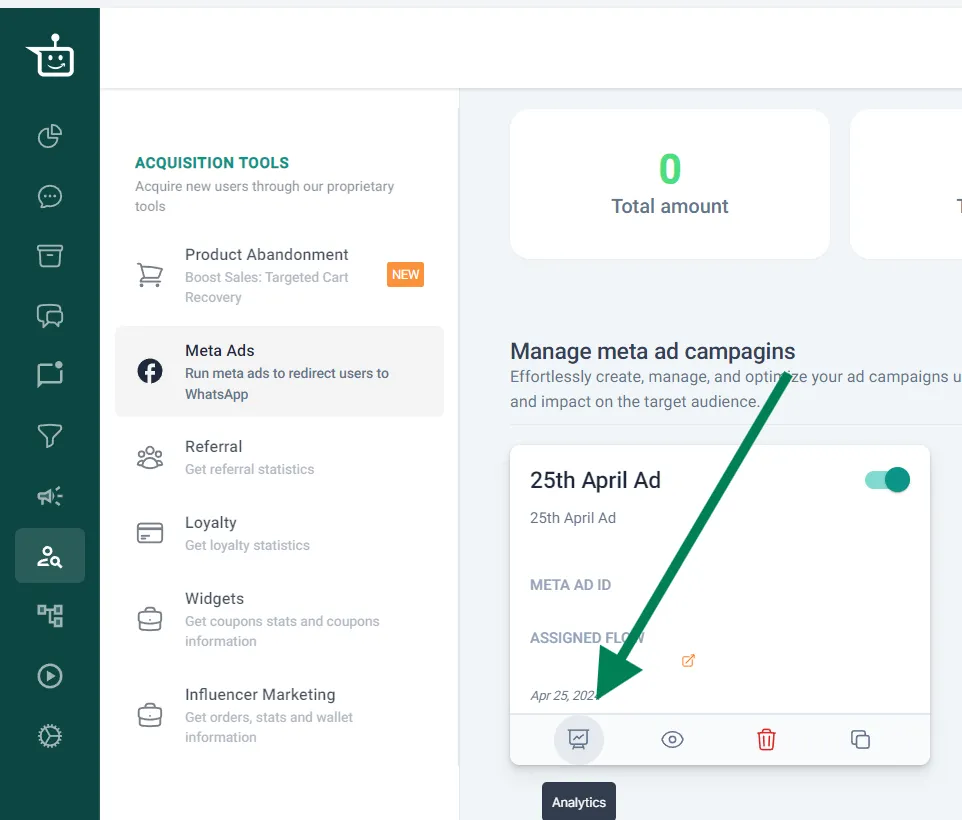
Scroll down to Manage meta ad campaigns. Each linked ad has its own tile. Up to three tiles show at first; click load more to see older ads.
-
On the ad’s tile, click the Analytics icon.
-
Review the ad’s details:
- The Meta ad ID and the flow assigned to it
- Status: Active or Draft
- Customers from this ad who are in the free 72-hour window
- Leads analytics: customers captured from this ad, all time
- Click-through analytics, per ping (the follow-up automations you set up when you linked the ad)
- Message log: each customer’s number and whether they came from Facebook or Instagram
-
To download customer details, filter by field (for example, user in session, Facebook ads or Instagram ads) and download.
Make the most of it
Section titled “Make the most of it”- Link every CTWA ad on the dashboard, so all your results are in one place and no leads are missed.
- Set up pings (follow-up messages) for Meta ads to use the free 72-hour window. See Follow up with customers from Meta ads.
Watch the walkthrough
Section titled “Watch the walkthrough”Related
Section titled “Related”Was this page helpful?
Thanks, this helps us improve this page.
Still stuck? Email support@businessonbot.com