

Close inactive agent tickets automatically
Agent Ticket Auto-Close Rules, auto close, auto-close chat, agent inactivity, user inactivity, inactivity timeoutWhen you finish, agent tickets that nobody has replied to for a set time move to Closed on their own, so inactive conversations don’t pile up in the Support Inbox.
Set the timeouts
Section titled “Set the timeouts”-
Go to Settings and open Ticket Configurations.
-
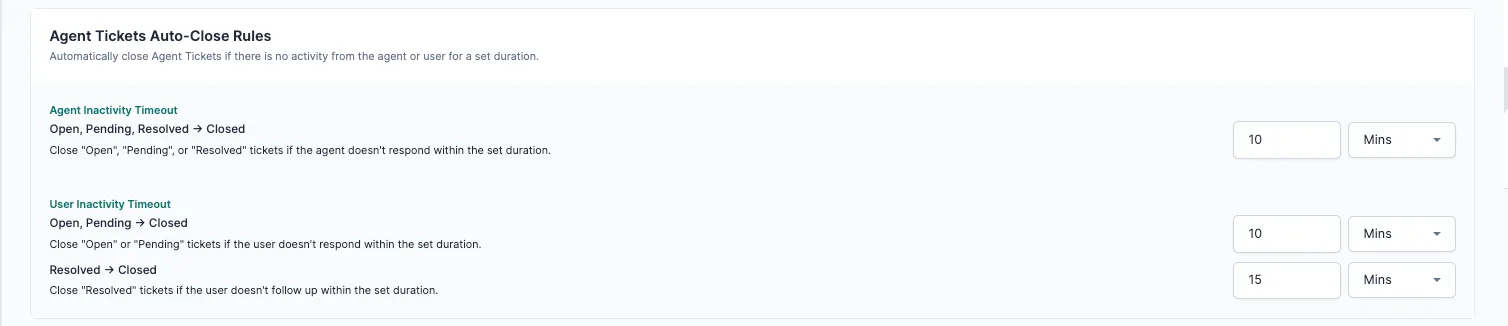
Under Agent Tickets Auto-Close Rules, set each timeout. Type a number and choose the unit from the dropdown (for example, Mins).
- Agent Inactivity Timeout (Open, Pending, Resolved → Closed): closes the ticket if the agent doesn’t respond within this time.
- User Inactivity Timeout (Open, Pending → Closed): closes the ticket if the customer doesn’t respond within this time.
- User Inactivity Timeout (Resolved → Closed): closes a resolved ticket if the customer doesn’t follow up within this time.
How inactivity is counted
Section titled “How inactivity is counted”- Agent inactivity: the last message on the ticket is from the customer, and no agent has replied within the set time.
- User inactivity: the last message on the ticket is from the agent, and the customer hasn’t replied within the set time.
Why turn it on
Section titled “Why turn it on”On WhatsApp, a customer can be in only one conversation at a time: either a bot ticket or an agent ticket. Once the customer is talking to an agent, the bot stops replying. If no agent is free, a customer who sends “Hi” or taps a button may get no reply at all.
Closing inactive tickets stops them piling up, keeps the inbox clear and makes sure tickets are wrapped up on time.
Timeout limits
Section titled “Timeout limits”Agent inactivity (Open, Pending or Resolved → Closed)
Section titled “Agent inactivity (Open, Pending or Resolved → Closed)”| Channel | Minimum | Maximum | Default |
|---|---|---|---|
| 5 minutes | 48 hours | 4 hours | |
| 5 minutes | 24 hours | 4 hours | |
| 1 hour | 4 days | 2 days |
User inactivity (Open or Pending → Closed)
Section titled “User inactivity (Open or Pending → Closed)”| Channel | Minimum | Maximum | Default |
|---|---|---|---|
| 5 minutes | 24 hours | 1 hour | |
| 5 minutes | 24 hours | 1 hour | |
| 1 hour | 4 days | 3 days |
User inactivity (Resolved → Closed)
Section titled “User inactivity (Resolved → Closed)”| Channel | Minimum | Maximum | Default |
|---|---|---|---|
| 5 minutes | 24 hours | 30 minutes | |
| 5 minutes | 24 hours | 30 minutes | |
| 1 hour | 4 days | 1 day |
Tickets closed this way get the system tags Auto_Close_Agent_Inactivity or Auto_Close_User_Inactivity, so you can filter for them later.
Related
Section titled “Related”Was this page helpful?
Thanks, this helps us improve this page.
Still stuck? Email support@businessonbot.com