

Find a customer's full chat history
Watch tutorials for Transcripts, Transcripts, Transcript, chat history, Takeover Visitor, expired chatTranscripts is the full record of every conversation on your brand’s WhatsApp number: campaign messages, order updates, bot replies and agent chats. To check what has happened with a customer, look here.
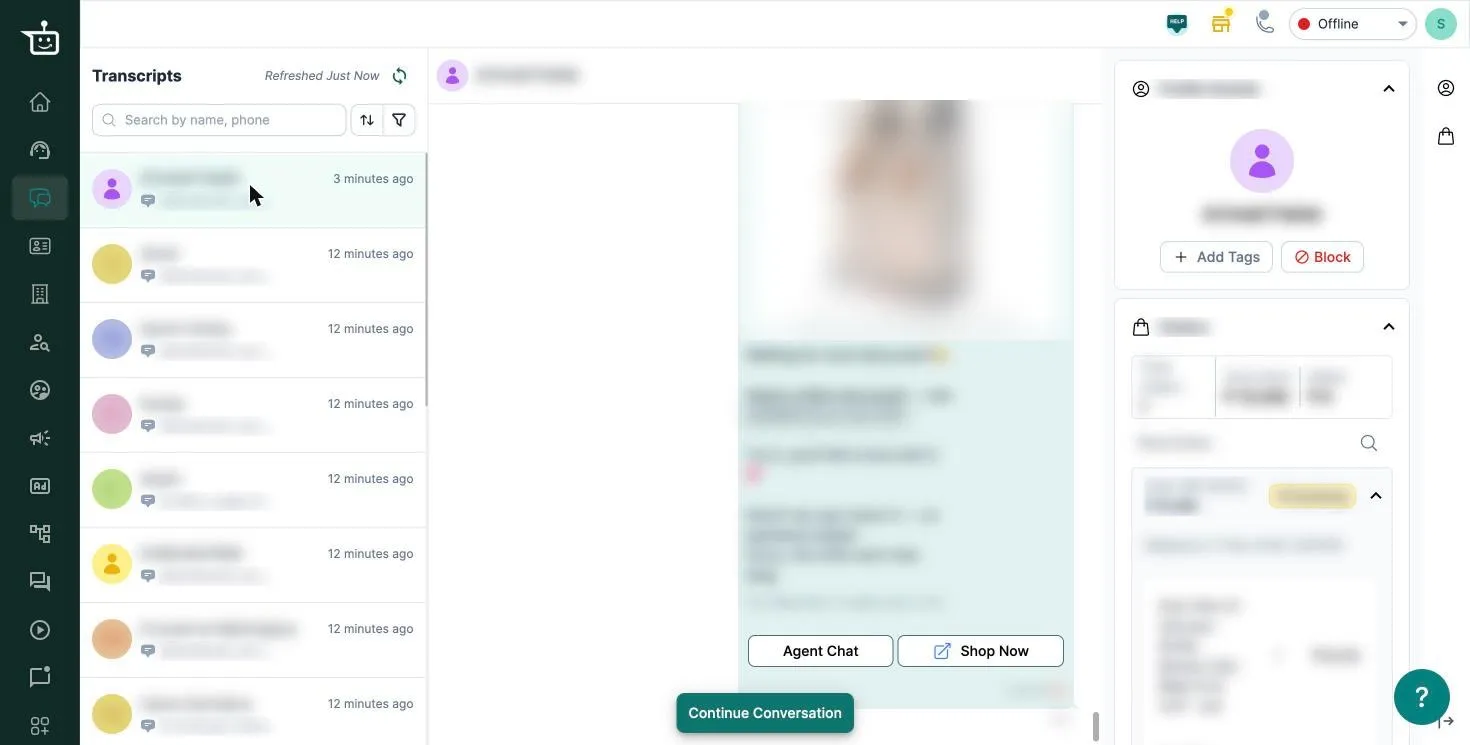
Read a customer’s history
Section titled “Read a customer’s history”-
Click Transcripts in the left menu.
-
Find the customer: scroll the list, or type a name or phone number in Search by name, phone.
-
Click the customer. Their conversation opens in the middle.
-
To see older messages, click Load History.
The panel on the right shows the customer’s details and their orders. From there you can also Add Tags to the customer, or Block them.
To see only chats from certain dates, click the filter icon, pick a Date range and click View Results.
Reply to the customer
Section titled “Reply to the customer”Transcripts is for reading. To reply, move to the Support Inbox:
- If the customer has an open ticket, click Continue Conversation. The ticket opens in the Support Inbox.
- If their last ticket is closed, you’ll see Ticket was closed. Click New Ticket to start a new one.
A WhatsApp session lasts 24 hours from the customer’s last message. After that, you can only start the conversation with an approved template message.
Watch the walkthrough
Section titled “Watch the walkthrough”The video shows an earlier version of this screen. Reading a customer’s history works the same way.
Related
Section titled “Related”Was this page helpful?
Thanks, this helps us improve this page.
Still stuck? Email support@businessonbot.com