

Set up the rewards widget
Widgets, rewards widget, loyalty widget, reward points, coupon code, register with WhatsAppWhen you finish, visitors to your website can use the rewards widget to check their points, earn points and redeem them as a coupon code. The widget brings your referral and loyalty programs to your website, for customers who don’t visit your WhatsApp store.
Everything below is under User Acquisition → Widgets.
Set coupon and points rules
Section titled “Set coupon and points rules”-
Open the Settings tab.
-
Enter the number of hours after which coupon codes expire.
-
Enter the points given to a customer who registers with WhatsApp.
-
Enter the minimum order value needed to use a redeemed coupon code.
-
Click Save.
Set up the messages
Section titled “Set up the messages”Use a pre-approved template or your own approved template for each message.
-
In the Settings tab, go to the message configuration section.
-
Set the message that confirms a coupon code redemption. Customers get it when they redeem a coupon code using the rewards widget on your website.
-
Set the message for registering with WhatsApp. Customers get it when they click register with WhatsApp on the rewards widget.
-
Click Save.
Change how the widget looks
Section titled “Change how the widget looks”-
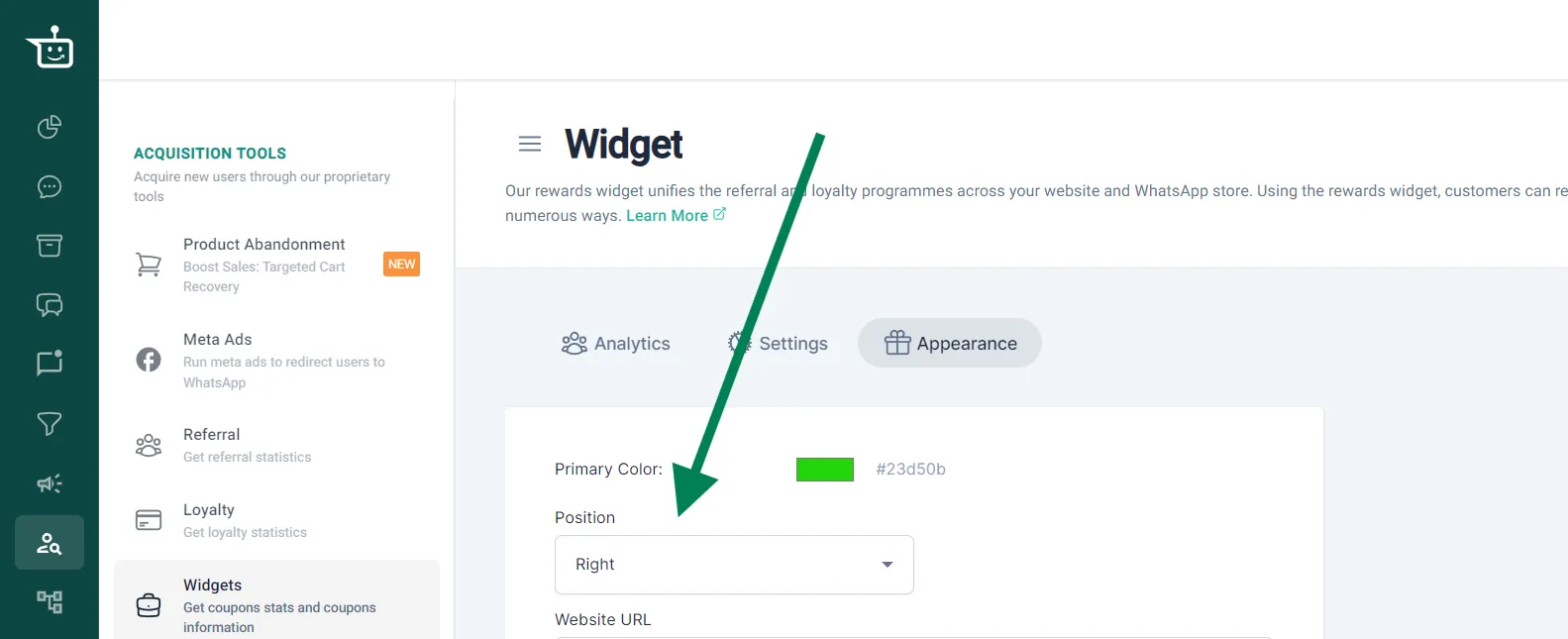
Open the Appearance tab.
-
Change the Primary Color, the Position (left or right of your website) and the other settings.
-
Under the FAQ section, add questions and answers to show inside the widget, if you like.
-
Click the preview button to see how the widget button will look on your website.
-
Click Save.
Check results
Section titled “Check results”The Analytics tab shows how many messages were sent, delivered and failed, for any date range. It also shows coupon code analytics. For widget clicks and coupon codes generated, see Check how your website widgets perform.
Watch the walkthrough
Section titled “Watch the walkthrough”Related
Section titled “Related”Was this page helpful?
Thanks, this helps us improve this page.
Still stuck? Email support@businessonbot.com