

Step 1: Set up ice breakers
Step 1: Setup Ice Breakers, Ice Breakers, icebreakers, connect Instagram, Instagram integration, Instagram DM quick repliesWhen you finish, customers who message your brand on Instagram for the first time see up to four tappable questions, and each one starts an automated reply flow.
This is step 1 of 3 in setting up Instagram: ice breakers, then private replies, then comment automation.
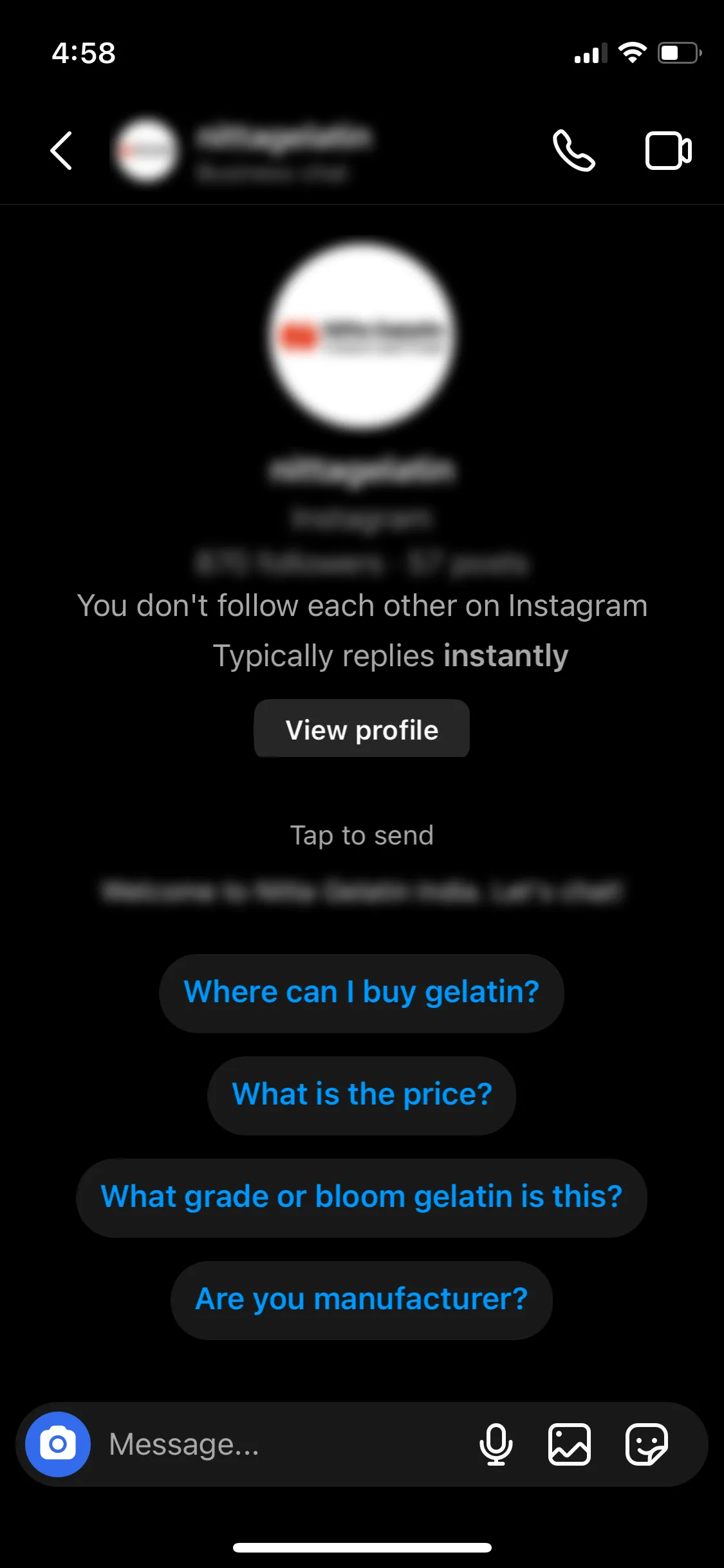
Before you start: connect your Instagram account
Section titled “Before you start: connect your Instagram account”Skip this if your Instagram account already shows under Settings → Integrations Suite → Channels.
-
Log in to your BusinessOnBot dashboard and go to Settings → Integrations Suite.
-
Open the Channels tab. Your connected Instagram accounts are listed here.
-
Click Integrate Now.
-
Log in to the Facebook account that is linked to your Instagram account, then click Continue.
-
Click Get Started.
-
Enter your Instagram login details and click Log in.
-
If you have more than one Facebook Business account, select the one you want to connect. Click Continue.
-
Choose the Facebook page you want to connect. Click Continue.
-
Choose the Instagram account you want to connect. Click Continue.
-
Click Save.
-
When you see the confirmation, click Got it. You return to the BusinessOnBot dashboard, where your connected Instagram accounts are listed.
You can connect more than one Instagram account to the same dashboard. Interactive walkthrough: How to connect your Instagram account.
Create an ice breaker
Section titled “Create an ice breaker”-
In your BusinessOnBot dashboard, go to Bot Configuration → Ice Breakers.
-
If you have more than one Instagram account connected, choose the account from the list.
-
Click New Ice breaker.
-
Click Add to add an ice breaker. You can add up to 4.
-
Type the ice breaker text, for example “Shop Now”, “Help/Support” or “I have a query”.
-
Click Create New Flow. The flow builder opens with Instagram as the platform and Ice Breakers as the flow type already selected.
-
Optional: click Add to attach a Google Sheet that records customer responses in real time.
-
Click Continue.
-
Click Ask a question to add the first message the customer gets. Choose a message type:
- Simple Message: text only, no buttons or media.
- Media Message: an image or video.
- Button Interactive Message: text with buttons.
-
Build the rest of the flow, then click Deploy. You return to the Ice Breakers page.
-
Click Save.
The Ice Breakers page lists all your active and inactive ice breakers.
Good to know
Section titled “Good to know”- Ice breakers show only the first time a customer messages your brand. Returning customers don’t see them again.
- If a customer types a message instead of tapping an ice breaker, the message goes straight to the Support Inbox.
- Keep ice breakers for simple, common questions. Make sure customers can still reach a person for anything complex.
Ice breaker ideas
Section titled “Ice breaker ideas”“How can we assist you today?”
| Ice breaker | Example reply |
|---|---|
| 🛒 Shop our latest collection | “Check out our newest arrivals here: [link to collection]! Let us know if you need help choosing.” |
| 📦 Track my order | “Share your order number and we’ll track it for you, or check the status here: [order tracking link].” |
| ❓ Have a query | “One of our support agents will be with you shortly! Meanwhile, tell us how we can help.” |
| 🌐 Check out website | “See our entire range of products here: [link to website]!” |
More sets that work well:
- “Welcome! What would you like to explore?” ✂️ Book an appointment · 💅 View services · 💬 Ask about promotions · 📞 Contact us
- “Welcome! How can we assist you today?” 🛒 Shop best sellers · 🎁 Check latest offers · 🚚 Track my order · 🕑 View return policy
- “Hi! What would you like to do next?” 🆕 See new arrivals · 👗 Shop by category · 📦 Where’s my package? · 💳 Check payment options
Next step
Section titled “Next step”Step 2: Set up private replies →
Related
Section titled “Related”Was this page helpful?
Thanks, this helps us improve this page.
Still stuck? Email support@businessonbot.com