

Manage contacts
Contacts, contact list, customers, merge contacts, duplicate contacts, block contact, contact owner, customer profileContacts lists every customer who has had a support ticket with you, on any channel. Use it to find a customer, clean up duplicates, or see everything about one person in one place.
To open it, click Contacts in the left menu.
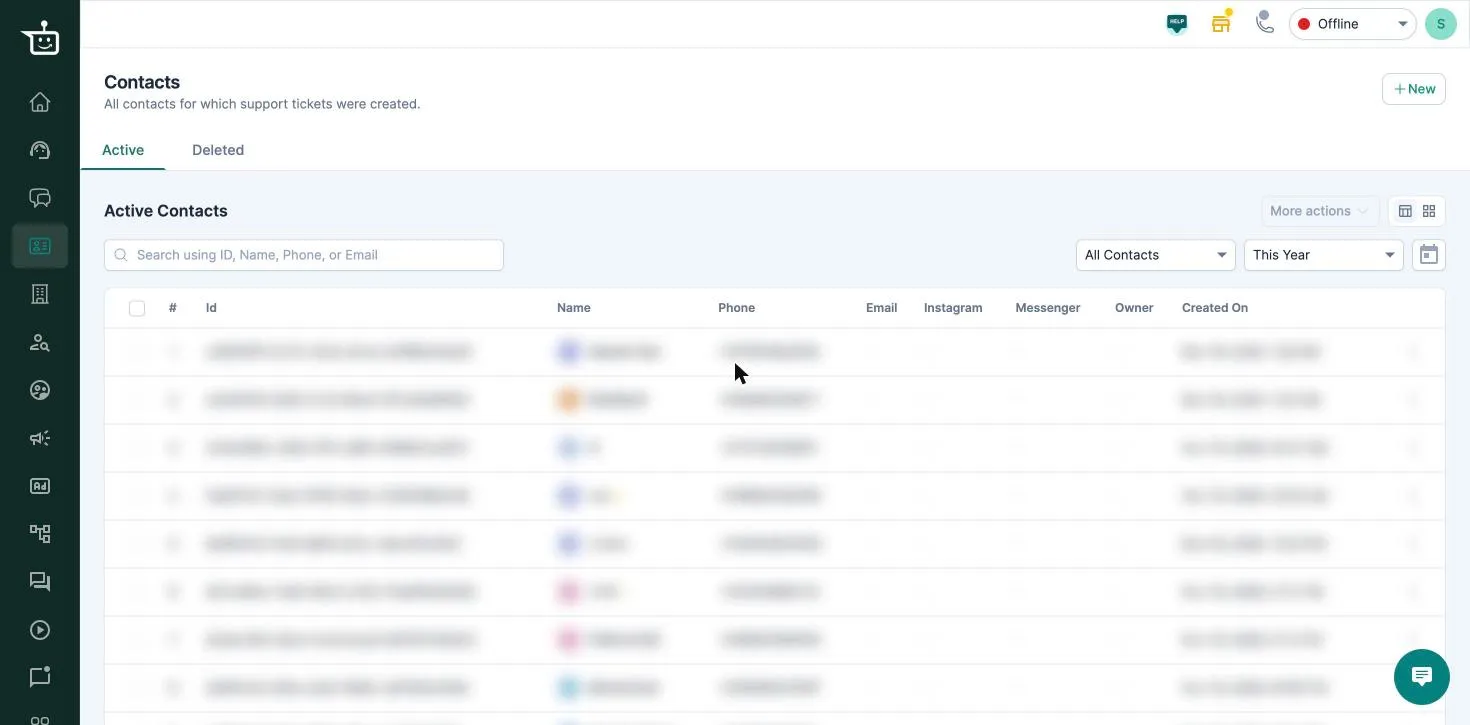
Find a contact
Section titled “Find a contact”- Search by ID, name, phone or email.
- Pick a date range to see contacts created in that period.
- Use the All Contacts dropdown to show only Blocked Contacts.
The Active tab shows current contacts. Deleted shows contacts you’ve deleted.
Click a contact to open their profile.
Add a contact
Section titled “Add a contact”-
Click New → Contact.
-
Enter a Name.
-
Add at least one way to reach them: Phone, Instagram, Email or External ID. You can add more than one of each.
-
Optionally choose an Owner (an agent) and a Company.
-
Click Create contact.
If a contact with the same phone, email or Instagram already exists, you’ll see Contact with same identity exists and a link to that contact.
From New you can also start a Ticket or create a Tag.
Work with several contacts at once
Section titled “Work with several contacts at once”Tick the contacts, then open More actions:
| Action | What it does |
|---|---|
| Merge | Combines duplicates into one contact. You choose the primary contact; notes and tags from all of them are kept |
| Block / Unblock | Tickets from blocked contacts no longer show up in the Support Inbox |
| Delete | Moves contacts to Deleted. A deleted contact comes back automatically if they create a new ticket |
| Assign Owner | Makes an agent the owner of the contacts |
On the Deleted tab you can Restore contacts or Merge them.
A contact’s profile
Section titled “A contact’s profile”The profile shows:
- Tags: click Add Tags to label the customer.
- Owner and Company: change or remove them.
- Accounts: their phone numbers, emails and other identities. You can edit these.
- Tickets: every ticket they’ve had, with channel, assignee and status.
- Orders: their orders, with items, amount and status.
- Notes: click Add Note to leave a note for your team.
From the profile you can also start a New Ticket, Merge them with another contact, or Block or Delete them from More.
Related
Section titled “Related”Was this page helpful?
Thanks, this helps us improve this page.
Still stuck? Email support@businessonbot.com