

Sync your Shopify or WooCommerce catalog to your WhatsApp store
Connect your catalog to your WhatsApp store, Catalog Sync, product catalog, FBM, Facebook Business Manager, catalog errors, auto sync, edit catalogWhen you finish, your Shopify or WooCommerce products are live on your WhatsApp store and stay in sync with your website.
Catalog Sync fetches your products from your store, checks them against Meta’s commerce rules, and uploads them to your Facebook Business Manager (FBM). Meta must approve the catalog before products can show on WhatsApp.
Sync your catalog
Section titled “Sync your catalog”-
Go to Bot Configuration → Product Catalog → Catalog Sync.
-
Click to add a catalog, and enter a name and description for your reference.
-
Enter the Google product category ID for your products. To find it, click the button next to the field: a taxonomy Excel file downloads. Pick the ID that is closest to your products.
-
Click Initiate Sync and wait for the sync to finish. Click Refresh to see the latest status.
-
Click Edit catalog to check for errors.
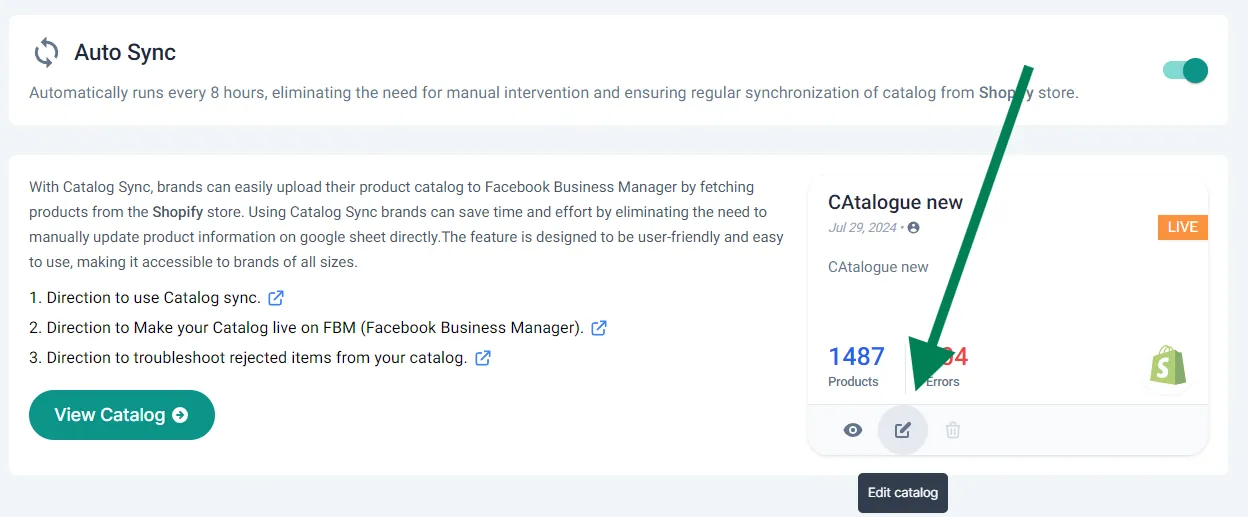
-
To see the errors together, click the arrow in the errors column. They sort in descending order.
-
If the errors can be ignored, click Upload to FBM, then Upload anyway. Your catalog is now live on your WhatsApp store.
-
Turn on Auto Sync so changes on your store are picked up automatically, every 8 hours.
Only products that are active and in stock show on your WhatsApp store.
Update products between syncs
Section titled “Update products between syncs”Auto Sync runs every 8 hours. To bring in new prices, images or products sooner, run a manual sync. Changes can take up to an hour to show on the bot.
-
Go to Bot Configuration → Product Catalog → Catalog Sync.
-
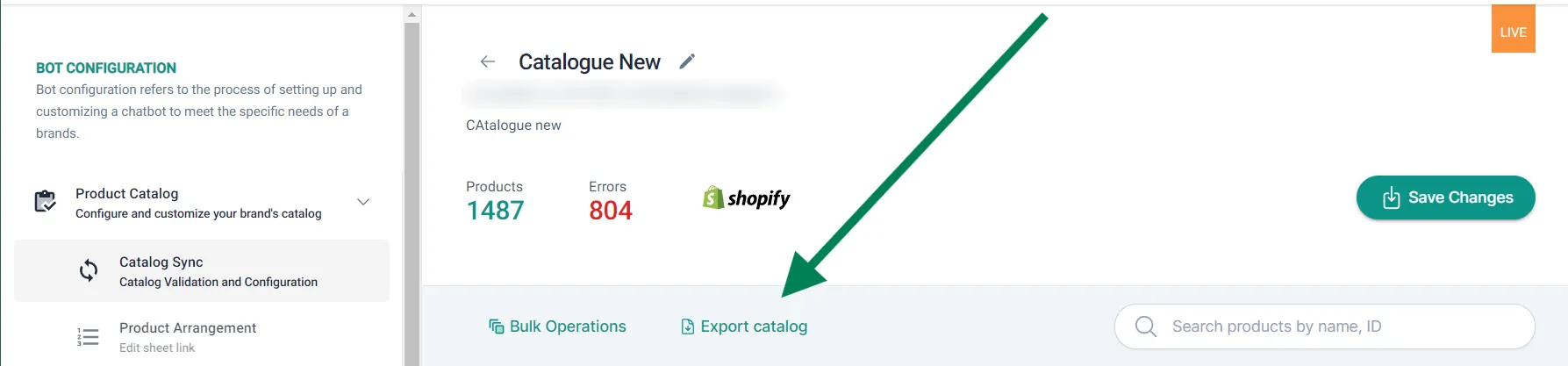
Click the edit icon on your live catalog.
-
Click Bulk Operations and choose:
- Update New Products to update prices, images and other details of existing products, or
- Add New updates to add new products.
-
Choose Shopify or WooCommerce.
-
Tick the details to update, such as title and description, and click Update.
-
Click Save Changes.
Edit or export products
Section titled “Edit or export products”- Edit a product: click Edit catalog, click the product, make your changes and click Save Changes.
- Export the catalog: click Edit catalog → Export catalog.
Common catalog errors
Section titled “Common catalog errors”Errors come from Meta’s commerce policy and vary by product.
| Error | Cause and fix |
|---|---|
| Title case | Can be ignored. It doesn’t stop the product showing on WhatsApp. |
| Title | The title is too long or all in capitals. |
| Description | The description contains a link or is the same as the title. |
| Image | The image is missing or too large. Use JPEG or PNG, square (1:1), 500 × 500 px. |
| Product link | The product link is missing. |
Choose the right Google product category ID to avoid problems when you sync.
Watch the walkthrough
Section titled “Watch the walkthrough”Related
Section titled “Related”Was this page helpful?
Thanks, this helps us improve this page.
Still stuck? Email support@businessonbot.com