

Support Inbox common questions
FAQ, FAQs, Read all Agent chat FAQs, Read all Transcript FAQs, Agent Chat, TranscriptsHow do I add an agent?
Section titled “How do I add an agent?”An admin adds agents from the dashboard by creating a username and password for each one. See Add agents and manage their status.
How do I change an agent’s username or password?
Section titled “How do I change an agent’s username or password?”Go to Settings → Manage agents, click Edit next to the agent, and select Change Password. See Add agents and manage their status.
How are chats assigned to agents?
Section titled “How are chats assigned to agents?”With Auto Routing on, new tickets go to online agents in turn (round robin): the first ticket to one agent, the next to the next agent, and so on.
Will I get chats while I’m offline?
Section titled “Will I get chats while I’m offline?”No. Tickets are assigned only to agents who are online. See agent statuses.
Why are chats being assigned to me automatically?
Section titled “Why are chats being assigned to me automatically?”Auto assignment is turned on for your account. See Assign tickets automatically with Auto Routing and Assign tickets to the first admin who replies.
How do I reassign a chat to another agent?
Section titled “How do I reassign a chat to another agent?”Change the assignee under Ticket Attributes in the context panel.
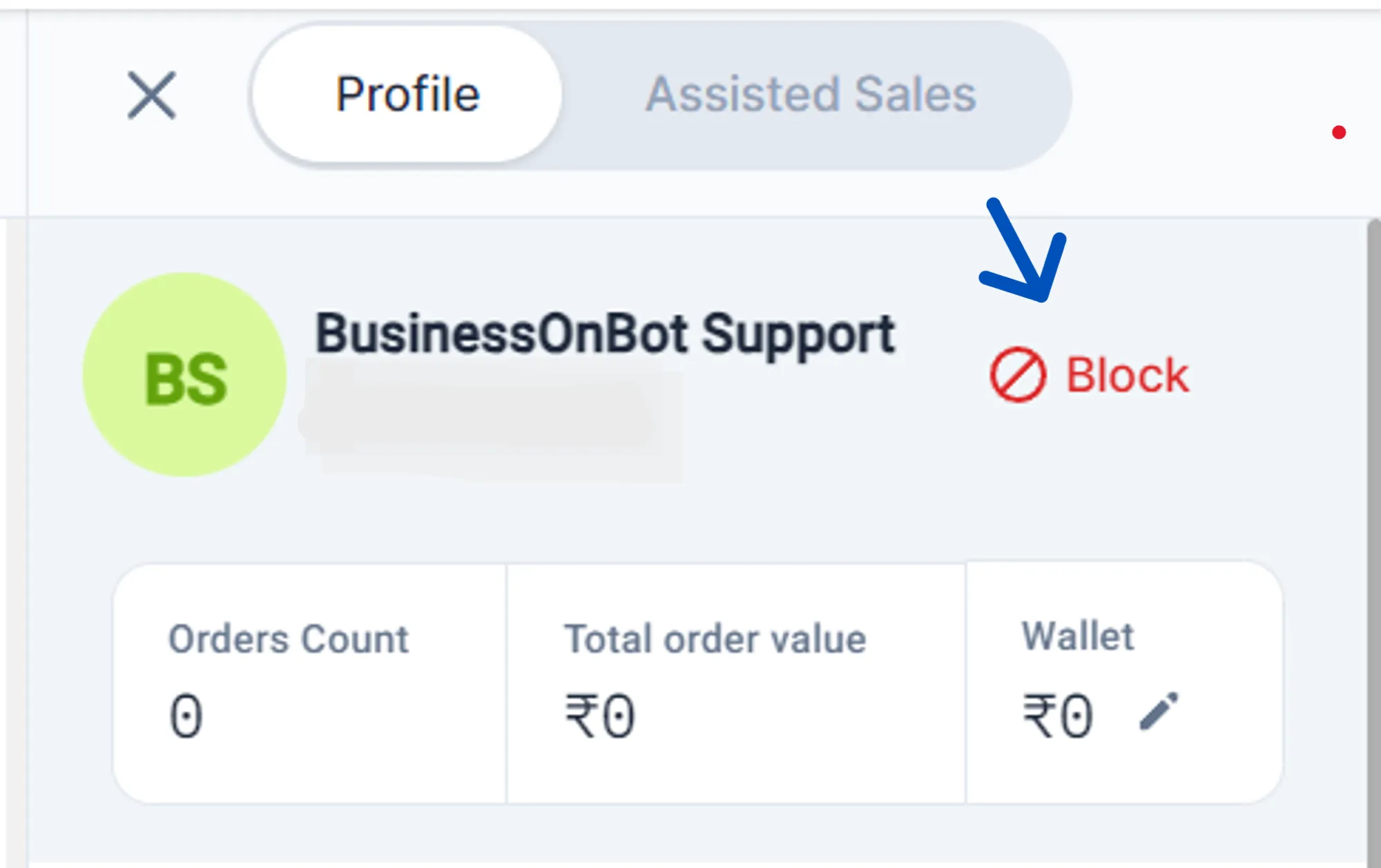
How do I block a customer?
Section titled “How do I block a customer?”Open their ticket and click Block User under Profile Details in the context panel. See Block a customer and view blocked users.
How do I add tags to a chat?
Section titled “How do I add tags to a chat?”Add a tag from the ticket header. See Add tags to a ticket. To tag the customer instead, use contact tags.
How do I save a message and reuse it?
Section titled “How do I save a message and reuse it?”Create a quick response or a list message, then pick it from the message box in a chat. See Set up quick responses, list messages and tags and Send a quick response.
How do I send a video to a customer?
Section titled “How do I send a video to a customer?”Save the video under Video messages in your interactive tools, then send it from the chat. See Save videos.
How do I message a customer who hasn’t written in a while?
Section titled “How do I message a customer who hasn’t written in a while?”On WhatsApp, if the customer’s last message was more than 24 hours ago, start with an approved template. When they reply, you can chat normally. See How tickets are created.
How do I send several products via Assisted Sales?
Section titled “How do I send several products via Assisted Sales?”Search for each product and add it to the cart, then send the cart to the customer. See Sell on WhatsApp with Assisted Sales.
Why can’t I send a product via Assisted Sales?
Section titled “Why can’t I send a product via Assisted Sales?”Out-of-stock products can’t be sent.
How do I set chats to close automatically?
Section titled “How do I set chats to close automatically?”Set the inactivity timeouts in Settings → Ticket Configurations. See Close inactive agent tickets automatically.
How do I set working hours?
Section titled “How do I set working hours?”See Set business hours and an away message.
How do I send an “agent unavailable” message outside working hours?
Section titled “How do I send an “agent unavailable” message outside working hours?”Set the outside business hours message on the Business Hours page. See Set the outside business hours message.
How do I download the CSAT report?
Section titled “How do I download the CSAT report?”Go to Dashboard → Agents → Agent Analytics, open Report, select the agent and date range, and click Download. See Track agent performance and CSAT.
How do I send a CSAT message after a chat is resolved?
Section titled “How do I send a CSAT message after a chat is resolved?”Go to Dashboard → Agents → Agent CSAT, click Config Message, add your message and save. See Agent CSAT.
Related
Section titled “Related”Was this page helpful?
Thanks, this helps us improve this page.
Still stuck? Email support@businessonbot.com