

Set up order confirmation messages
Order Confirmation, order placed message, order receipt, COD order confirmation, prepaid order confirmationWhen you finish, every customer who places an order gets a WhatsApp message confirming it, with the details you choose. You can use different templates for prepaid and cash on delivery (COD) orders.
Set it up for prepaid orders
Section titled “Set it up for prepaid orders”-
Go to Notification → Order Confirmation and open the Settings tab.
-
Turn on the toggle to enable the notification.
-
Under prepaid orders, choose Handle by flow if you built an order confirmation flow in Flow Builder with the flow type set to notification. Otherwise choose Handle by bot.
-
If you chose Handle by bot, select your approved template.
-
If the template has an image header, click Choose image and upload the image.
-
Map each body variable from its dropdown. For the default template:
- Variable 1: First Name, Last Name or Full Name
- Variable 2: Order Id
- Variable 3: Amount
-
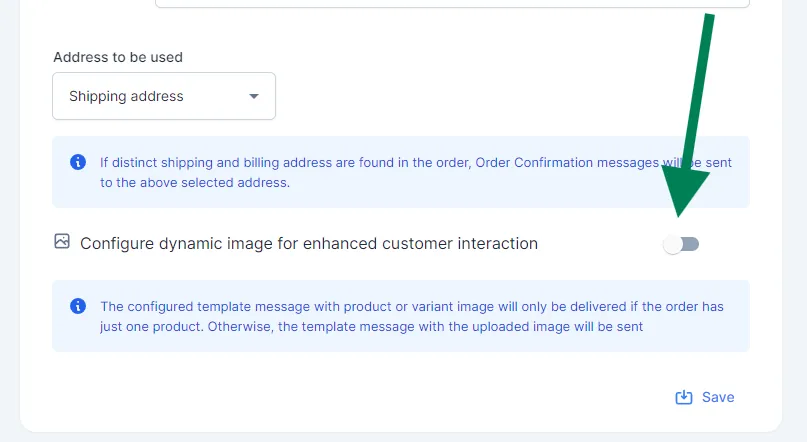
Under Address to be used, choose Shipping address for a Shopify store or Billing address for a WooCommerce store.
-
To send a picture of the product ordered, turn on Configure dynamic image for enhanced customer interaction, then choose Send variant image (if your products have variants) or Send product image.
-
Click Save.
Set it up for COD orders
Section titled “Set it up for COD orders”Configure the COD section the same way, with its own template if you like, and click Save. If you don’t accept COD orders, leave this section empty.
If you send COD confirmation messages with a 0-minute delay, customers get the COD confirmation message instead of this one for COD orders.
Good to know
Section titled “Good to know”- The product image is sent only when the order has one product. For orders with several products, the image you uploaded is sent.
- We recommend including the order ID (Order Id), the products (Line Items) and the total (Amount).
Template variables
Section titled “Template variables”| Variable | What it sends |
|---|---|
| First Name / Last Name / Full Name | The customer’s name |
| Address | The address selected under Address to be used |
| Order Id | The order number |
| Amount | The order total |
| Order Status URL | A link where the customer can check the order status |
| Line Items | The products in the order |
| Order Type | COD or prepaid |
| Pin code | The delivery PIN code |
| The customer’s email address | |
| Phone Number | The customer’s phone number |
| Coupon Code | The coupon used on the order |
| Discount Associated | The discount applied to the order |
| Created At | When the order was placed |
| Currency Code | The order currency |
| Available Balance Points | Loyalty points the customer can redeem (e.g. 100) |
| Constant | Fixed text you type in, the same for every customer |
Track results
Section titled “Track results”- Analytics tab: total orders (website and WhatsApp) and order confirmation messages sent. Filter by date range.
- Message Logs tab: each message with the order ID, customer, order value, phone number, processing time and message status. Click the eye icon to see the message. Search by order ID, name or phone number, or download the logs as an Excel sheet.
Watch the walkthrough
Section titled “Watch the walkthrough”Related
Section titled “Related”Was this page helpful?
Thanks, this helps us improve this page.
Still stuck? Email support@businessonbot.com