

Types of messages in a flow
Types of messages in a flow, button interactive message, list interactive message, product recommendations, media message, CTA button in flowWhen you add a message to a flow, you choose one of six message types. You can combine them in one flow.
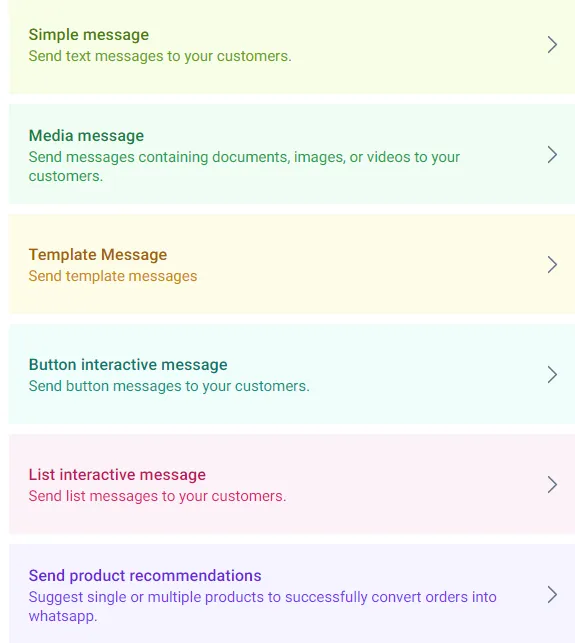
| Message type | What it sends | Use it when |
|---|---|---|
| Simple message | Plain text, no buttons. Can include links. | You want to say something or share a link, e.g. “Hey customer name, thanks for reaching out to brand name”. |
| Media message | An image, video or document, with the text as its caption. | You want to show a product, a guide or a video. |
| Template Message | An approved WhatsApp template, which can have call to action (CTA) buttons. | You need a button that opens a link. Flows can’t send CTA buttons any other way. |
| Button interactive message | Text with up to 3 buttons. | You want the customer to pick from up to 3 options, e.g. Shop now, Track order, Agent chat. |
| List interactive message | A list of up to 10 options, grouped in sections. Each row can have a description. | You have more than 3 options, e.g. a “Product related” section (wrong product, defective product) and a “Service related” section (refund policy, shipping policy). |
| Send product recommendations | One or more products from your live catalog. | You want to suggest products based on what the customer told you. |
For button and list messages, you build a separate journey for each button or row.
Add product recommendations
Section titled “Add product recommendations”- Choose Send product recommendations.
- Choose a single product or multiple products.
- Add a body text.
- Click to add an item, search by product name or SKU, and add it.
- Save the message.
Product recommendations are only available with the Transfer to Bot action (at the end of a journey), because the bot must take over after products are sent. Your catalog must be synced first. See Sync your Shopify or WooCommerce catalog.
Good to know
Section titled “Good to know”- To add a link, use a simple message.
- To send a CTA button, use a template message.
- You can also add quick replies in a flow.
Watch the walkthrough
Section titled “Watch the walkthrough”Related
Section titled “Related”Was this page helpful?
Thanks, this helps us improve this page.
Still stuck? Email support@businessonbot.com