

Find and sort system tags
Managing System Tags, system tags, automatic tagsSystem tags are built-in labels that the Support Inbox adds to tickets automatically, for example Outside_Business_Hours or Auto_Close_User_Inactivity. You can’t edit or delete them, so they stay the same across all tickets. Admins can search and sort them, and jump to the tickets that have them.
Search for a system tag
Section titled “Search for a system tag”-
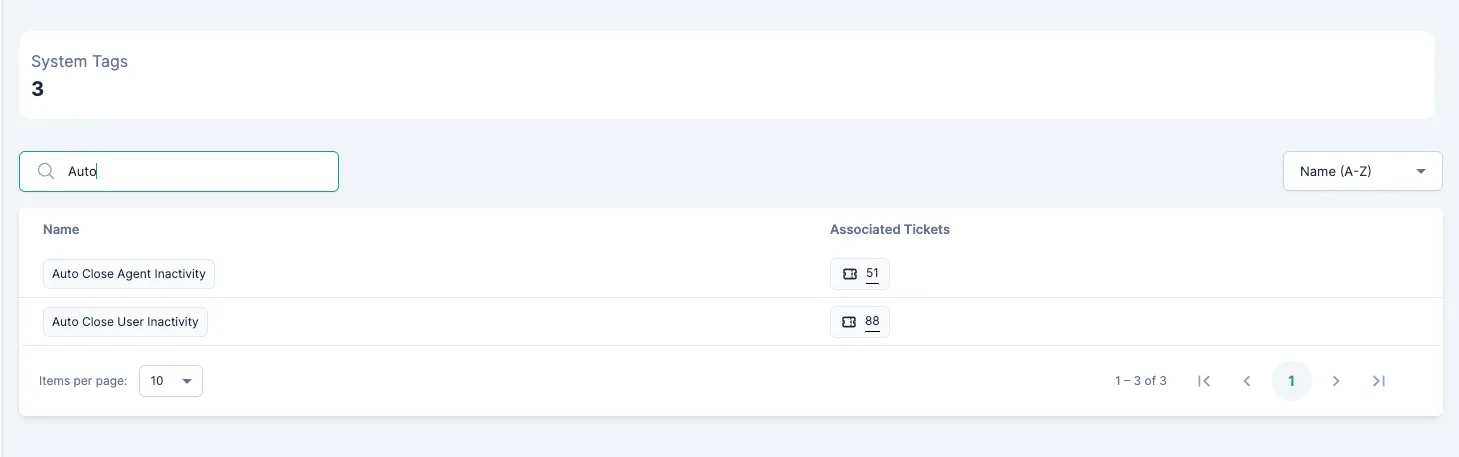
Go to Settings → Support Inbox → Ticket Tags and open the System tab.
-
Type a tag name or keyword in the search bar. The list shows only the matching tags.
Sort system tags
Section titled “Sort system tags”-
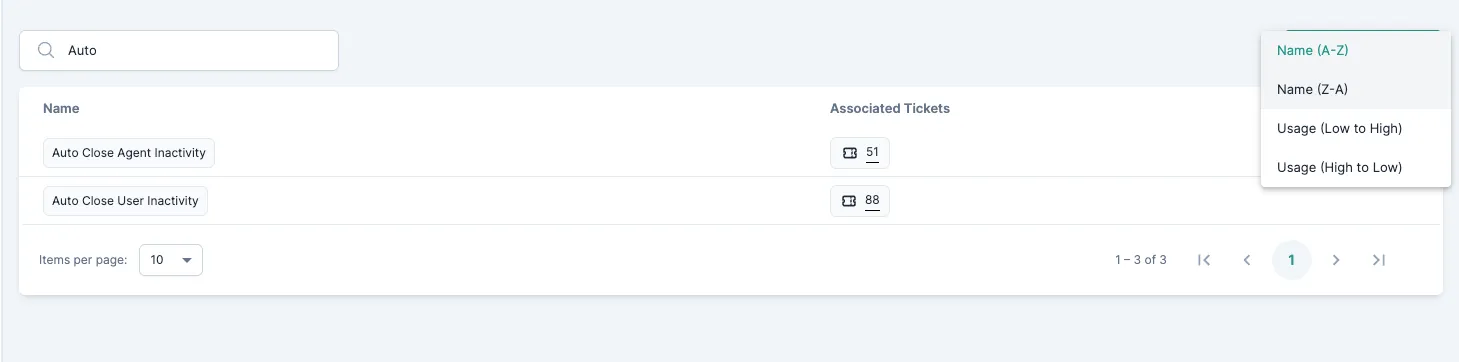
On the System tab, click the sort dropdown next to the column headers.
-
Choose the order:
- Name: alphabetical, A–Z or Z–A.
- Usage: tags on the most (or fewest) tickets first.
Open the tickets that have a system tag
Section titled “Open the tickets that have a system tag”-
On the System tab, find the tag.
-
Click the ticket count next to it. A filtered list opens with only the tickets that have that tag.

Related
Section titled “Related”Was this page helpful?
Thanks, this helps us improve this page.
Still stuck? Email support@businessonbot.com