

The context panel: customer details beside every ticket
Context Panel, customer profile, customer details, orders panel, ticket history, block userThe context panel is the drawer on the right of the Support Inbox. When you open a ticket, it shows who the customer is and what they’ve done with your brand, so you can reply faster and more personally, and even sell, without leaving the ticket.
The panel has five sections. Each one can be collapsed and scrolled on its own, so it works on smaller screens too.
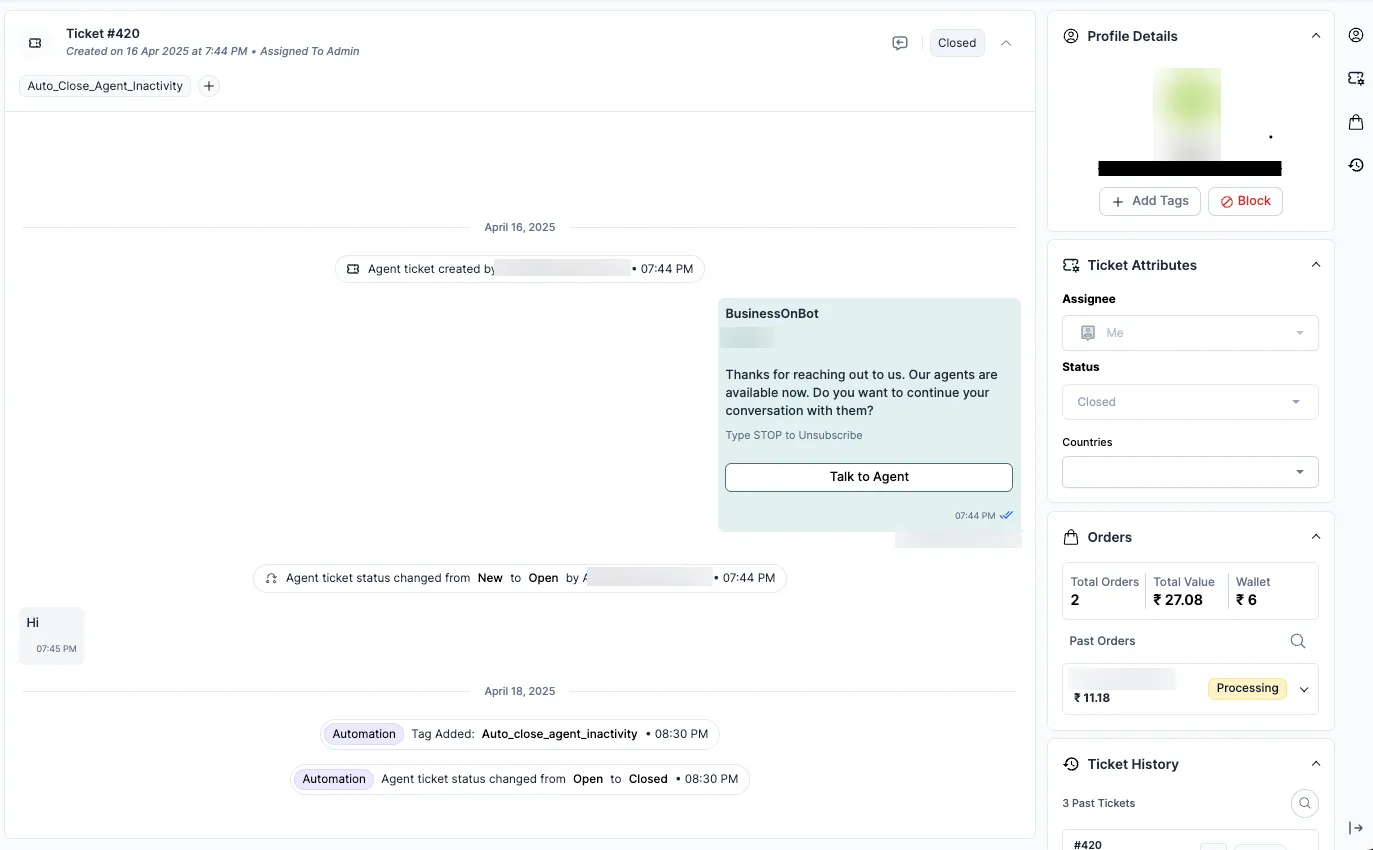
Profile Details
Section titled “Profile Details”Who the customer is, and actions on the contact.
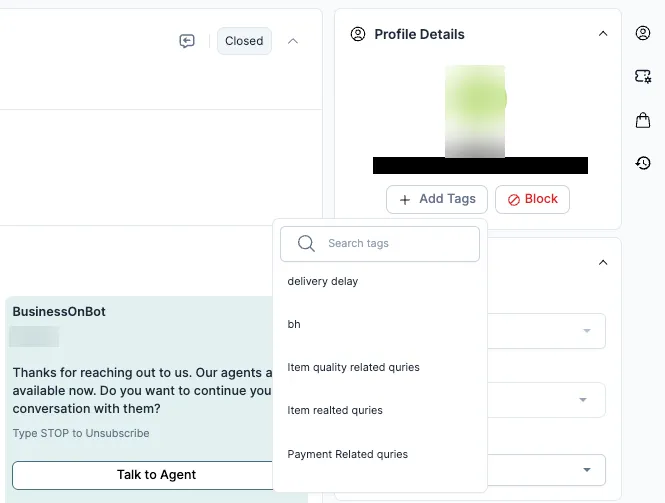
- Customer name: from Shopify, or from earlier conversations.
- Channel ID: depends on where the ticket came from: phone number for WhatsApp, email address for email, handle or user ID for Instagram.
- Tags: add contact tags from your list, for example
VIP_CustomerorReturns_Prone. Contact tags stay on the customer for all future tickets, not just this one. - Block User: stops the customer from starting any new ticket. Use it for spam, abuse or messages that aren’t serious. The block applies for every agent and every session. See Block a customer and view blocked users.
Ticket Attributes
Section titled “Ticket Attributes”Who owns the ticket, its status and its details.
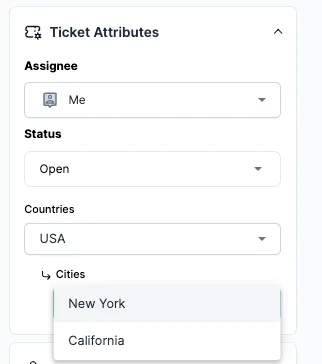
- Assignee: shows whether the ticket is Unassigned, Assigned to Bot or assigned to an agent. Agents and admins can reassign it: from the bot to an agent, from one agent to another, or to themselves.
- Status: shows Open, Pending, Resolved or Closed. Change it as the ticket moves along. Anyone else viewing the ticket sees the change straight away. See Ticket statuses.
- Custom ticket fields: fields your admin sets up, such as a dropdown for Issue Type or a text box for Remarks. They’re saved with the ticket and show up in analytics, exports and filters.
Assisted Sales
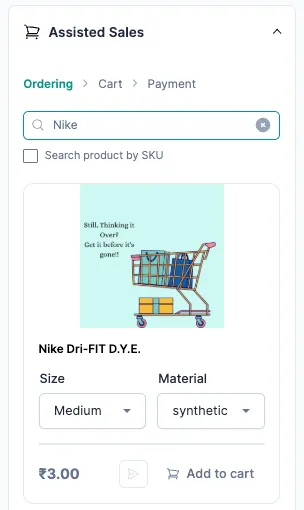
Section titled “Assisted Sales”Help a customer choose and buy on WhatsApp, without leaving the ticket. This works with your Shopify store.
-
Search for products by name, SKU or category. Results show the image, title, price and stock.
-
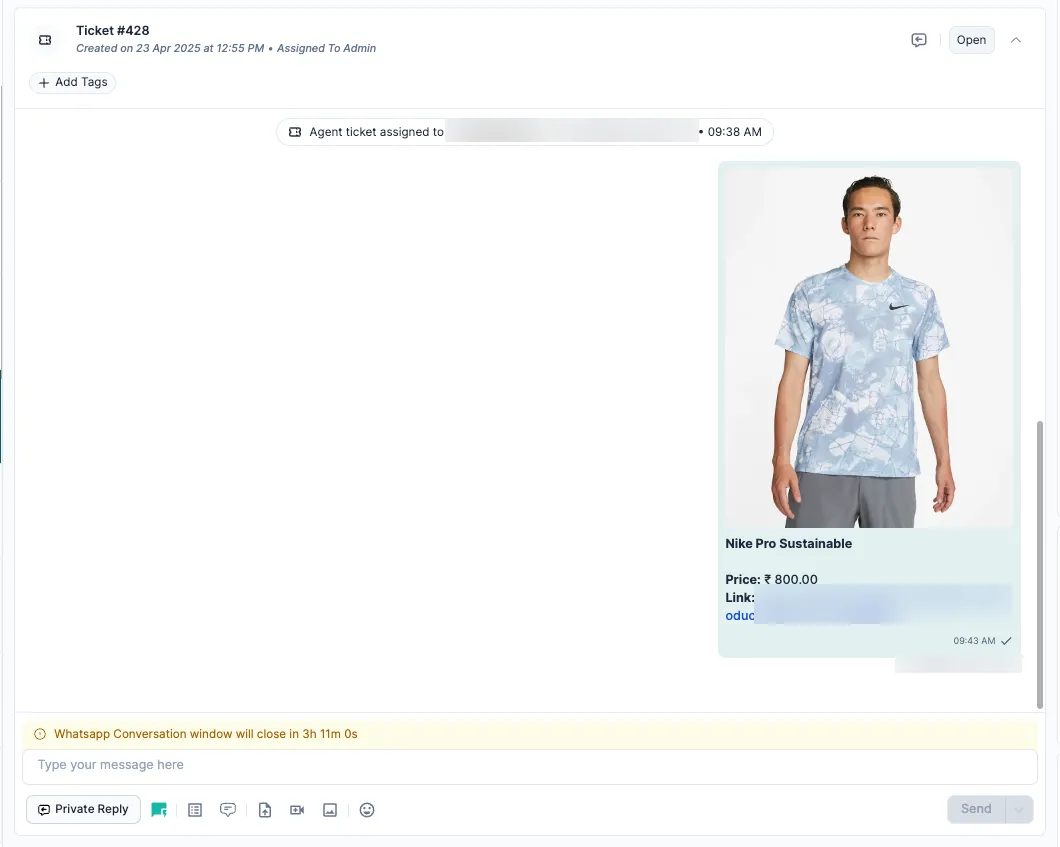
Send a product to the chat. It appears as a product card the customer can open.
-
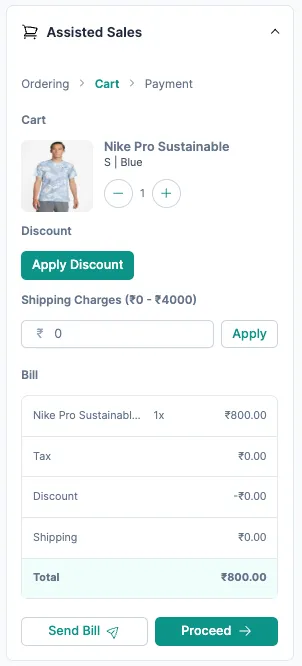
Build a cart with one or more products, choosing the quantity and variant.
-
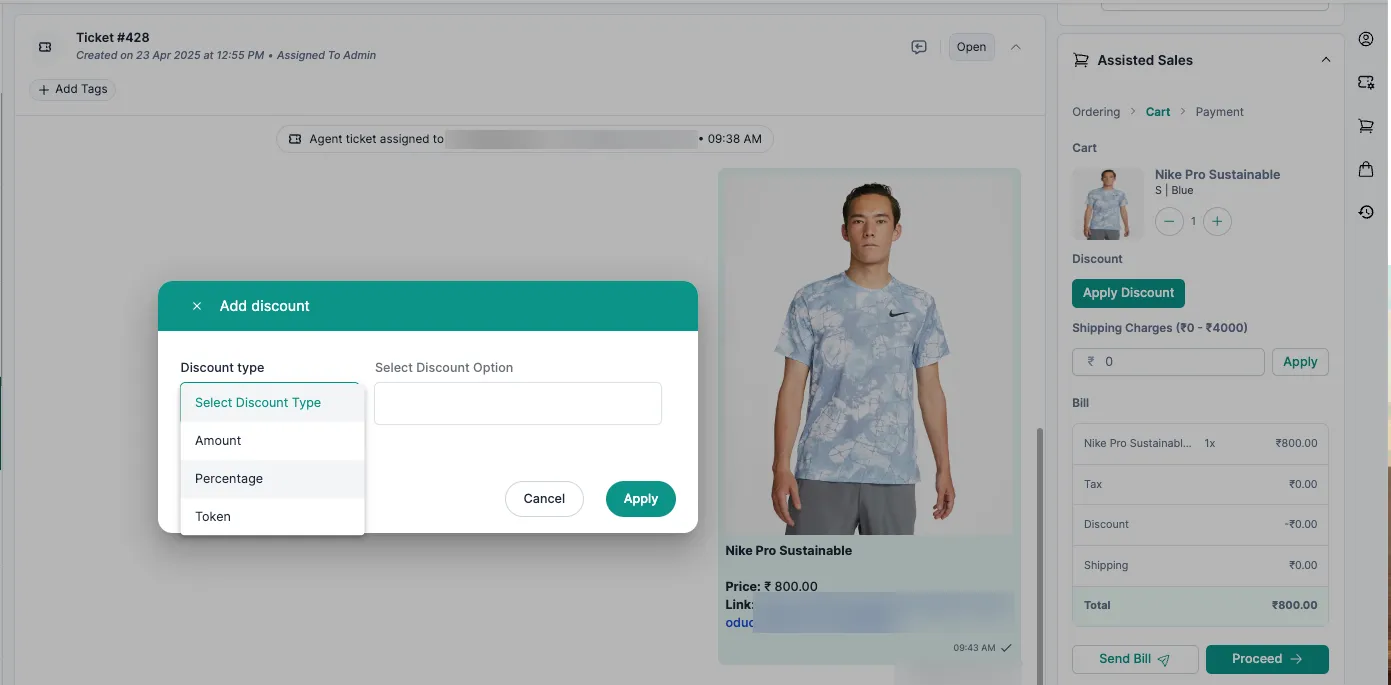
Apply a discount: a promo code, a percentage or a fixed amount. The cart total updates.
-
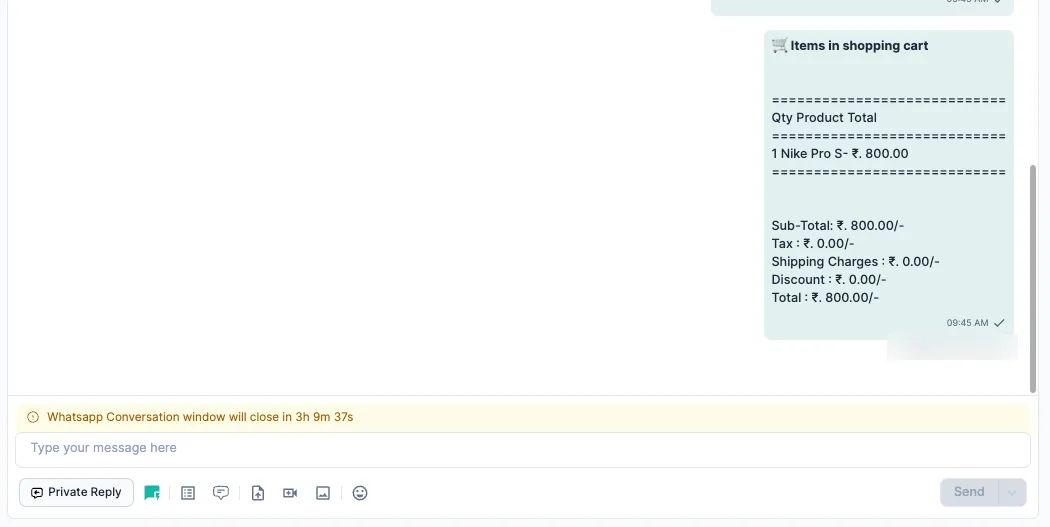
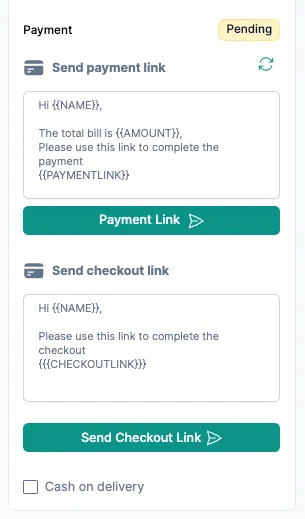
Click Send Bill to send the customer a WhatsApp message with the full cart and total.
-
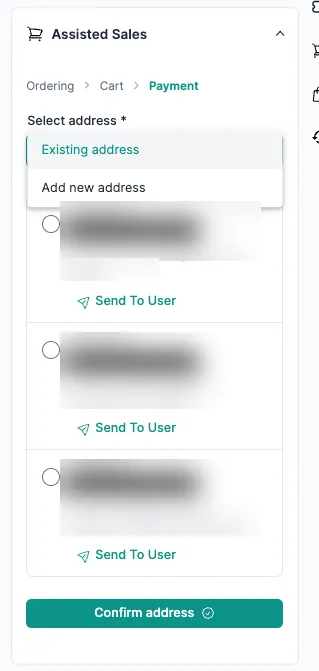
Choose the address from the customer’s saved Shopify addresses, or add a new one.
-
Place the order for the customer once they confirm. The order is created in Shopify and shows in the Orders section.
For a full walkthrough, see Sell on WhatsApp with Assisted Sales.
Orders
Section titled “Orders”The customer’s order history, so you can answer order questions without switching tools.
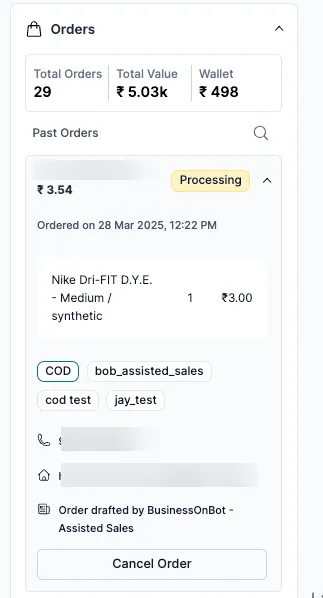
- Summary: total orders, total amount spent, and wallet balance (if your store has a wallet).
- Each order shows: order ID (with a link to Shopify), total, status (for example Delivered, Cancelled or In Transit), products and SKUs, quantities, order tags (for example COD or Returned), the phone number used at checkout, and the shipping address.
- Cancel Order: appears only when the order can still be cancelled. The cancellation updates Shopify straight away.
Ticket History
Section titled “Ticket History”The customer’s past tickets on every channel, so you can pick up where the last agent left off.
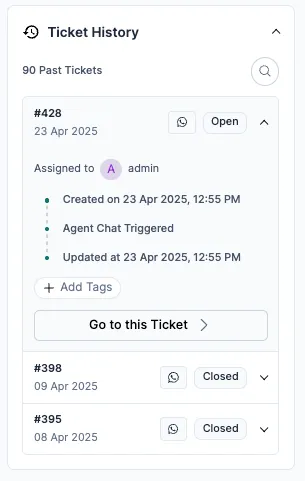
- Search by ticket ID, handy when a customer mentions an old ticket.
- Each ticket shows: ticket ID (click to open it), channel, current status, when it was created, when the customer asked for an agent (if the bot handed over), and when it was last updated.
Why it helps
Section titled “Why it helps”- Replies are faster because everything is on one screen.
- Replies are more personal, which lifts customer satisfaction.
- Assisted Sales turns support chats into sales.
- A new agent can take over a ticket with the full picture.
Related
Section titled “Related”Was this page helpful?
Thanks, this helps us improve this page.
Still stuck? Email support@businessonbot.com