

Send flow responses to a Google Sheet
Google Sheet Integration in a Flow, Google Sheet, flow responses, export flow responsesWhen you finish, every customer response in your flow is added to a Google Sheet in real time. Use it to see where customers drop off and who showed interest.
Prepare the Google Sheet
Section titled “Prepare the Google Sheet”-
Create a new Google Sheet in your browser.
-
Keep the first tab’s original name, Sheet1. Responses are sent to this tab, so don’t rename it.
-
Click Share at the top right.
-
Under General access, choose Anyone with the link, and on the right choose Editor.
-
Copy the sheet link.
Link the sheet to your flow
Section titled “Link the sheet to your flow”-
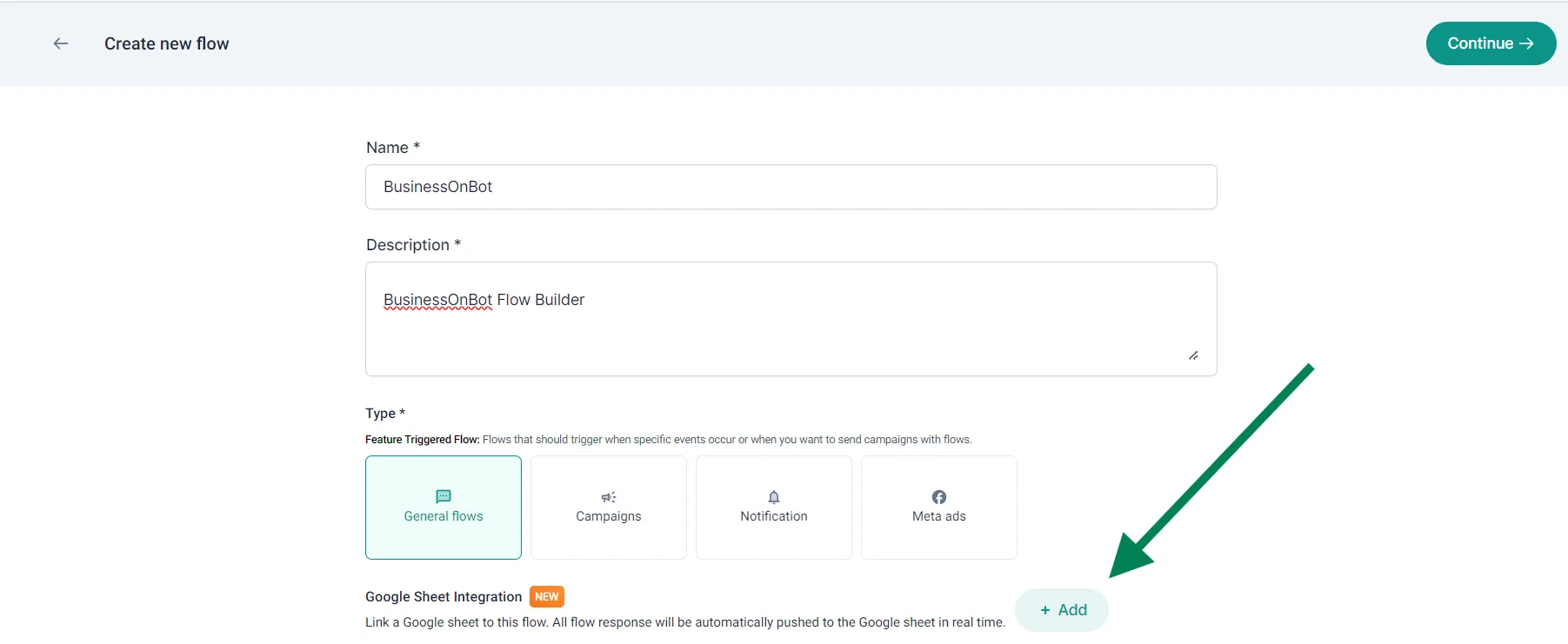
When you create the flow, click + Add next to Google Sheet Integration.
-
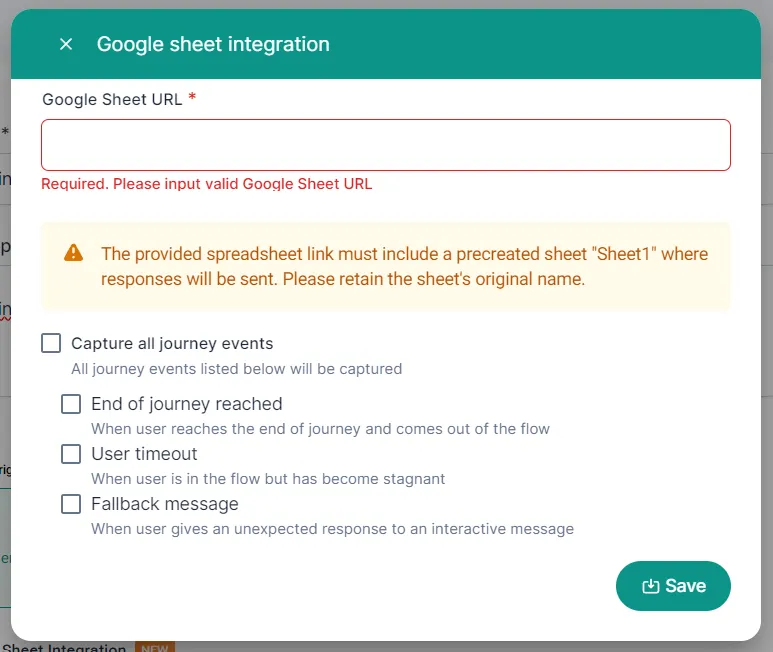
Paste the link into Google Sheet URL.
-
Choose which events to capture, or tick Capture all journey events:
- End of journey reached: the customer reached the end of the flow.
- User timeout: the customer is in the flow but has stopped replying.
- Fallback message: the customer gave an unexpected reply to an interactive message.
-
Click Save.
The sheet records the customer’s number, name and the date, plus the events you chose.
Step-by-step walkthrough
Section titled “Step-by-step walkthrough”Related
Section titled “Related”Was this page helpful?
Thanks, this helps us improve this page.
Still stuck? Email support@businessonbot.com