

Send a follow-up campaign
Overview - Follow up campaigns, follow-up campaign, retarget, retargeting, parent campaignWhen you finish, a follow-up message goes to the customers of an earlier campaign (the parent campaign) who match the conditions you set: for example, everyone it failed to reach, or everyone who got it but didn’t order.
Use follow-ups to remind customers about an offer, nudge cart abandoners, or promote an event to people who already heard from you.
Set up the follow-up
Section titled “Set up the follow-up”-
Go to Campaigns and click Retarget next to the parent campaign.
-
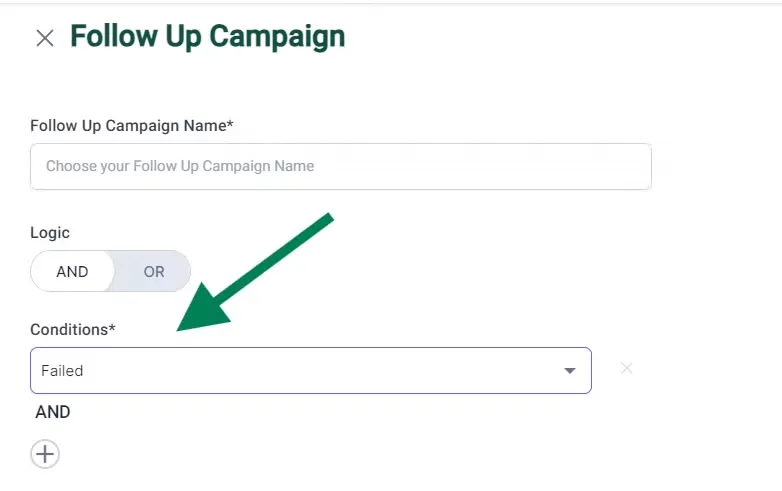
Under Follow Up Campaign Name, enter a name that says what the follow-up is for, for example “Failed Follow Up”.
-
Under Logic, choose AND (customers must match every condition) or OR (customers need to match only one).
-
Under Conditions, pick the conditions from the dropdown, for example Failed. Click + to add more.
-
To skip customers who have already ordered, tick the box to exclude them.
-
Under Choose template, pick Present template to resend the parent campaign’s template, or New template to send a different one.
-
To send later, turn on the Schedule toggle and set the date and time. Leave it off to send right away.
-
Check the preview on the right side of the screen.
-
Click Review and launch to check everything on the campaign page first, or Launch immediately to send it now.
For which conditions and templates to use in common cases, see Follow-up campaign conditions and templates.
What it costs
Section titled “What it costs”- A follow-up sent within 24 hours of the parent campaign is free, because those customers are still in an open conversation.
- After 24 hours, normal charges apply.
- A follow-up to customers who are not in an open conversation, such as those with the Failed condition, is always charged.
Good to know
Section titled “Good to know”-
You can launch as many follow-ups as you like, including follow-ups on other follow-ups.
-
You can’t add new contacts to a follow-up. It only targets customers from the parent campaign.
-
You can schedule several follow-ups. Leave an hour or two between them to avoid errors.
-
To find a scheduled follow-up, open the Scheduled tab, then Follow-Up Campaigns.

-
ROAS often looks very different on follow-ups. You reach many customers inside the free 24-hour window, so your spend is low.
Watch the walkthrough
Section titled “Watch the walkthrough”Related
Section titled “Related”Was this page helpful?
Thanks, this helps us improve this page.
Still stuck? Email support@businessonbot.com