

Add shipping, COD and prepaid charges
Charges, shipping charges, COD charges, cash on delivery charges, prepaid charges, price slabs, delivery chargesWhen you finish, the right shipping, cash on delivery (COD) or prepaid charge is added to the bill automatically when a customer checks out on your WhatsApp store.
Charges are under Bot Configuration → Charges, with three panels: Shipping Charges, COD Charges and Prepaid Charges. Set the same charges you mention on your WhatsApp store.
Set up shipping charges
Section titled “Set up shipping charges”-
Go to Bot Configuration → Charges → Shipping Charges and turn on Enable shipping charges.
-
Under Apply charges only on COD or Prepaid or on all orders?, choose All orders, prepaid orders only or COD orders only.
-
Under All over India, State wise, Pincodes, choose where the charges apply: the same everywhere in India, by state, or by PIN code.
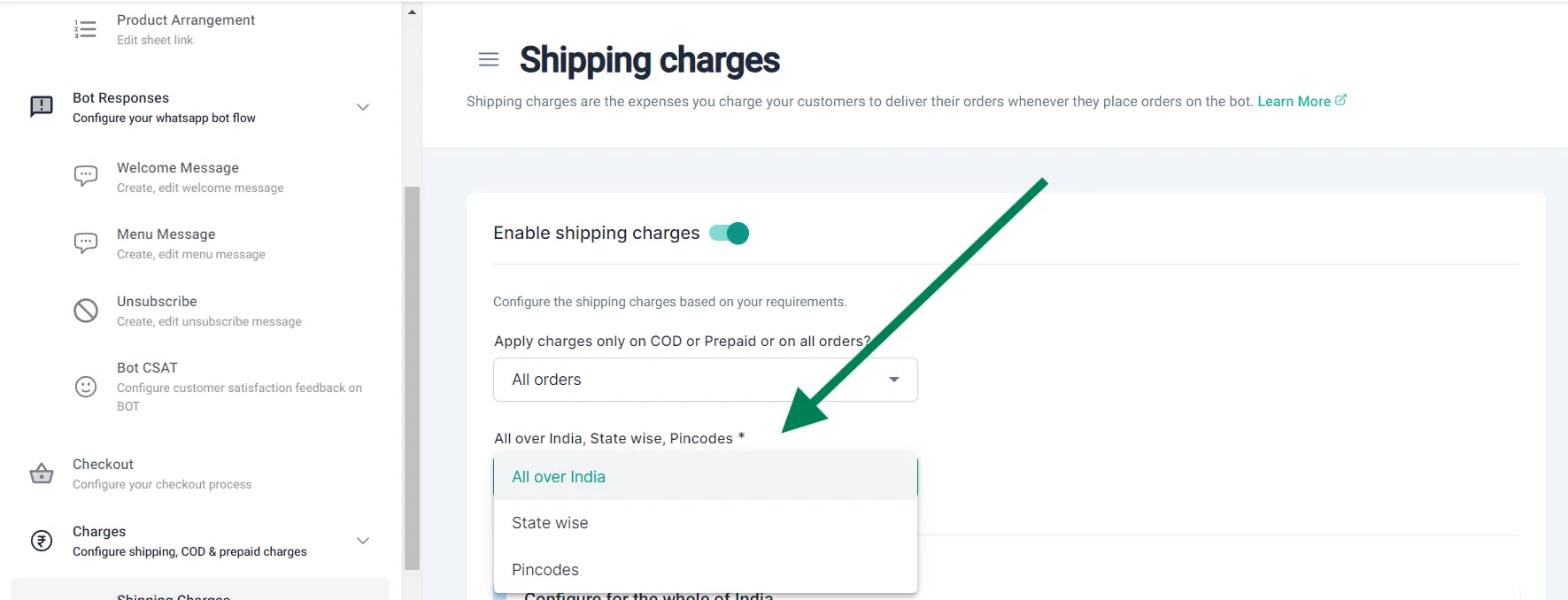
-
Choose the type of charge:
- Flat rate: the same charge whatever the order value.
- Price slabs: a different charge for each range of order value. Choose whether the charge is an amount or a percentage.
-
For price slabs, enter the minimum and maximum order value and the charge for each slab. For example, ₹100 for orders from ₹1 to ₹499. Click + Price slab to add more.
-
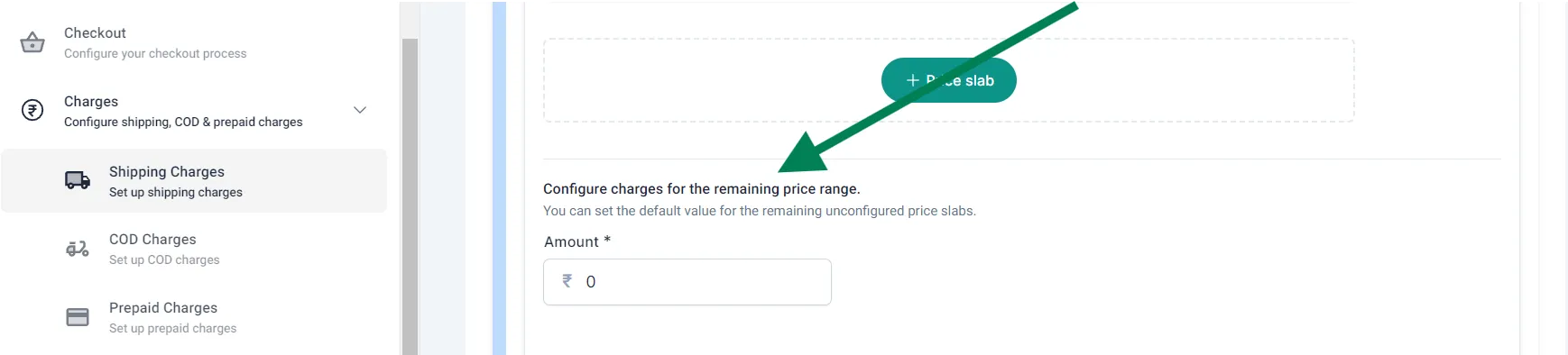
Under Configure charges for the remaining price range, enter the charge for order values outside your slabs. To charge nothing above a certain value (for example, free shipping over ₹1,000), enter
0.
-
Click Save. The charges show on your WhatsApp store straight away.
Set up COD and prepaid charges
Section titled “Set up COD and prepaid charges”- COD Charges apply only to cash on delivery orders.
- Prepaid Charges apply only to orders paid upfront.
Go to Bot Configuration → Charges → COD Charges or Prepaid Charges, and set them up the same way as shipping charges.
You can also use these panels to offer discounts.
Watch the walkthrough
Section titled “Watch the walkthrough”Related
Section titled “Related”Was this page helpful?
Thanks, this helps us improve this page.
Still stuck? Email support@businessonbot.com