

Set up a loyalty points program
Loyalty, loyalty points, reward points, loyalty program, wallet, My PointsWhen you finish, customers earn loyalty points on every order and can redeem them on WhatsApp or your website. Loyalty programs encourage customers to choose your brand over competitors and come back to your store often.
Set the points rules
Section titled “Set the points rules”-
Go to User Acquisition → Loyalty and open the Settings tab.
-
Enter the number of days after which loyalty points expire.
-
Set the loyalty points given per order, as a percentage of the order value. Choose the parameter that suits your brand best.
-
Set the loyalty points discount for WhatsApp and for your website: the maximum number of points a customer can use on each purchase.
-
Click Save.
Set up the messages
Section titled “Set up the messages”For each message, search for one of the pre-approved templates by name, or use your own approved template. You can set up a custom message for any of these cases.
-
Go to the message configuration section.
-
Set up a message for each case:
- after a purchase, telling customers the money that will be added to their wallet,
- when money is added to their wallet as a reward for a purchase,
- after a customer gives feedback through the feedback message,
- when a customer on your WhatsApp store asks to check their balance, for example by typing “My Points”, and
- when a customer with an insufficient balance asks to check it.
-
Click Save.
Manage customers’ points
Section titled “Manage customers’ points”On the Points tab you can check a customer’s balance, add points to one number or many at once, and delete points. Give a reason when you add points, so you can track it later.
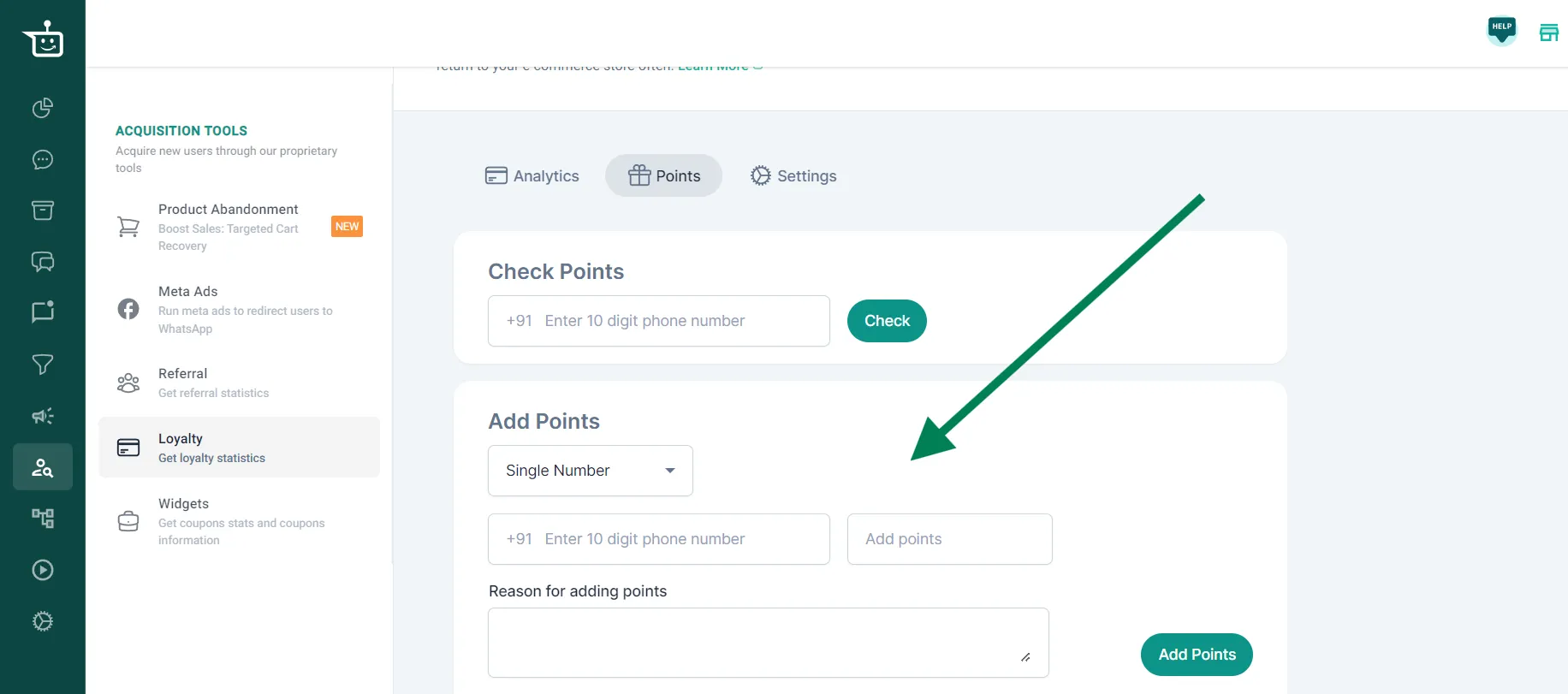
Check the history table at the bottom of the analytics page to see every addition and deduction.
Good to know
Section titled “Good to know”- Review your loyalty customers regularly, and update the program to keep it effective.
- Customers can redeem points at checkout on WhatsApp, or on your website through the rewards widget.
Watch the walkthrough
Section titled “Watch the walkthrough”Related
Section titled “Related”Was this page helpful?
Thanks, this helps us improve this page.
Still stuck? Email support@businessonbot.com