

Add tags to a ticket
Ticket Tags, tag a ticket, How to add tags to chat?, manual tagsTags label a ticket by topic, mood, urgency or workflow, so your team can filter, prioritise and report on conversations. Agents and admins add tags by hand, and the Support Inbox adds some tags automatically.
Add or remove a tag
Section titled “Add or remove a tag”-
Open the ticket and go to the ticket header.
-
Click the Tags field to see the list of tags, or search for one.
-
Select a tag to add it, or deselect it to remove it. Changes save straight away.
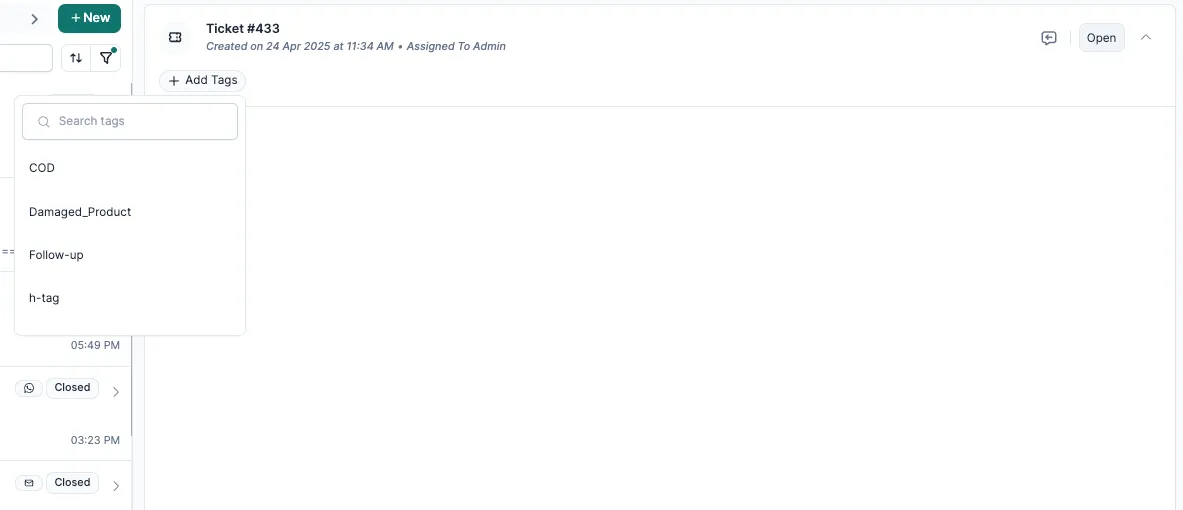
Tags you add show up in every view, filter and analytics dashboard.
Common uses:
- Issue type:
Order_Delay,Payment_Issue,Returns - Mood:
Angry_Customer,Happy_Customer - Escalation:
Urgent,Needs_Manager
To create the tags agents can choose from, see Create and manage custom ticket tags.
Tags the Support Inbox adds for you
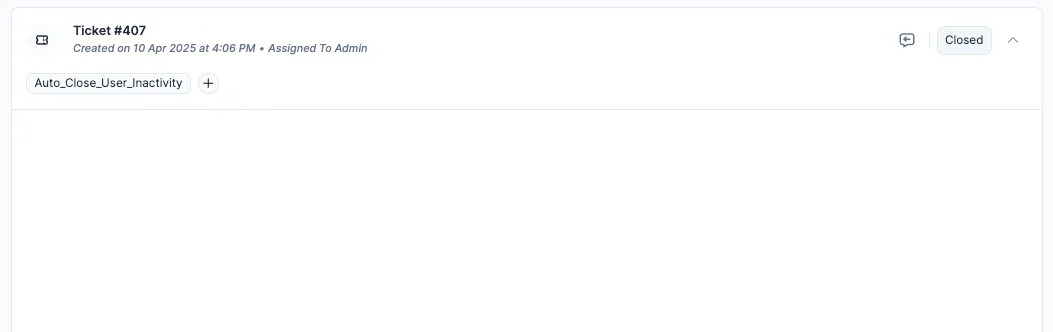
Section titled “Tags the Support Inbox adds for you”System tags are added automatically when something happens on a ticket. For example:
Bot Ticket: the bot is handling the ticket.Agent Reassigned: the ticket was moved from one agent to another.WhatsApp,InstagramorEmail: the channel the ticket came from.Escalated by Bot: the bot handed the ticket to an agent.
You can’t remove or edit system tags, so reports and automations stay consistent.
Why tags matter
Section titled “Why tags matter”- Filter and search tickets quickly.
- Feed analytics and dashboards.
- Drive routing and automation rules.
- Build views for a team or a workflow.
Related
Section titled “Related”Was this page helpful?
Thanks, this helps us improve this page.
Still stuck? Email support@businessonbot.com