

Common questions
FAQ, FAQs, Read all Notifications FAQs, Read all Smart Automation FAQs, notifications FAQ, smart automation FAQHow do I add the product image to my order confirmation message?
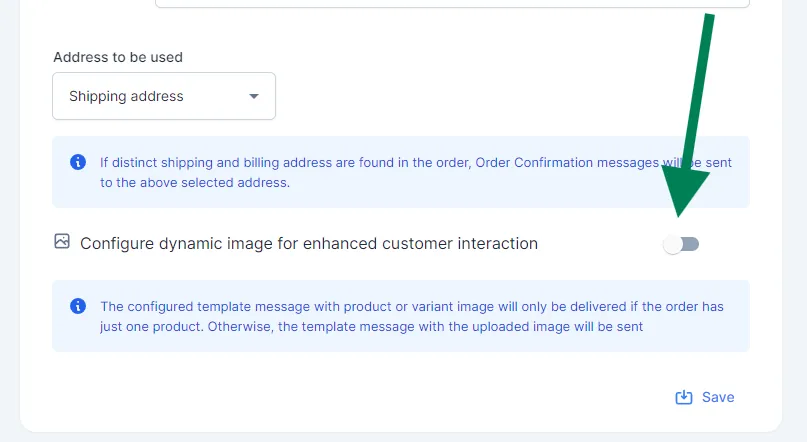
Section titled “How do I add the product image to my order confirmation message?”Go to Notification → Order Confirmation → Settings and turn on Configure dynamic image for enhanced customer interaction. If the order has more than one product, the image you uploaded for the notification is sent instead. See Set up order confirmation messages.
How do I change the text of a notification?
Section titled “How do I change the text of a notification?”Create a new WhatsApp template with the new text and wait for it to be approved. Then open the notification’s Settings, select the new template, map its variables and click Save. See What are WhatsApp templates?
How much do notification messages cost?
Section titled “How much do notification messages cost?”They are charged like any other WhatsApp message, by conversation type: marketing templates and utility templates have different prices. Your prices are in your proposal.
Why aren’t some customers getting my abandoned cart messages?
Section titled “Why aren’t some customers getting my abandoned cart messages?”Usually because of anti-spam limits: for example, a customer gets at most one abandoned cart message in 24 hours, and none in the 24 hours after an order confirmation. The number may also not be on WhatsApp, or the customer may have unsubscribed. See the full list in Set up abandoned cart messages.
How do I add tracking to my order shipped (fulfilment) message?
Section titled “How do I add tracking to my order shipped (fulfilment) message?”On Shopify, BusinessOnBot picks up the tracking details your shipping partner adds to the order. If they aren’t added, ask your shipping partner to add them, then turn on the fulfilment message. WooCommerce and custom stores need an extra step: contact BusinessOnBot support. See Set up order shipped (fulfilment) messages.
What should I include in my order confirmation message?
Section titled “What should I include in my order confirmation message?”We recommend the order ID (Order Id variable), the products ordered (Line Items) and the order total (Amount). The default templates on your dashboard are a good starting point.
Can my messages show the products the customer ordered?
Section titled “Can my messages show the products the customer ordered?”Yes. Add a template variable and map it to Line Items to show the product names.
What is the Constant variable for?
Section titled “What is the Constant variable for?”It lets you put fixed text, a word or a sentence, into a template variable. Every customer sees the same text.
Why do I upload images again when I already added them to the template?
Section titled “Why do I upload images again when I already added them to the template?”The images you add when creating a template are only samples for Meta’s review. The image you upload in the notification settings is the one customers actually receive.
What’s the difference between COD order confirmation and COD confirmation?
Section titled “What’s the difference between COD order confirmation and COD confirmation?”The COD order confirmation tells customers their COD order is confirmed and will ship soon. The COD confirmation message asks them to confirm the order and offers a discount to switch to prepaid. If you set the COD confirmation delay to zero, it is sent instead of the COD order confirmation.
When is the feedback message sent?
Section titled “When is the feedback message sent?”A set number of days after the order is confirmed, fulfilled or delivered, depending on the trigger you choose. We recommend a few days after delivery, so customers have time to try the product. See Collect customer feedback on WhatsApp.
Why is the feedback message sent before the order is delivered?
Section titled “Why is the feedback message sent before the order is delivered?”The number of days in the feedback settings is probably too short. Go to Notification → Feedback → Settings and increase it to match your usual delivery time.
Why does the bot send a random reply when customers tap the reorder button?
Section titled “Why does the bot send a random reply when customers tap the reorder button?”The button probably has no flow, or the wrong flow, assigned. Open the reorder settings, click Edit flow in the mobile preview and assign the right flow. See Set up reorder reminders.
What’s the difference between notifications and smart automations?
Section titled “What’s the difference between notifications and smart automations?”Notifications are ready-made automations with triggers set by BusinessOnBot, such as order confirmation. Smart automations let you choose the trigger, the timing and the audience yourself, and notification events can be one of those triggers.
What’s the difference between a reorder message and a smart automation?
Section titled “What’s the difference between a reorder message and a smart automation?”The reorder message sends customers their exact previous order after the number of days you set. A smart automation is more flexible: it can target customers by notifications, products, widget actions, Meta ads and more.
What can trigger a smart automation?
Section titled “What can trigger a smart automation?”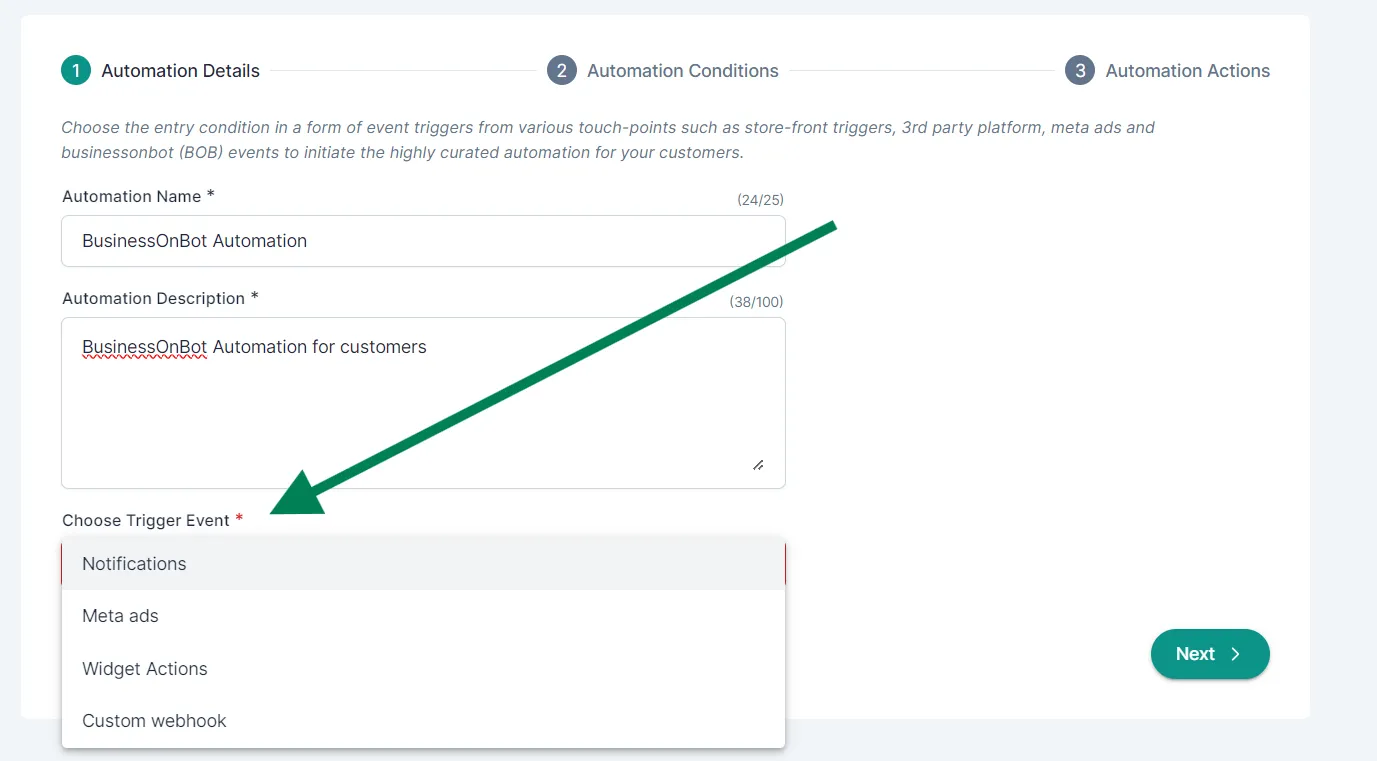
- Notifications: a customer receives one of your BusinessOnBot notifications. See Create a smart automation triggered by a notification.
- Meta ads: a customer reaches your WhatsApp from a Facebook or Instagram ad linked to BusinessOnBot. See Follow up with customers from Meta ads.
- Widget Actions: a customer redeems points in the rewards widget or shares their number in the customer details pop-up. See Message customers who use your website widgets.
- Custom webhook: your own system sends an event. See Trigger a smart automation from your own system.
- ShopPass: if turned on for your account. See Trigger a smart automation from ShopPass events.
Can I send an automation 100 days after an event?
Section titled “Can I send an automation 100 days after an event?”Yes. You can schedule a smart automation up to 365 days after the event. For help, contact BusinessOnBot support.
How do I target customers who bought a certain product?
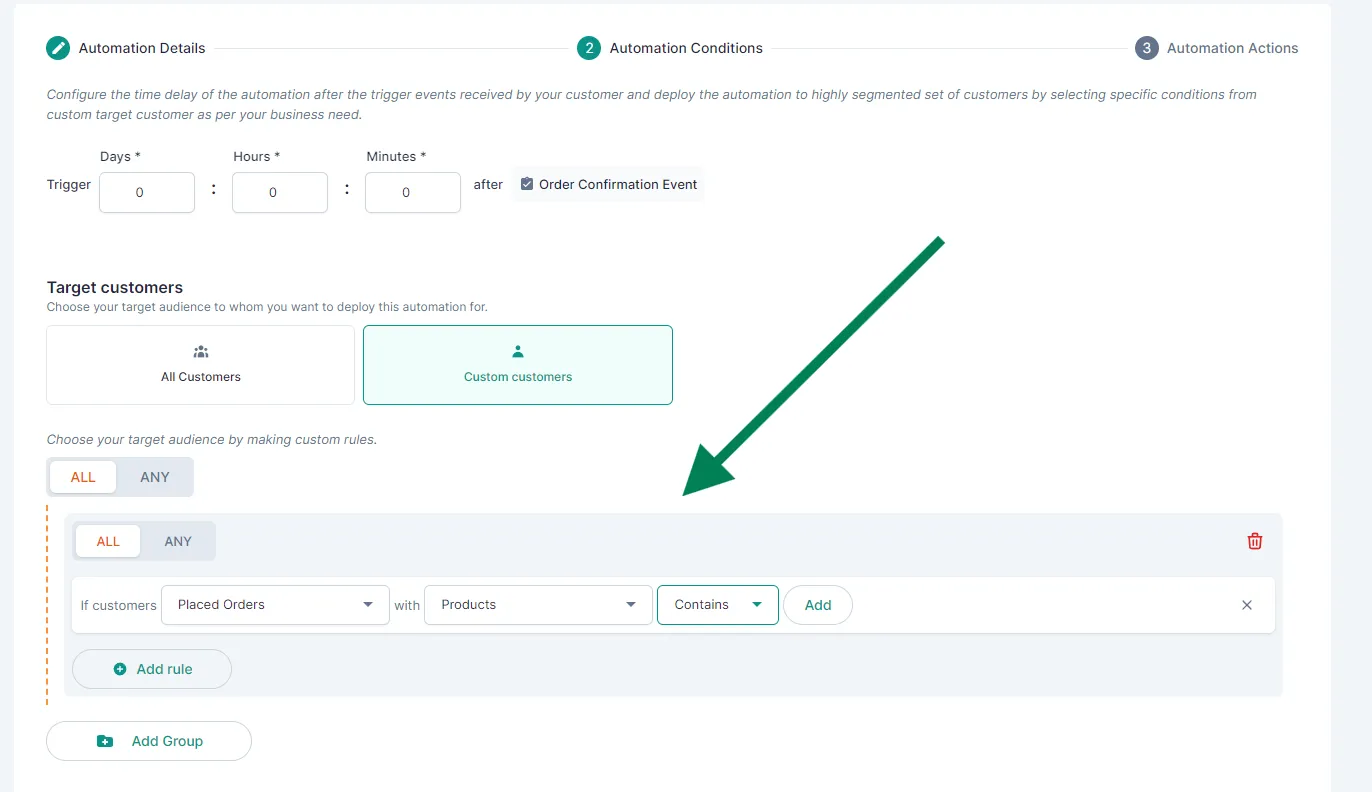
Section titled “How do I target customers who bought a certain product?”Under Target customers, choose Custom customers and add the rule: if customers Placed Orders with Products Contains, then click Add and pick the product.
What’s the difference between Add rule and Add Group?
Section titled “What’s the difference between Add rule and Add Group?”Add rule adds another condition inside the same group. Add Group adds a new set of rules, so you can combine different customer groups in one smart automation.
Can I target a segment I made in User Segmentation?
Section titled “Can I target a segment I made in User Segmentation?”Not yet. Smart automations can’t use segments from User Segmentation directly.
Will my smart automation reach older customers?
Section titled “Will my smart automation reach older customers?”Yes, if your past customer data has been backfilled first. Backfilling covers up to the last two months.
Can smart automations retarget customers?
Section titled “Can smart automations retarget customers?”Yes. You can retarget customers based on many triggers, for example a Meta ad, an abandoned cart or an order. For ideas, see Re-target your website visitors.
What is an exit condition?
Section titled “What is an exit condition?”A way to leave some customers out of a smart automation. For example, when retargeting customers who abandoned a cart in the last 10 days, you can exclude anyone who has ordered since. See Exclude customers with exit conditions.
Where do I find the webhook URL for a custom webhook automation?
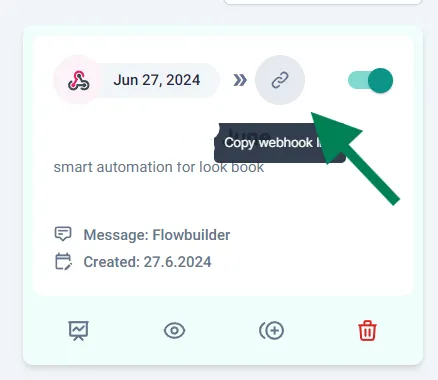
Section titled “Where do I find the webhook URL for a custom webhook automation?”On the Smart Automation page, click the link icon (Copy webhook link) on the automation’s card.
My custom webhook automation shows no analytics. Why?
Section titled “My custom webhook automation shows no analytics. Why?”The webhook is probably not set up correctly, so no events reach BusinessOnBot. Check that the webhook URL is right and that the payload matches the format shown when you created the automation. Adding logging on your side makes this easier to debug. See Trigger a smart automation from your own system.
My smart automation isn’t capturing any events. What do I do?
Section titled “My smart automation isn’t capturing any events. What do I do?”The conditions may not be set up correctly. Contact BusinessOnBot support and we’ll help you check them.
Was this page helpful?
Thanks, this helps us improve this page.
Still stuck? Email support@businessonbot.com