

Message visitors who leave your website without buying (product abandonment)
Product Abandonment, browse abandonment, product page abandonment, website drop-off, home page drop off, product page drop off, cart page drop off, retargeting website visitorsWhen you finish, visitors who leave your website without buying get a WhatsApp message that brings them back to the page they left.
Product abandonment works on drop-offs while people browse your website. It is different from abandoned cart messages, which you send to customers who reached checkout and left their details.
Types of drop-off
Section titled “Types of drop-off”| Drop-off | When it happens |
|---|---|
| Home page drop-off | A visitor opens your home page and leaves without buying. |
| Product page drop-off | A visitor opens a product page and leaves without buying that product. |
| Cart page drop-off | A visitor opens the cart page and leaves without giving their details (name, phone number or email). |
Turn on product abandonment in Shopify
Section titled “Turn on product abandonment in Shopify”-
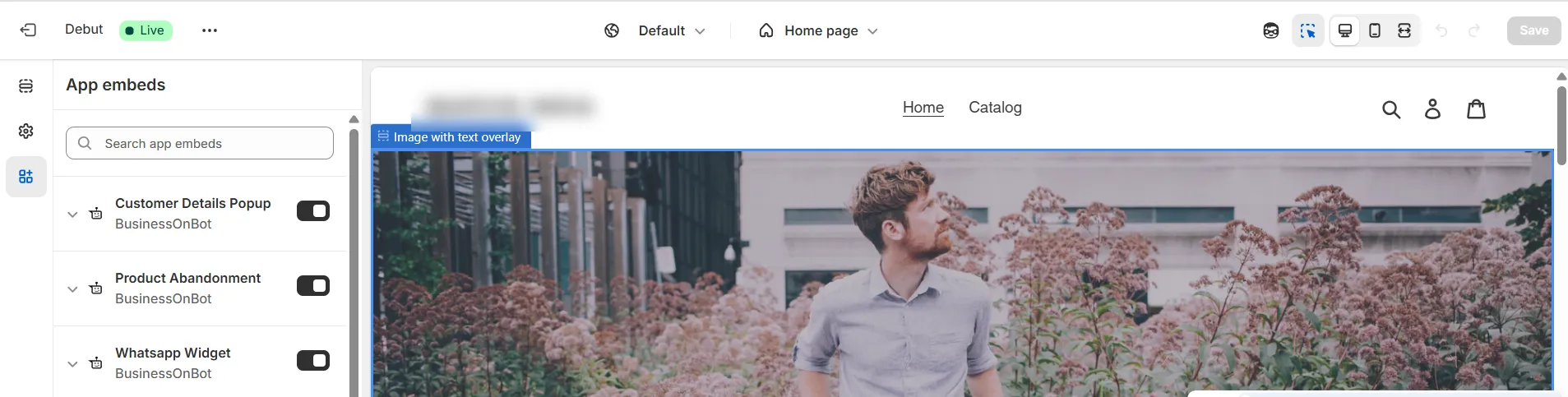
In your Shopify theme editor, open App embeds.
-
Turn on Product Abandonment (by BusinessOnBot).
-
Click Save.
Set up the messages
Section titled “Set up the messages”-
Go to User Acquisition → Product Abandonment. The page shows the total users acquired and total revenue from product abandonment, and the orders and revenue for each drop-off type. Filter by time frame or a custom date range on the right.
-
Click Configure. On this page you can set a message for each drop-off type, and turn each one on or off.
-
For the drop-off you want, for example the home page drop-off, click Edit message. A smart automation opens with step one already filled in.
-
Set the delay in days, hours and minutes after the drop-off before the message is sent. Click Next.
-
The message type is set to Template and can’t be changed. Choose the template to send, for example the default homepage product abandonment template.
-
Map the template’s body and button variables. For a button that should open your website, choose Website URL. Product page and cart page drop-offs have their own variables for the product page URL and cart page URL.
-
Check the exit condition. By default, customers who placed an order in the last day are excluded. Add more exit conditions if you need them. See Exclude customers with exit conditions.
-
Set the expiry. To stop the automation at a set time, choose Custom date and pick the date and time.
-
Click Deploy automation.
-
Repeat for the product page and cart page drop-offs.
Track results
Section titled “Track results”Each drop-off message is a smart automation. Go to Smart Automation → automation analytics, and click Analytics on the automation to see its details. See Smart automation analytics.
Good to know
Section titled “Good to know”- Product abandonment uses fixed, built-in triggers from your website. A smart automation lets you choose from more triggers and customize them.
- If a visitor leaves without sharing their details, BusinessOnBot tries to match their phone number from browser data, or from a past order with your brand or a partner brand. To collect more numbers, add a customer details pop-up to your website.
Watch the walkthrough
Section titled “Watch the walkthrough”Related
Section titled “Related”Was this page helpful?
Thanks, this helps us improve this page.
Still stuck? Email support@businessonbot.com