

Flows and how to create one
Overview of Flows, How to create a flow, Flow Builder, custom flow, custom journey, trigger phrase, Agent ChatA flow is a journey your WhatsApp bot takes a customer through: the messages it sends, the choices it offers and what happens at the end.
Premade and custom flows
Section titled “Premade and custom flows”There are two kinds of flows:
-
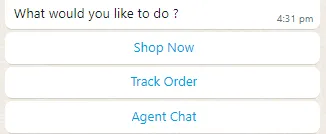
Premade flows are built in. The bot already understands phrases like Shop Now, Track Order and Agent Chat and starts the right journey.
-
Custom flows are journeys you build yourself in the flow builder, for anything the bot is not trained to understand. For example:
- a customer support flow that answers frequently asked questions (FAQ flow)
- a commerce flow that shows your bestsellers
There are four types of custom flow (general, campaign, notification and Meta ad). They differ only in what starts them. See Types of flows.
How trigger phrases work
Section titled “How trigger phrases work”A trigger phrase is a word or sentence that starts a general flow when a customer types it. For example, Shop Now starts the shopping journey.
-
You can add as many trigger phrases as you need.
-
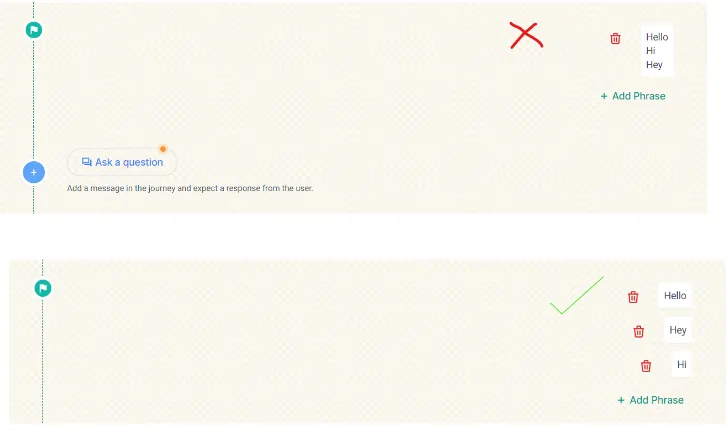
Phrases must match exactly. The flow starts only when the customer types the exact word or phrase, so add every variation customers are likely to use.
-
Add each phrase in its own box with Add Phrase. Several phrases in one box will not work.
Create a custom flow
Section titled “Create a custom flow”This example builds a general flow that answers frequently asked questions.
-
In the flow builder, click the create flow button at the top right.
-
Enter a Name and Description. These are only for you, to tell your flows apart.
-
Choose the Type. For an FAQ flow, choose General flows, because it starts from trigger phrases.
-
Optionally, link a Google Sheet to capture every response in real time. See Send flow responses to a Google Sheet.
-
Click Continue.
-
Add a trigger phrase, for example
FAQs. Add more phrases if you need them. -
Click Ask a question and choose a message type. For example, add a simple message such as “Hey customer name, thanks for reaching out to us”. See Types of messages in a flow.
-
Add another message below it so the customer gets both, one after the other. To collect the customer’s choice, use a list interactive message: add a header (for example your brand name), a body (for example “Please choose one option from below”), a button name (for example “Click here”), a section name and up to 10 rows. Save the message.
-
For each row or button, choose what happens next:
- To ask for more input, choose to continue with a question and add another message.
- To finish, choose End journey and pick an action, for example transfer to bot with a simple message such as “This is the answer to your query”. See End journey actions.
If the message has buttons or list rows, set the end journey for every row separately.
-
Add a fallback message for when customers type something the flow does not expect. See Fallback action.
-
Deploy the flow.
-
Test it: type the trigger phrase to your brand’s WhatsApp number and check the journey.
To let customers start the flow with a button, add a button for it to your welcome message. See Customize the welcome, menu and unsubscribe messages.
Watch the walkthrough
Section titled “Watch the walkthrough”Related
Section titled “Related”Was this page helpful?
Thanks, this helps us improve this page.
Still stuck? Email support@businessonbot.com