

Show more products in one message with carousel campaigns
Campaigns using Carousel template, carousel, carousel template, product cardsGoal: sell more from a single campaign message by showing several products, each on its own card with its own button.
Who it’s for
Section titled “Who it’s for”Brands that send WhatsApp campaigns from BusinessOnBot and want to feature more than one product per message.
Why carousels
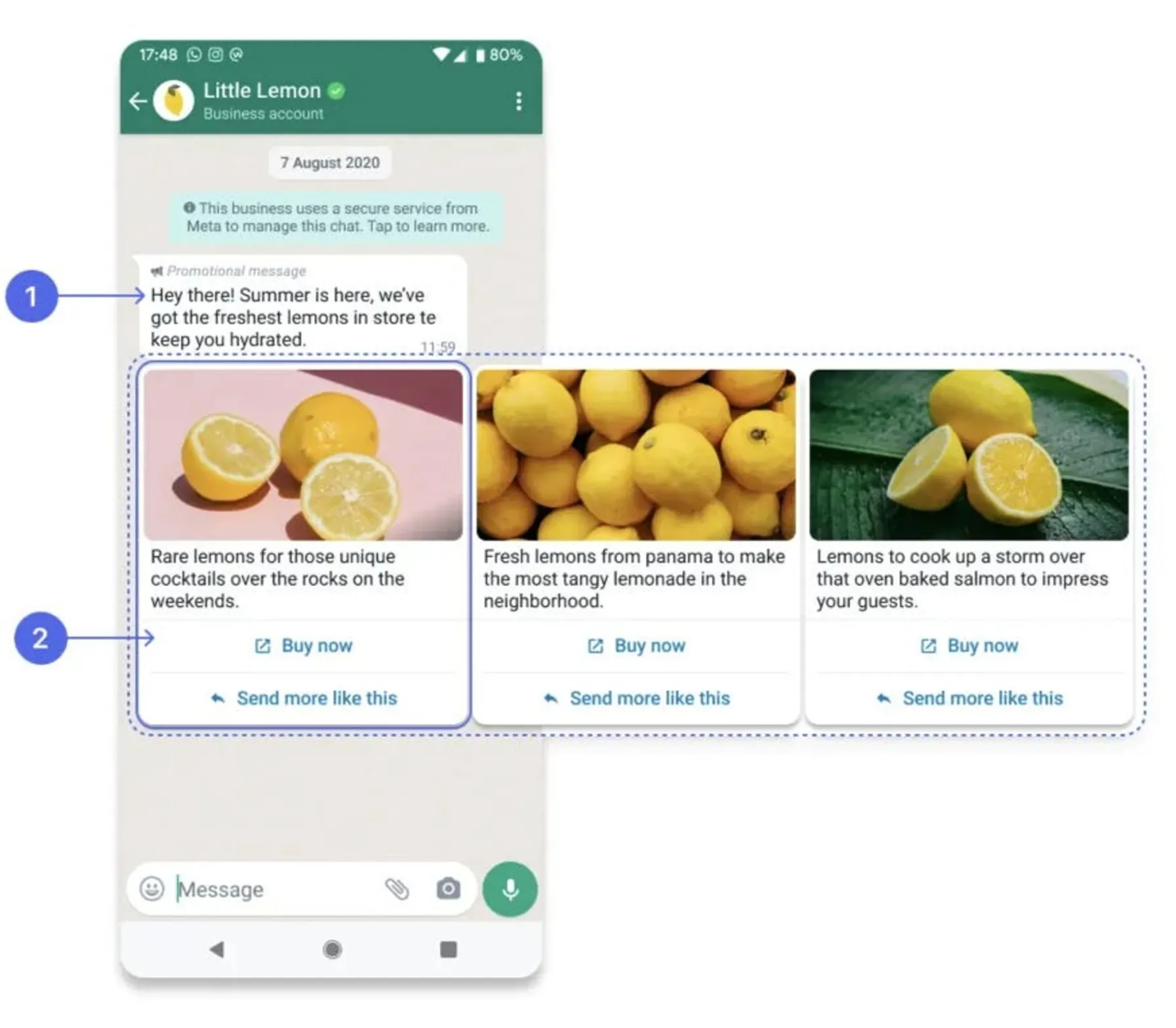
Section titled “Why carousels”Carousel templates send a row of swipeable cards, each with an image, a title, a description and a call-to-action button. Use them to highlight features, show your catalogue or announce a sale.
| Standard template | Carousel template | |
|---|---|---|
| Best for | Single announcements with little content | Campaigns that show several products or services |
| Flexibility | One message per product or service | Each card can feature a different product with its own call to action |
| Experience | Can feel cluttered with several products | Streamlined and visual |
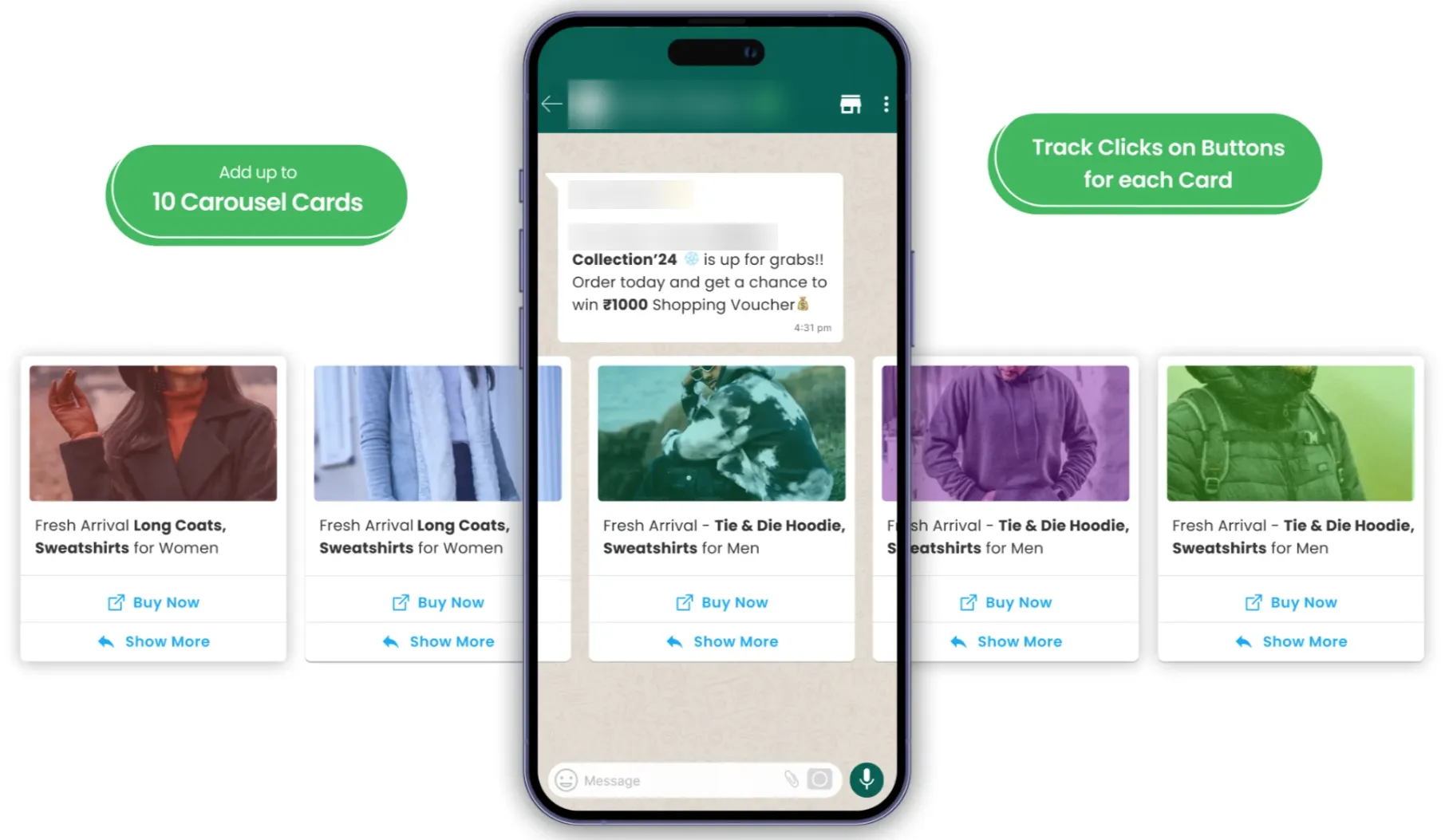
- Show more, sell more: promote up to 10 products in one message.
- Same cost: carousel templates cost the same as standard templates.
- Better return: more products per message means more chances that customers find something they like.
The recipe
Section titled “The recipe”1. Launch a new product
Section titled “1. Launch a new product”- Show the product’s USPs and benefits with relevant images.
- Use each card for a different feature of the product.
- Target segment: all customers who have ordered before.
2. Showcase your bestsellers
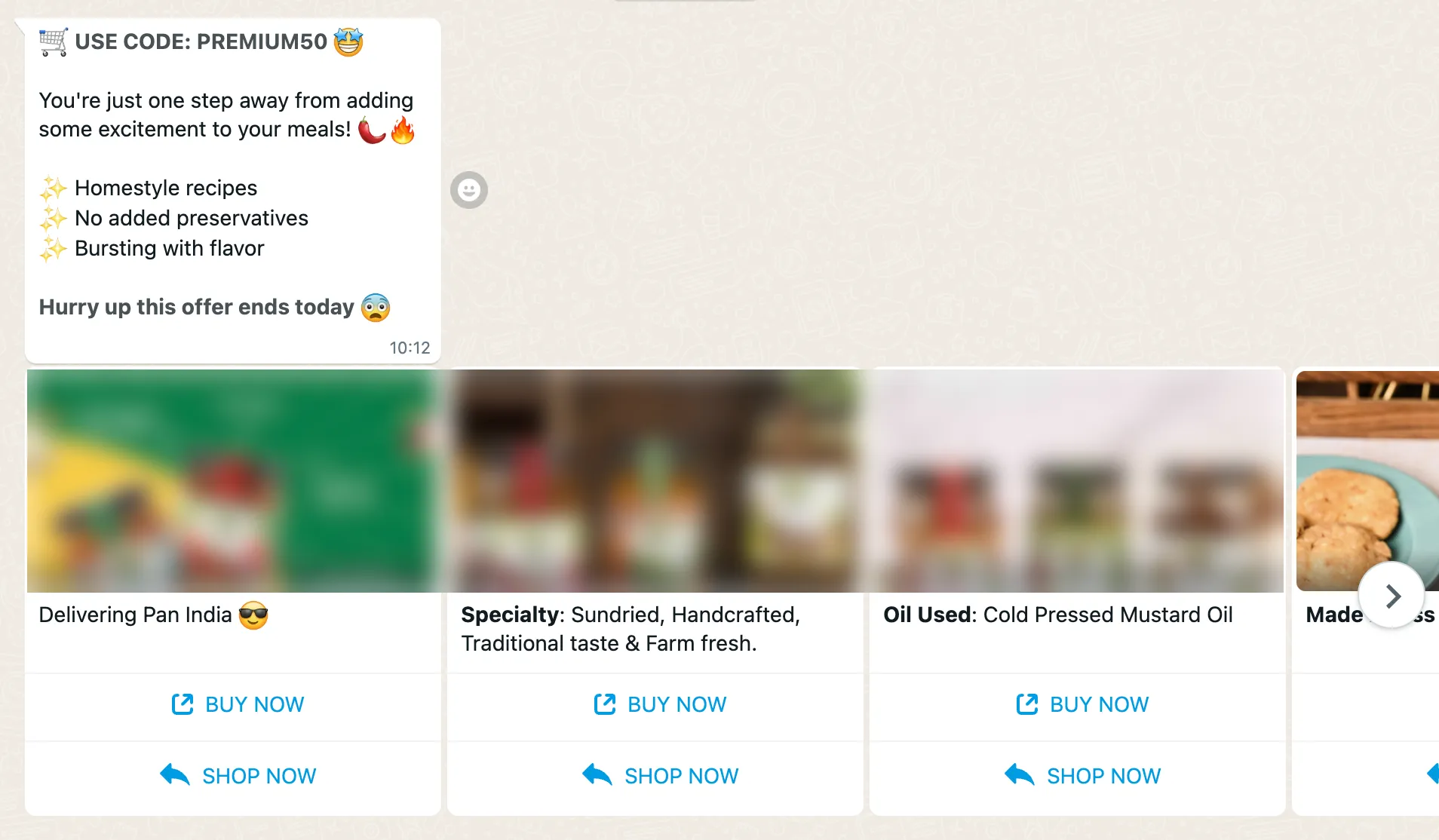
Section titled “2. Showcase your bestsellers”- Show all your bestsellers with their prices.
- Pair it with a payday sale, weekend sale or happy hour sale. See Ready-to-use WhatsApp campaign ideas.
- Target segment: dormant customers who haven’t ordered in the last 2–3 months, and customers who bought similar products.
3. Win back cart abandoners
Section titled “3. Win back cart abandoners”- Show the products most often abandoned in carts and nudge customers to buy.
- Launch it around an occasion or event.
- Target segment: customers who abandoned their cart, or abandoned specific products.
Set it up: create a carousel template and launch it to cart abandoners
Section titled “Set it up: create a carousel template and launch it to cart abandoners”Create the template
- Go to WhatsApp Templates and click Carousel.
- Write the message bubble, then create your cards.
- For each card, choose the media type and enter text. For cart abandoners, include a coupon code to encourage them to buy.
- Click Add Button and choose Call to action.
- Click Visit website, choose Static and paste the product URL in Website URL.
- Repeat for the other cards.
- Click Add Sample, then click Submit.
Create the segment
- Once the template is approved, go to User Segmentation and click Create Segment.
- Enter the segment name and description, then add a rule under Include.
- Under Category, select Abandoned Carts.
- Select the filter Abandoned a product and did not convert.
- Under Constraint Type, click Equal To.
- Click Add Products and choose the products you want to target.
- Click the calendar icon and select the dates.
- Click Check Count, then click Create Segment.
Run the campaign
- Click Run Campaign under the segment you just created.
- After step 1, click the Choose Template field and choose your carousel template. Upload the media and variables again.
- After step 3, click Validate in step 4.
- Test the campaign in step 5, then launch it in step 6.
What brands have seen
Section titled “What brands have seen”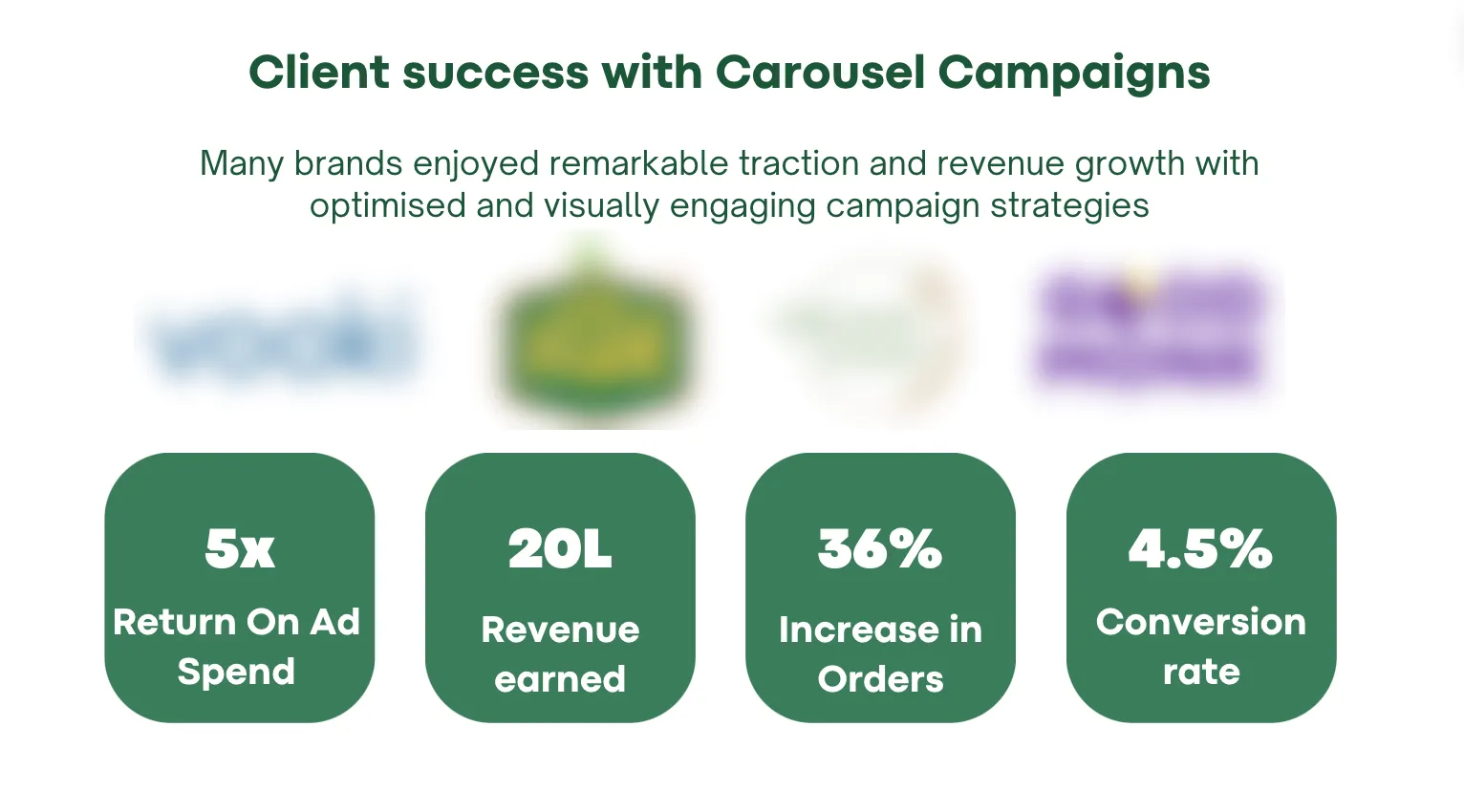
Related
Section titled “Related”Was this page helpful?
Thanks, this helps us improve this page.
Still stuck? Email support@businessonbot.com