

Get more orders through your WhatsApp bot
Optimizing WhatsApp to Increase Bot Orders, bot orders, WhatsApp store, shop by concern, checkout conversion on WhatsAppGoal: turn more WhatsApp conversations into orders placed with your bot, by showing each shopper products that fit their needs and letting them buy without leaving WhatsApp.
Who it’s for
Section titled “Who it’s for”Brands with a BusinessOnBot WhatsApp store, using Flow Builder and the abandoned cart notification.
The recipe
Section titled “The recipe”1. Build a “Shop by Concern” flow
Section titled “1. Build a “Shop by Concern” flow”- Let customers pick their concern: design a flow where customers choose their need (for example skin type or hair problem) and see products that match it.
- Use interactive buttons: for example, a customer taps Oily Skin and gets a curated list of products for oily skin.
- Keep it current: update recommendations based on what’s in stock and what customers prefer.
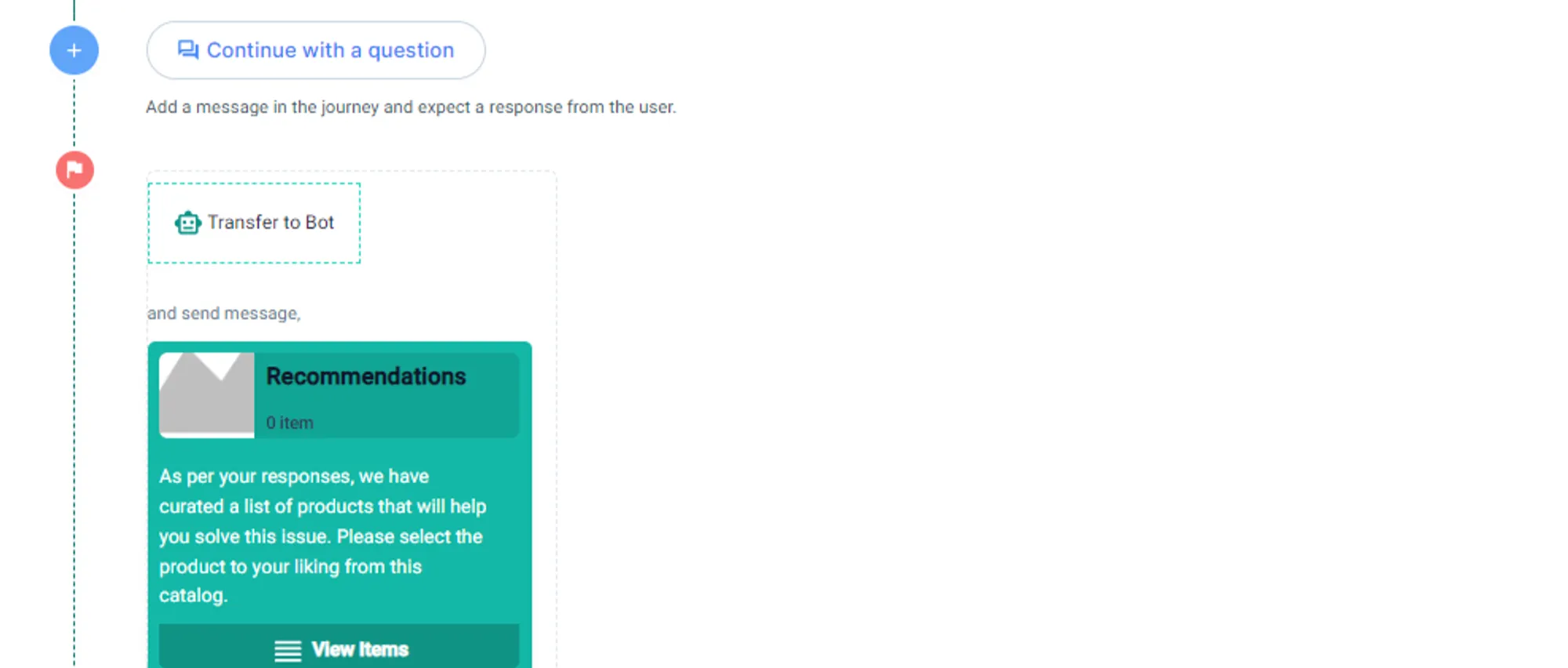
To send products from a flow, use the Send product recommendations option and choose products from your catalogue. See Overview of flows and End journey actions.
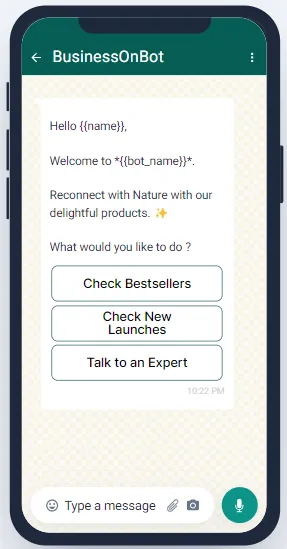
2. Add Bestsellers and New Launches buttons to your welcome message
Section titled “2. Add Bestsellers and New Launches buttons to your welcome message”Buttons that show your bestsellers and new launches encourage purchases, by showing products other customers love or new items shoppers may like. To change the welcome message, go to Bot configuration → Bot Responses → Welcome Message. See Bot responses.
3. Let customers choose WhatsApp or your website
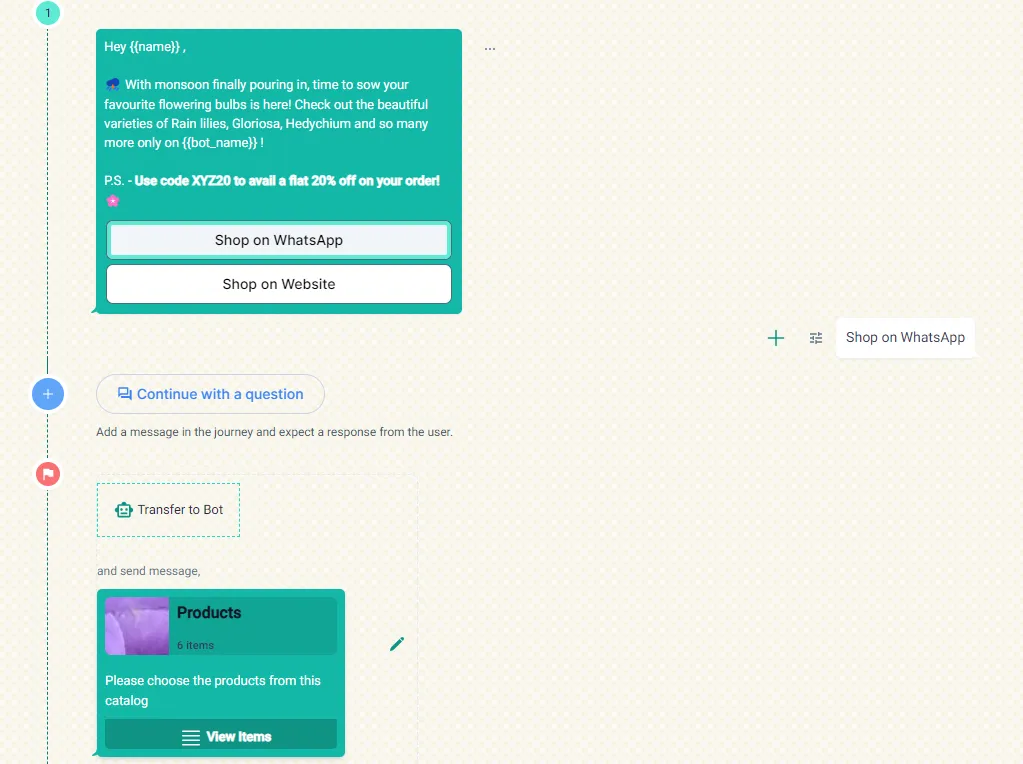
Section titled “3. Let customers choose WhatsApp or your website”When you launch a campaign, handle it with a flow that offers two buttons: Shop on WhatsApp and Shop on Website. Customers buy on the channel they prefer.
4. Complete abandoned checkouts on WhatsApp
Section titled “4. Complete abandoned checkouts on WhatsApp”Customers who reach checkout and drop off have already chosen their products and given their delivery address. The abandoned cart notification can let them finish the purchase on WhatsApp itself.
- Go to Notifications → Abandoned Cart → Settings.
- Scroll down and choose Checkout Conversion on WhatsApp.
- Click Save.

See Set up abandoned cart messages.
Related
Section titled “Related”- Recommend products customers actually want
- Recover drop-offs in your WhatsApp store with bot reminders
- Overview of flows
- Chatbot & Flow Builder: common questions (including why a flow is not triggered)
Was this page helpful?
Thanks, this helps us improve this page.
Still stuck? Email support@businessonbot.com