

Get more from order shipped messages
Optimize notifications - Fulfillment, order fulfilment, order shipped, fulfillmentGoal: turn the “your order is on its way” message into a better experience: richer content, fewer support tickets, and a nudge towards the next order.
Who it’s for
Section titled “Who it’s for”Brands using the BusinessOnBot Order Fulfilment notification. It goes out when an order is marked Fulfilled in Shopify or WooCommerce.
The recipe
Section titled “The recipe”1. Make the message about this order
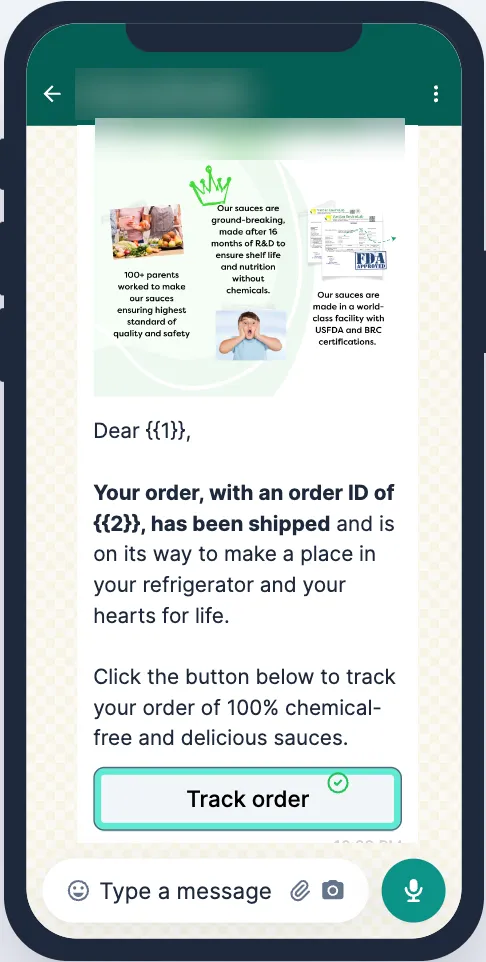
Section titled “1. Make the message about this order”- Add an image to the template to make the message more engaging.
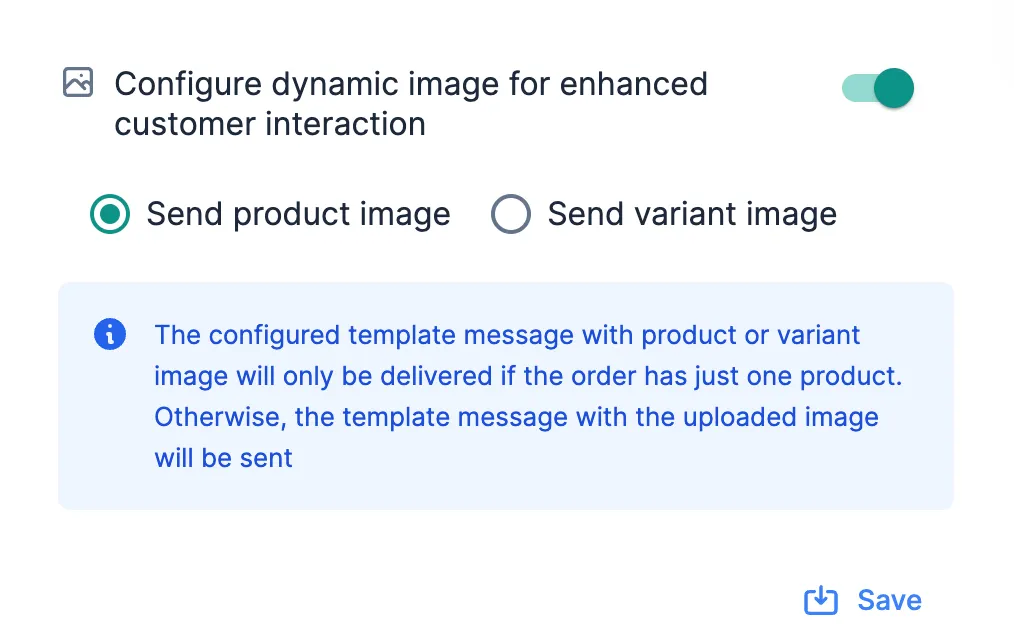
- Use dynamic images. If the customer ordered a single product, the message shows that product or variant image. If they bought several products, it shows your default image.
2. Let customers ask about their order
Section titled “2. Let customers ask about their order”Many customers have questions about tracking and delivery.
- Add an I have a query button that lists your most common questions and answers. See Answer common questions with an FAQ flow.
- Add a Talk to Agent button so customers can reach your support team directly. Their chats arrive in the Support Inbox.
3. Show bestsellers and drive orders on WhatsApp
Section titled “3. Show bestsellers and drive orders on WhatsApp”Customers who just ordered already trust your brand, so this is a good moment to introduce your WhatsApp store.
- Show New Arrivals or Best Sellers directly on WhatsApp.
- Give a WhatsApp-only offer to nudge a repeat purchase.
Set up the message in Set up order shipped (fulfilment) messages.
Related
Section titled “Related”Was this page helpful?
Thanks, this helps us improve this page.
Still stuck? Email support@businessonbot.com